GetResponse’s AI email generator creates newsletter content, and the platform also offers an AI writing assistant and an AI subject line generator. GetResponse’s AI product recommendations added about $7,000 worth of products to carts within one month in 2026. If you need to make marketing emails with less manual writing, these tools give you several ways to start. The right choice depends on your audience, campaign, and the kind of draft you need.
You will see what information shapes a draft, how to edit it, and which related marketing tools may fit your work. You will also find plan details to help you compare available features. A generated message still needs your judgment, since your business knows its customers best. You can use the generator as a starting point for marketing content that still reflects your audience and business.
Key Takeaways
- The generator creates newsletter drafts with copy and a layout.
- The AI writing assistant helps with other email text.
- The AI subject line generator suggests several possible subject lines.
- You can adjust drafts in the email editor before sending.
- AI product recommendations are available on the Max plan.
What Is the GetResponse AI Email Generator?
GetResponse’s generator is a built-in option for creating newsletter content within its broader email marketing platform. It helps you prepare a marketing message, rather than create an email address or manage a personal inbox. That difference matters when you are choosing campaign writing tools for your business.
The generator focuses on newsletter drafts, while the platform offers separate AI tools for writing help and subject suggestions. The AI writing assistant can support more kinds of text, and the AI subject line generator focuses on possible subject lines. Each feature serves a different part of an email marketing task.
Use the generator for marketing messages, not personal inboxes or email-address creation.
The GetResponse email platform also includes campaign tools beyond writing. You can use email marketing features to create messages for subscribers and connect those messages with other campaign work. The AI features sit inside that wider set of tools, so you can work on content alongside your campaigns.
That setup can be useful when you want a draft in the same platform where you manage email activity. It does not mean every message needs AI help. You can use the writing tools when a blank page slows you down, then keep your own voice and business details in the finished copy.

Before choosing a feature, identify whether you need a full newsletter, help with a paragraph, or subject ideas. The distinct jobs make it easier to pick a sensible starting point. Think of the generator as one part of a wider set of writing and campaign tools.
What Can It Create?
You can use GetResponse’s AI tools for a newsletter draft, writing assistance, or subject line ideas, depending on what you need. A full draft can include a subject line, copy, and layout shaped by your audience, industry, and goal. Choose the tool by the size of the writing task, not just by its format.
The newsletter output combines structure and content, giving you a starting design as well as words. By contrast, the AI writing assistant helps write text for autoresponders, automations, newsletters, and other emails. The AI subject line generator supplies several possible lines without drafting the full message.
| Tool or output | What it produces | Typical use |
|---|---|---|
| AI-generated newsletter | Subject line, copy, and layout | A complete newsletter draft |
| AI writing assistant | Text for emails and other writing tasks | Writing or revising a text block |
| AI subject line generator | Multiple subject line suggestions | Finding options for an email campaign |
The difference is practical. If you have the body of a message but need a stronger opening, subject suggestions may be enough. If you need help with a welcome email paragraph, the writing assistant can focus on that smaller piece.
The complete newsletter route can help when you need a draft with a layout and several content parts. You can then adjust the design and wording for your brand. This is a useful distinction when you compare AI email tools, since some focus on one writing task while others produce a broader draft.
Check whether your immediate need is a finished structure, a piece of copy, or a handful of subject options. That choice saves time and keeps you from asking one tool to do another tool’s job. Choose the complete newsletter route when you need more than a subject line or a short block of copy.
How the Generator Builds a Draft
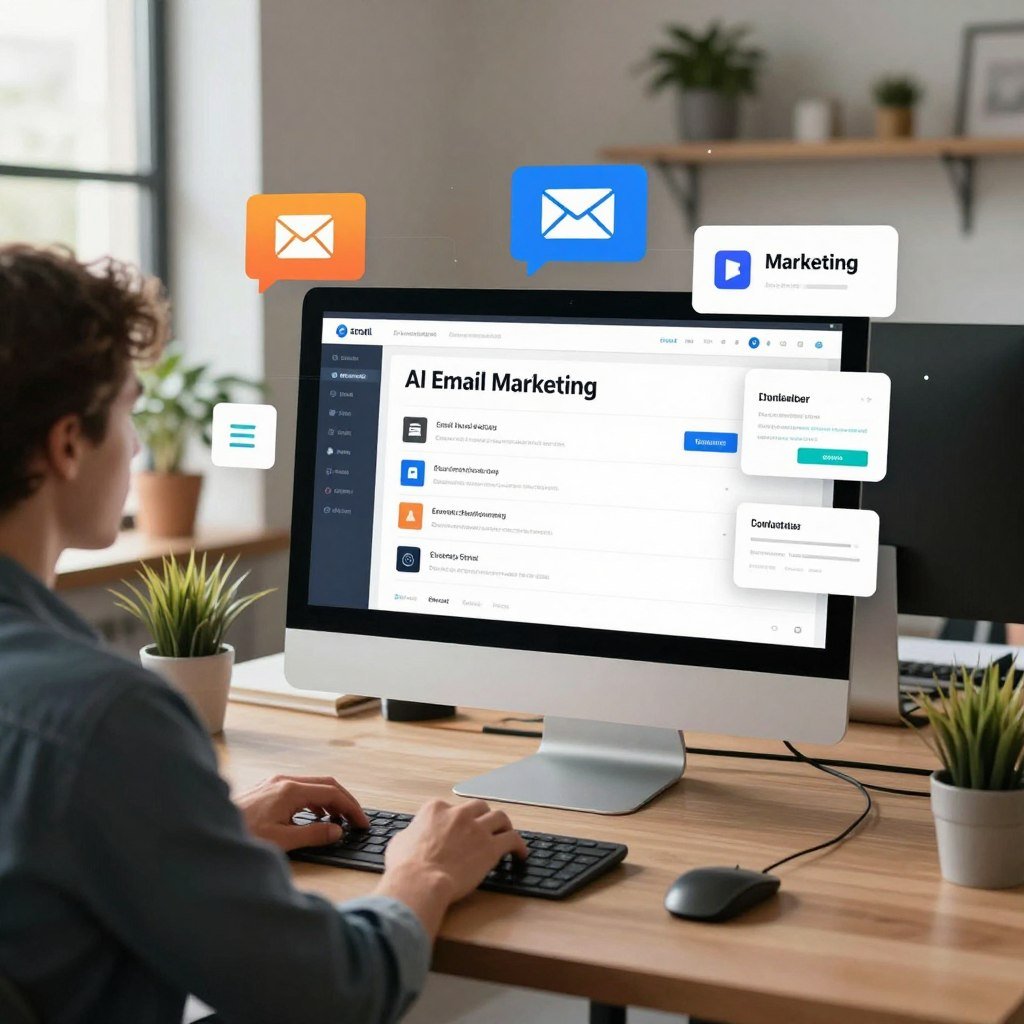
Start in Tools > Email Marketing and choose Create newsletter to reach the AI email creator. Select Use an AI email creator to open the form. The choices you make before generation shape the kind of email the tool builds.
You can begin with a topic, keywords, and your business type. Those details give the campaign some direction before you choose its audience and style. The form then lets you set a recipient group, email type, tone, layout, and color palette.
Start a newsletter in the email marketing tools
Choose the route in order: open Tools > Email Marketing, select Create newsletter, then choose Use an AI email creator. The email type menu includes options such as Welcome email, Follow-up email, Sale email, and Invitation. It also includes Happy Birthday email, Announcement, Newsletter, Educational email, and Custom Type.
Custom Type lets you enter an email type yourself when the listed choices do not fit. For example, you could name a type that matches a specific campaign need. This option keeps the request focused without forcing it into a label that feels wrong.
Choose the details that shape the draft
After the email type, pick a tone that suits the audience and message. The choices are convincing, informative, formal, friendly, inspirational, and neutral. Then select a layout and color palette that fit your brand and the campaign’s purpose.
| Stage | What you choose or enter | Result |
|---|---|---|
| Topic and business | Topic, keywords, business type | Subject direction for the draft |
| Recipient and email type | Audience and one listed type or Custom Type | Message purpose and recipient focus |
| Tone | One of six tone choices | Style of the written copy |
| Layout and color palette | Design options for the message | Visual direction for the draft |
Review the selected options before asking the tool to generate the email. A sale message for existing customers may need a different tone and layout than an educational newsletter for new subscribers. Generate only after the message type, tone, layout, and color palette match the campaign you intend to send.
Inputs That Shape the Draft
A draft becomes more useful when you give the AI a clear goal, a specific recipient, and the action you want that person to take. Tell the tool what the email should achieve, not only what it should discuss. A broad topic may produce broad copy, while a defined goal gives the campaign a clear direction.
Think about the audience as a role or group, such as current customers, new subscribers, or store owners. Then name the next step you want that audience to take. A product announcement for existing customers could ask them to visit the product page and learn about a new feature.

Campaign context applies to the group receiving the message. Contact data applies to a particular person or account, when that detail is relevant. Useful lead data might include a contact’s name and position, company, industry, location, or notes.
Use the checklist below to keep the brief focused. You do not need every personal detail in every message. A recipient’s role may matter for a business offer, while a location may matter for a local event.
- Goal: State what the campaign should accomplish.
- Audience or recipient role: Name the group or person’s role.
- Desired action: Say what you want the reader to do next.
- Relevant details: Add useful offer, product, or contact information.
- Tone or length: Set the feel and approximate size of the email.
For example, an announcement can name the product, describe who benefits, and invite current customers to view its page. That gives the draft a clear purpose, audience, and action. Keep personal or account details relevant to the message rather than adding background the recipient does not need.
Prompt Details That Improve Results
A strong prompt gives the generator a single job, a defined audience, and a clear next step. Naming the email type, relevant keywords, and tone can help the draft stay on topic. A clear call to action gives the message a job the reader can understand.
Describe what the email must include and how long it should be. A preferred structure can also help, such as a short opening, one main benefit, and a closing action. These details make the writing request more useful than a general instruction to write something engaging.
Give one prompt a clear structure
A reusable pattern can keep your requests consistent while leaving room for each campaign’s details. Fill in the fields with the facts for that email, then check that the request gives the generator one main task. Avoid adding unrelated goals that pull the message in different directions.
Try a pattern like this: “Write a [email type] for [recipient role] to support [campaign goal]. Include [offer or key details], use a [tone] tone, and keep it [length]. Ask readers to [next step].”
This structure names the key parts without forcing every email into identical copy. The required details may be a launch date, a discount, or a product feature. Relevant keywords can help focus the draft, while a specific next step tells readers where the message should lead.
- Email type: Name the kind of message.
- Goal: State the campaign’s purpose.
- Recipient: Define the audience or role.
- Tone: Choose the style that fits the message.
- Required details or keywords: Include facts the copy needs.
- Clear call to action: Specify the next step for readers.
Make reusable prompts easy to adapt
Use placeholders for details that change, such as a contact name, company, offer, or account information. A prompt with fields is easier to reuse than one tied to a single customer. Replace each field with current details before generating a new message.
Keep the language consistent across the prompt. Mixing languages in one request can lead to content in an unintended language, even when the campaign itself has a clear goal. Write the prompt in one language and replace its placeholders with details that fit each campaign.
Editing and Reviewing AI-Generated Copy
Treat the generated message as an editable draft, then check that every detail matches the campaign you intend to send. The email editor lets you adjust the content and add your logo. AI output may be inaccurate, so review it before sending.
Start with the facts that could change a customer’s decision. Check product names, prices, offer terms, dates, and any claims about what the offer includes. A small error in a discount or deadline can make an otherwise polished email confusing.
Personalize the draft in the editor
Bring the writing closer to your brand voice by changing words that sound unlike your business. You can also adjust formatting and add a logo so the message feels connected to your other campaign materials. The goal is not to keep every generated line, but to make the draft fit your actual message.

Consider the audience as you edit. A new subscriber may need more context than a repeat customer, while a sale email should make its offer easy to find. Keep the main point clear, especially on a phone screen where readers may scan quickly.
Check accuracy before sending
Links deserve their own check because a correct sentence can still send readers to the wrong page. Confirm that the call to action matches the destination and that the page supports the email’s promise. These details can affect how customers respond and how well your campaign supports deliverability.
Use this short editing check before sending:
- Verify facts and offer details.
- Confirm links and the call to action.
- Adjust voice and formatting.
- Proofread the finished message.
Read the finished email once as the recipient, not as the writer. That final pass can catch an awkward phrase or missing detail your earlier edits missed. Make the final check against the actual offer, destination link, and recipient group before sending.
AI Subject Lines for Campaigns
When you need subject ideas rather than a full draft, the AI subject line generator offers several options based on your keywords and industry. It works on the message’s subject, not the full body or layout. Use the suggestions as options to review, not as a promise of campaign results.
Enter keywords and industry information to guide the ideas. You can set whether the suggestions should include an emoji, then generate multiple options. Choose a line that fits your email and edit it if a small change makes the meaning clearer.
A subject line can help set expectations before someone opens a message. It should match the offer, announcement, or update inside. A line that promises a deal the email does not contain may draw attention, but it can also frustrate the reader.
You can use the subject line generator in autoresponders and automation messages, as well as regular email campaigns. That gives you subject ideas for messages that go out as part of a set process. Still, the content and audience should guide your final choice.
Review each option for clear meaning and accurate claims. If an emoji does not fit your brand or message, choose a suggestion without one or edit it out. Pick a subject line that accurately signals what the reader will find in the message.
Marketing Automation Around the Generator
The generator helps prepare message content, while the automation builder organizes campaign actions across email and web. The drag-and-drop automation builder supports email and web campaigns. It is a separate tool from the email generator, with a different job.
You can start with a customizable template or build an automation workflow from scratch. A template gives you a prepared structure to change, while a blank workflow lets you set up the sequence yourself. Both approaches let you shape how campaign actions fit together.
| Workflow approach | Starting point | What you control |
|---|---|---|
| Customizable template | Prepared workflow structure | Actions and details you change |
| From-scratch automation | Blank workflow | Workflow structure and actions |
| Email-and-web campaign workflow | Email and web campaign actions | How both channels support the campaign |
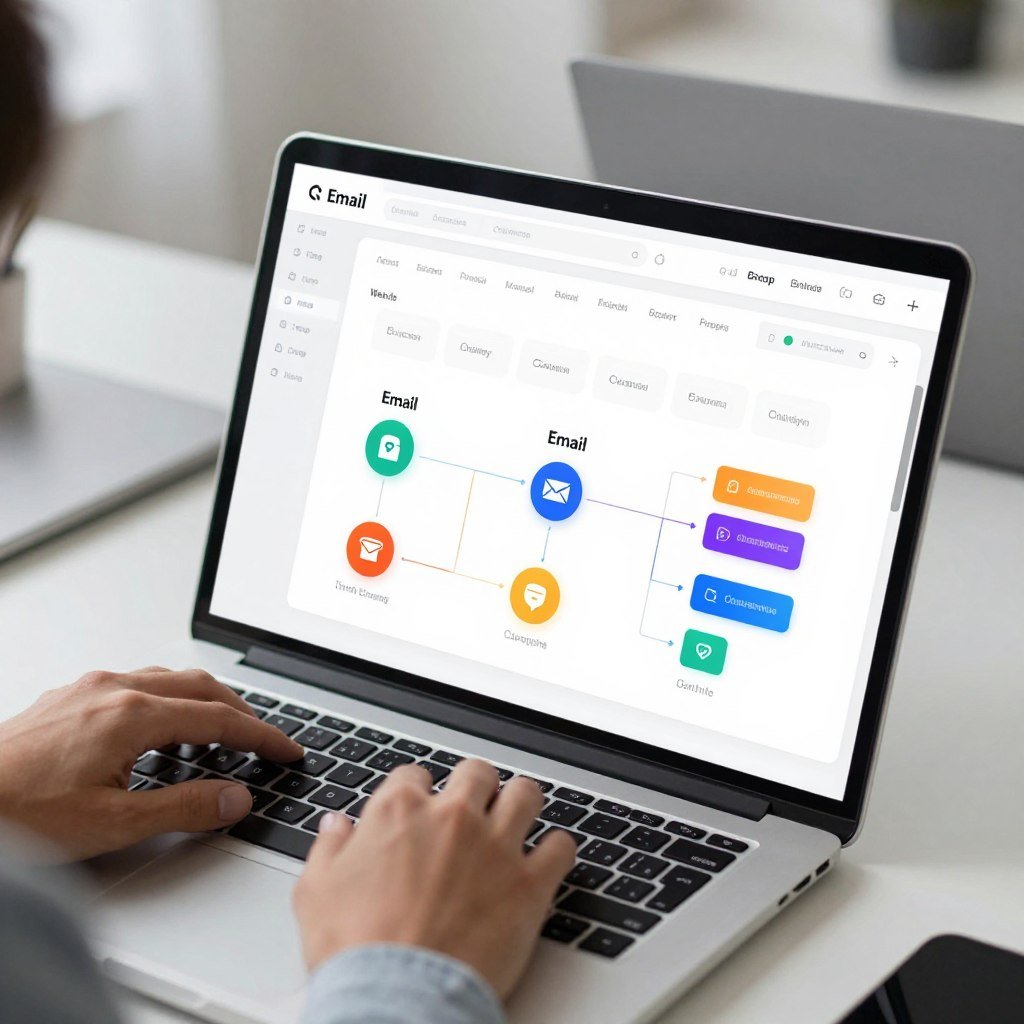
For example, you might prepare a newsletter with the generator, then use a separate workflow to organize campaign actions. Email and web activity can work together when your customer journey includes both channels. The builder gives you a way to arrange those actions, rather than write the email copy itself.
Templates can help when a prepared structure fits your campaign and you want to change its details. A from-scratch approach may suit a workflow that needs a different arrangement. The 2026 platform options include both customizable templates and workflows built from scratch.
Consider how much of the customer journey needs a set path before you choose an approach. A single email may need little workflow planning, while a campaign across email and web can call for more coordination. Match the workflow approach to how much of the customer journey you need to configure.
What Can AI Agent Skills Handle?
AI Agent Skills can carry out defined GetResponse account tasks, with a confirmation step before certain actions are completed. AI Agent Skills are installable capabilities that let an AI agent carry out specified GetResponse account tasks through API access. They connect an agent to account tools, rather than generating newsletter copy.
The skills can manage lists and custom fields, import contacts, check sending limits, and send or schedule newsletters. They can also create and update autoresponders, control whether they are active, and read their statistics. These account actions can save steps when you manage subscriber activity.
Manage newsletters and autoresponders
The agent can work with newsletters and autoresponders, including sending or scheduling newsletter messages. It can create or update autoresponders, turn them on or off, and inspect their statistics. Before it sends a newsletter or enables an autoresponder, it summarizes the action and waits for your confirmation.

Work with contacts and account tasks
Contact actions include adding, updating, moving, tagging, and deleting contacts. The agent can search contacts, use saved segments, and review consent history. Those options can help you manage subscriber data while keeping account tasks in one place.
AI Agent Skills can handle these five task groups:
- Manage lists and custom fields.
- Import, search, segment, and update contacts.
- Review contact consent history.
- Create, schedule, enable, disable, or inspect autoresponders and newsletters.
- Check sending limits.
The agent also summarizes actions before importing or deleting information and waits for your confirmation. It observes rate limits while using account access. This confirmation step gives you a chance to review a planned change before it affects your account.
Setup requires an account with API access, installing a skill in the AI agent, and providing a GetResponse API key. Set up the skill with an API-access account and API key, then review each action summary before confirming it.
Product Recommendations in Email and on Websites
GetResponse’s recommendation engine uses customer behavior and preferences to match shoppers with products they may buy. It analyzes purchase activity, needs, preferences, viewed items, and viewed product categories. The recommendation engine suggests products based on customer signals, rather than requiring you to choose one featured item for everyone.
This can suit an online store with many products and customers who browse or buy in different ways. A single featured item may fit a broad promotion, while personalized suggestions can reflect differences among shoppers. The recommendation feature can place product suggestions in email campaigns and on websites.
How the recommendation engine matches products
The engine uses several kinds of customer signals:
- Purchasing behavior.
- Needs and preferences.
- Viewed items.
- Viewed product categories.

Viewed categories can add context beyond a single item. A shopper who browses one type of product may receive suggestions that fit that interest, while purchase behavior can add another signal. The system uses these patterns to match products that a customer may want.
Where automated recommendations can appear
You can use automated recommendations in email campaigns or on your website. Email can bring product suggestions to subscribers, while website placements can show recommendations during a browsing visit. Both settings let you connect product discovery with a customer’s shopping activity.
This feature is available on the Max plan. It may suit stores that want product suggestions to appear in more than one place, rather than relying only on a manually chosen featured product. Consider this feature when your store needs product suggestions across both email campaigns and website experiences.
GetResponse Plans and Included AI Features
The plan starting at $15/mo includes the AI email generator, while higher plans add other marketing capabilities. The $15/mo plan includes up to 1,000 subscribers and unlimited monthly email sends. Choose by the tools and account capacity your marketing needs, not by the price alone.
Marketer starts at $48.38/mo and adds features for automation and campaign management. The Max plan includes AI product recommendations alongside multichannel marketing automation. Compare the listed inclusions to see which option fits your work.
Compare the plan starting at $15 per month with Marketer
The starting plan includes the AI email generator, AI landing pages, and unlimited autoresponders. Its subscriber limit is up to 1,000, with unlimited monthly email sends. Marketer adds broader automation and customer follow-up features.
| Plan | AI or automation feature | Other included features |
|---|---|---|
| Plan starting at $15/mo | AI email generator | AI landing pages, unlimited autoresponders, up to 1,000 subscribers, unlimited monthly email sends |
| Marketer, starting at $48.38/mo | Unlimited automations | Advanced segmentation, abandoned cart recovery, email delivery scheduling, promo codes, contact scoring |
| Max | AI product recommendations and multichannel marketing automation | Multichannel campaign support |
Account for Max-only recommendations
AI product recommendations are available on Max, alongside multichannel marketing automation. That makes Max the relevant option if product suggestions are part of your needs. The generator itself appears in the plan starting at $15/mo, so newsletter drafting and product recommendations sit at different plan levels.
Marketer can fit a business that needs more automation, segmentation, or ecommerce follow-up. The lower starting plan may fit a smaller list that needs newsletter creation and the listed email features. Compare the features you need for drafting, automation, and recommendations with the plan that includes them.
Results to Track After Sending
Campaign performance can be measured through sales, average order value, and click-through rates, each of which captures a different result. Sales track revenue, average order value tracks the typical value of an order, and click-through rate tracks clicks compared with message views. Choose measures that match the goal you set for the campaign.
GetResponse reports that AI product recommendations can account for up to 30% of sales and increase average order value by 33%. The feature can also increase email and website click-through rates by 70%. These are reported outcomes, not a forecast for every store.

A separate example comes from Daag, whose welcome-series email offered a survey in exchange for a 10% discount code. The campaign resulted in $17,000 in sales in two days. That result belongs to a specific offer and campaign, not every welcome series.
Use sales measures when revenue is the goal, and review clicks when you want to see whether people moved from a message to a page. Average order value can help you understand the size of completed purchases. One number cannot explain every part of campaign performance.
Compare results with your own audience, offer, and campaign goal. A discount survey can prompt a different response from a product launch or an educational email. Compare each result with the goal you set for that specific campaign.
Who Benefits Most From GetResponse’s AI Email Tools?
GetResponse may suit you if you want AI-assisted newsletter creation within a platform that supports several marketing channels and campaign types. It supports marketing across email, SMS, push notifications, and paid ads. The broader platform may matter most when your work extends beyond drafting a newsletter.
If your main need is a newsletter, the generator can give you a draft to edit. If you manage several customer journeys, you may also value campaign tools for nurture sequences and behavior-based automation. The fit depends on whether you need writing support alone or a wider set of workflows.

GetResponse campaign options include welcome and nurture sequences, ecommerce campaigns, abandoned cart recovery, and transactional emails. These options can support different points in a customer relationship, from a first welcome message to a follow-up after a missed purchase. You can consider them alongside newsletters when planning a full campaign.
A store may need ecommerce follow-up and abandoned cart recovery, while a service business may focus on welcome messages or nurture emails. Businesses using several channels can coordinate email with SMS, push notifications, or paid ads. Those needs go beyond writing a single email.
If you are also building a web presence for an online store or business, website creation services can support that adjacent work. The choice comes down to whether you want a drafting tool or a platform for broader marketing tasks. Choose based on whether your priority is drafting messages, coordinating customer journeys, or combining both needs.
Choose a platform approach when you need to coordinate customer journeys across more than email.
Conclusion
A focused brief and a careful edit are the foundations of a useful AI-assisted marketing email. The generator can help you begin, but your knowledge of the audience gives the message its purpose and voice. A draft works best when it serves a clear campaign goal.
Prepare a short campaign brief before you begin. Include the goal, recipient, tone, required details, and the action you want readers to take. Prepare those campaign details, then use them to create and refine your first draft.