GetResponse email marketing suits you best when you want campaigns and other marketing tools working together in one platform. Its 2026 feature set spans email campaigns, automation, landing pages, SMS, web-push notifications, forms and popups, funnels, and webinars.
That wide scope can help you keep more of your campaign work in one account. It can also make choosing a plan harder if you only need a few features. This review looks at how the tools work, where plan limits matter, and how the costs compare with other services. Your best-fit plan depends on which tools you will actually use.
For a small business, a creator, or an online store, combining tools may save time spent moving between services. A basic newsletter sender may be simpler if email is your only need. Your best-fit plan depends on which of those tools you will actually use.
Key Takeaways
- GetResponse brings email campaigns, automation, and lead capture into one platform.
- Free and paid plans have different contact, workflow, and feature limits.
- Its funnel and store tools can connect marketing activity with sales steps.
- Creator adds courses, paid newsletters, and webinars for up to 100 attendees.
- Compare your audience size and must-have tools before choosing a plan.
What Does GetResponse Email Marketing Include?
You can use GetResponse to connect campaign creation, audience capture, follow-up, and conversion work in one account. That breadth can reduce the number of services you switch between during a campaign.
The platform groups several recurring marketing jobs under one login. You can manage these five tasks in a single place:

- Create and send email campaigns for announcements or offers.
- Collect contacts through signup forms and focused pages.
- Set follow-ups to run after a signup or another action.
- Build destination pages for a campaign or product.
- Connect campaign activity to sales through funnels and ecommerce integrations.
Webinars and ecommerce integrations extend the platform beyond basic email marketing tools. You can use them when your work includes live events, online sales, or more than one campaign channel.
Choose tools for work you do often, not for the size of the feature menu. Occasional newsletters may not call for every module.
An all-in-one marketing platform can make campaign data easier to manage across related tasks. A reader who sends only a few newsletters may find a simpler service easier to handle. Professional website design services can also help if your campaign needs a separate business site.
Start your evaluation with the tasks you need to complete regularly, rather than the full menu of tools.
How Do You Create and Refine Email Campaigns?
A welcome email is a useful first campaign to build because it gives you a real message to design and personalize. A clear first message lets you test the editor without planning a large campaign.
An autoresponder is an email sent automatically after a signup, scheduled interval, or other trigger. You can create one with the same editor used for regular campaigns.
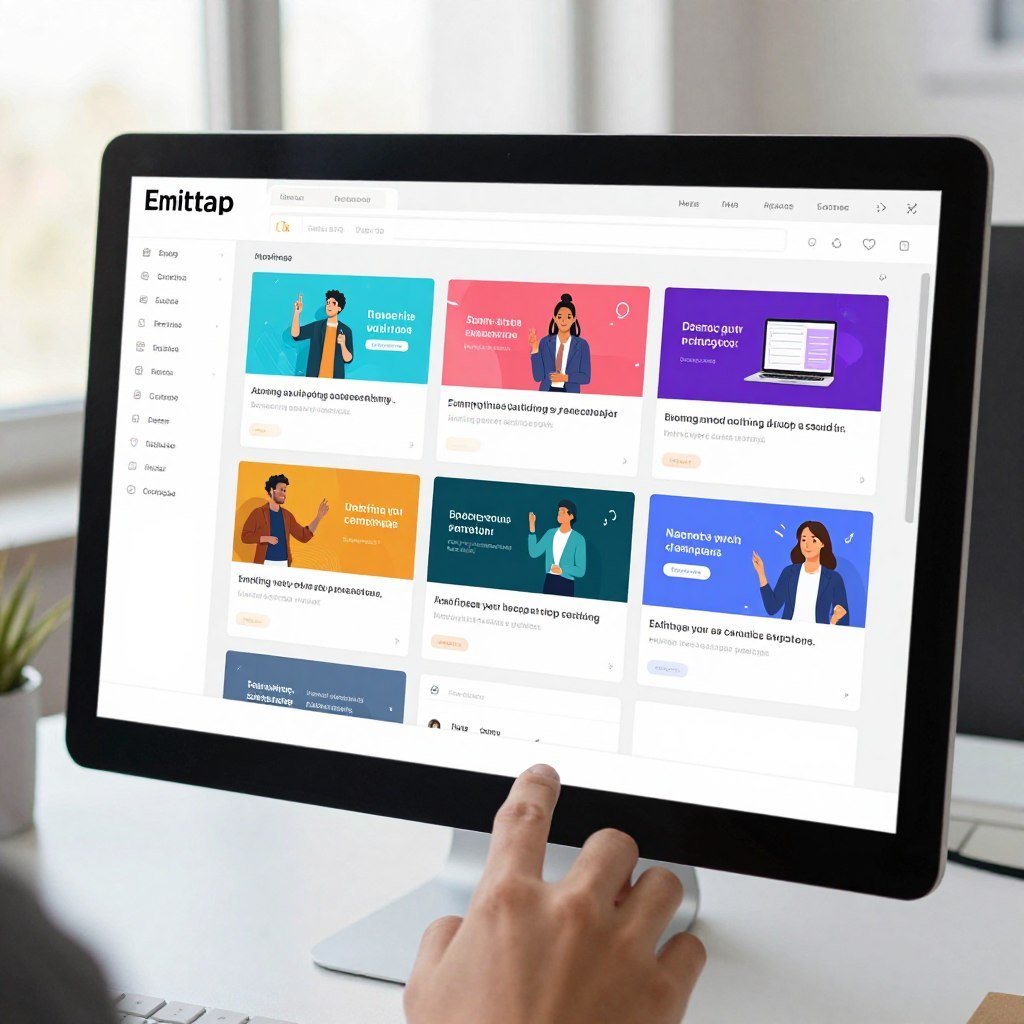
Designing emails with blocks, templates, and HTML
The drag-and-drop editor lets you place text, images, buttons, video, and social links in a message. Templates give you a starting layout, while saved content blocks let you reuse items in later emails.
You can also add custom HTML if you need more control over the design. Reusable blocks save time on repeated items, while HTML suits users who want to shape the code themselves.
Personalization, testing, and send timing
Personalization uses contact data, such as a name, to tailor parts of an email. Email A/B testing lets you compare versions and see which one performs better with your audience.
Google Analytics integration can help connect campaign activity with site visits. Time Travel can schedule a message to arrive at a chosen local time for each contact.
Preview the message on mobile before sending so you can catch layout problems in the finished email.
Marketing Automation Across Free and Paid Plans
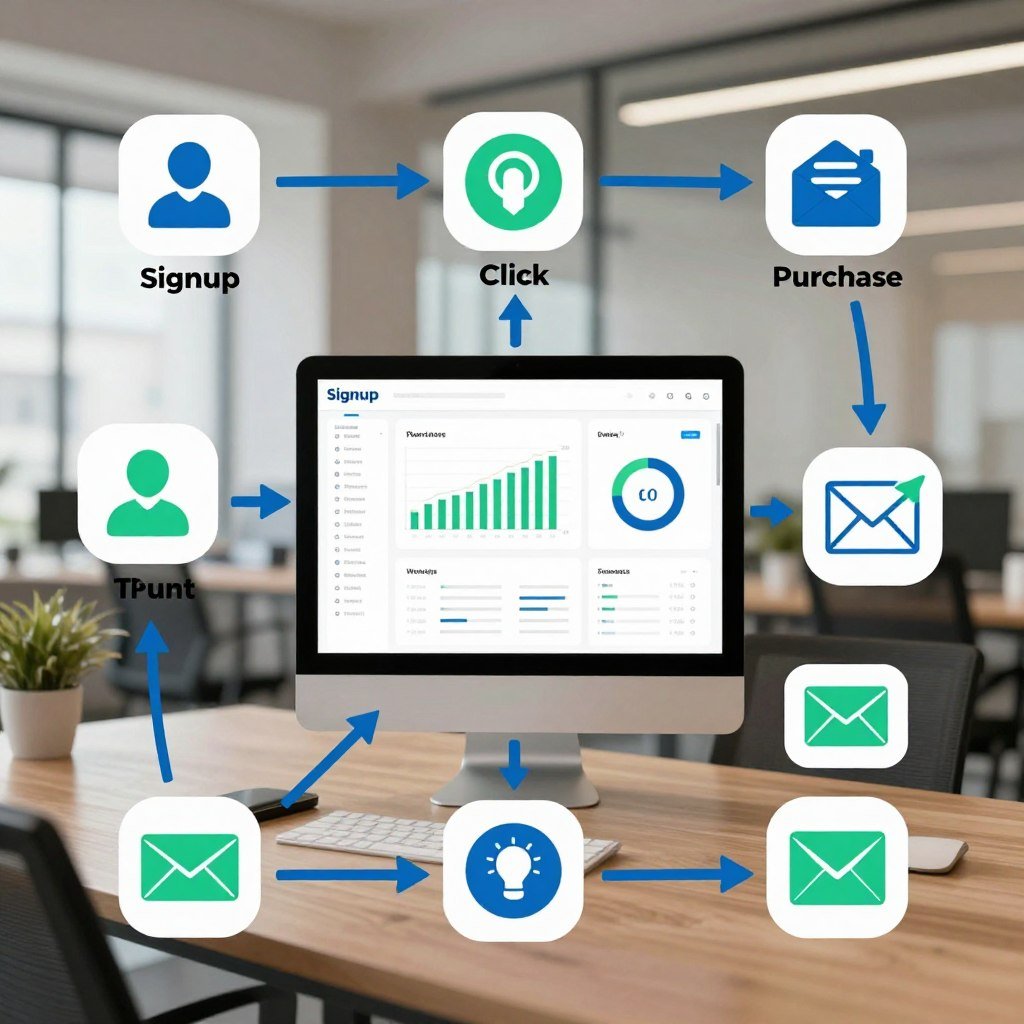
A signup or purchase can trigger an email sequence, while a contact’s actions can determine which path comes next. Triggers, conditions, and actions form the basic parts of a workflow.
Free allows unlimited published workflows, but it does not include the dynamic segment filter. Publishing workflows and using that filter are separate capabilities.
| Plan | Workflow access | Practical distinction |
|---|---|---|
| Free | Unlimited published workflows | No dynamic segment filter |
| Starter | 1 workflow | 3 account users |
| Marketer | Unlimited marketing automation | Up to 5 account users |
A workflow can start when someone signs up, clicks an email, or makes a purchase. A condition can check what the contact did, then send a follow-up email or update the contact record.
Branching workflows can guide different audiences along different paths. For example, someone who clicks a product offer could receive a different follow-up from someone who does not.
A basic welcome sequence may need only a scheduled autoresponder. More detailed customer journeys can use branches to match follow-ups to contact activity.
Match the workflow limits to the number of distinct customer journeys you need to run.
Landing Pages, Forms, and Website Builder
A dedicated landing page gives a signup offer one focused destination instead of sending every visitor to a general site page. One clear goal can keep a campaign page focused on a single offer.
Free accounts can publish unlimited landing pages, but each has a limit of 1,000 unique visitors per month. That visitor cap still applies when you publish more than one page.
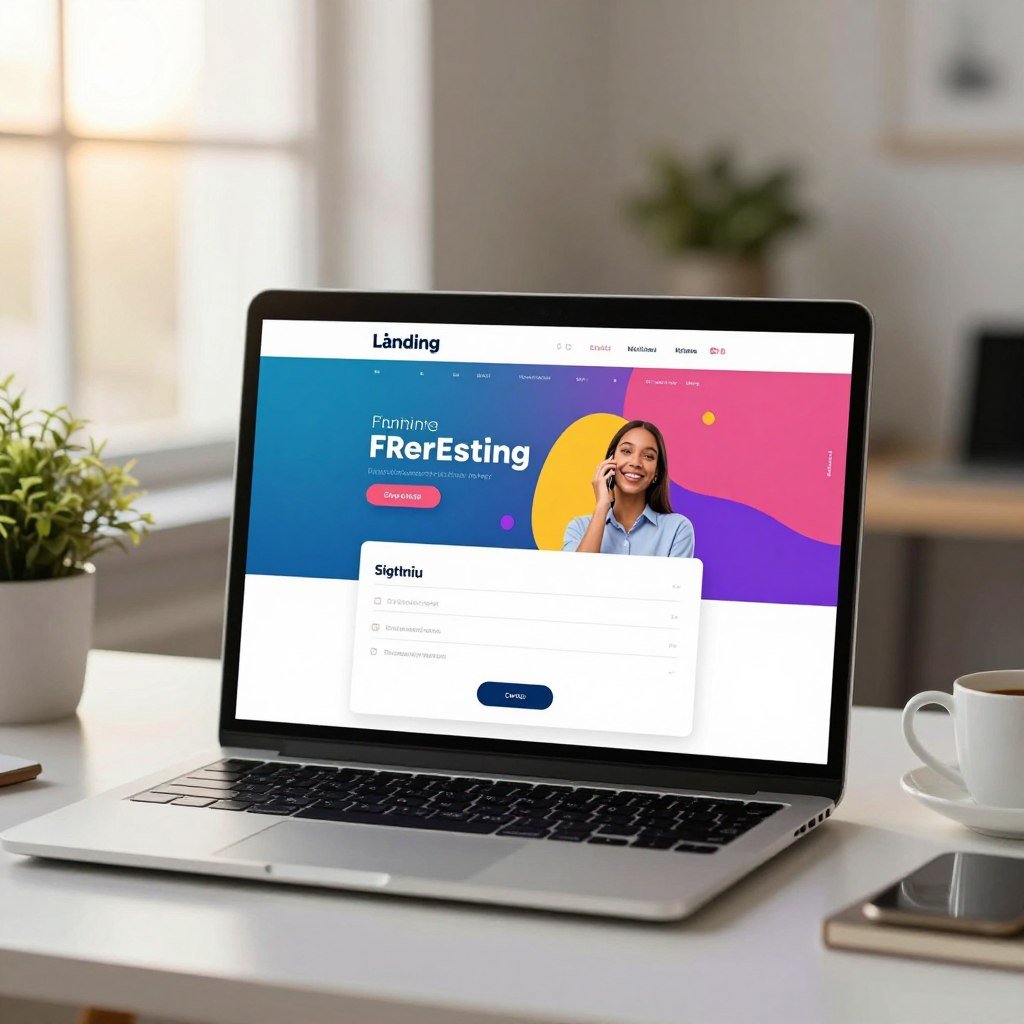
Landing pages for lead capture
The page editor lets you add text, images, buttons, forms, and video. You can build a page around a newsletter signup, a downloadable offer, or a product campaign.
Landing-page A/B testing can compare versions to see which one better supports the page’s goal. That is useful when you want to test different layouts or offers.
Signup forms and the website builder
Signup and contact forms give visitors ways to share their details. The website builder offers another place to collect leads when you need a broader site, rather than a single campaign page.
You can also connect the page and form activity to later email follow-ups. That can keep the signup step and the next message in the same account.
Estimate the traffic each free landing page may receive before relying on it for a larger campaign.
Sales Funnels for Lead Capture and Sales
A funnel is useful when your campaign needs a sequence of connected steps rather than one standalone message. The connected path can link a landing page, a form, emails, and checkout.
The funnel builder supports goals such as growing an email list, selling products, and promoting a webinar. It can help you organize the steps around one campaign goal.
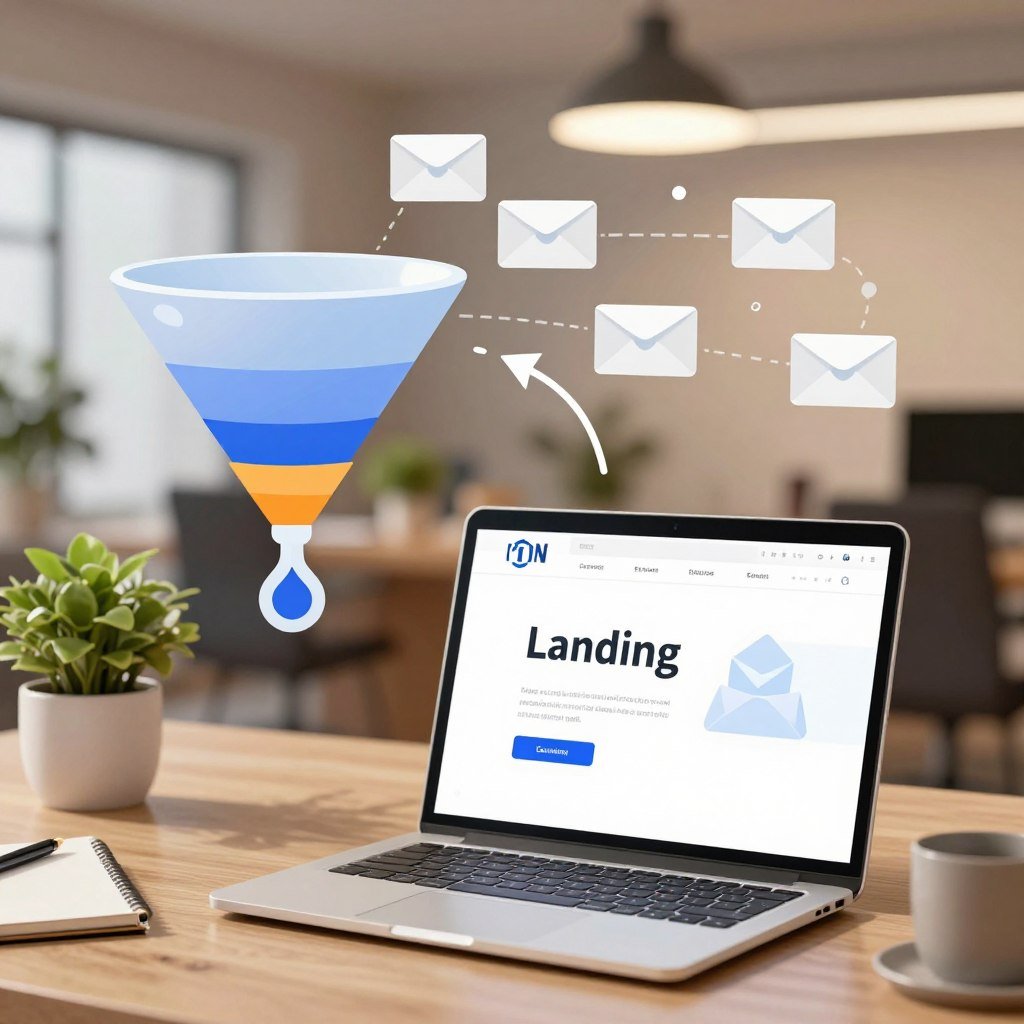
A lead-magnet funnel might send visitors to a page with a free guide. They submit a form, then receive a follow-up email with the promised content.
A product campaign can connect promotional emails with checkout steps. That gives you a way to track movement from the offer toward a sale.
Start with one of these three goals:
- Grow an email list.
- Sell a product.
- Promote a webinar.
A guided funnel can help when you want connected steps and tracking in one place. A single newsletter send may not need a funnel at all.
Choose the funnel goal first so each page and follow-up has a clear job.
Ecommerce Campaigns and Integrations
An online store can use GetResponse to connect product and customer activity with follow-up campaigns. Store data can help you target messages around what shoppers view or buy.
GetResponse integrates with Shopify and WooCommerce, and also names Magento among its supported platforms. These connections can bring store activity into marketing work.

You can add product content to emails and target contacts based on purchases. Sales tracking can help tie campaign activity to store results.
An abandoned cart can also trigger a follow-up message. That gives you a way to reach shoppers who started checkout but did not complete it.
Store features do not all apply to every plan. Product recommendations and other features can depend on your plan, so match the needed tool to your account before building a workflow around it.
Connecting store and contact data can make a campaign more relevant than a general offer sent to every shopper. The value depends on which store events you can use and which follow-up makes sense for your products.
Map the store events you want to act on, such as a purchase or an abandoned cart, before choosing an automation.
Webinars and Creator Monetization
GetResponse’s webinar capacity ranges from a small free session to a Creator-plan webinar for up to 100 attendees. The free cap is small, so the people hosting the event count.
Free webinars allow 10 people total, including the host and presenters, and one recording of up to 30 minutes. Creator supports webinars for up to 100 attendees.
Webinar capacity by plan
A creator can connect a registration page with email reminders, a webinar, and follow-up messages. This sequence keeps event signups and post-event communication together.
The free webinar limit counts the host and presenters as part of the 10-person total. A session with several presenters leaves fewer places for attendees.
Courses and paid newsletters
Creator includes courses and paid newsletters, along with automation and ecommerce tools. These features can help you sell educational content or charge readers for newsletter access.
For example, you could promote a course through email, host a related webinar, and send a follow-up offer. Paid newsletters offer a different way to earn from ongoing content.
Count hosts and presenters within the free plan’s 10-person limit when deciding whether a session will fit.
AI Tools and Multichannel Messaging
GetResponse’s AI features are most useful as a way to speed up first drafts and setup work. A first draft still needs your review before it represents your business.
AI-generated copy and layouts need a human check for brand fit and accuracy. Treat the tools as a starting point, not a finished campaign.

The AI email generator can help shape campaign copy and design. The AI website builder can provide a starting point for a site, while AI course tools can assist with course creation.
Three practical uses include:
- Drafting campaign content.
- Shaping a website.
- Preparing course material.
AI can save time on early writing and setup, though it cannot know every detail of your offer. Check facts, tone, and page layout before sharing the work with customers.
The wider platform also includes SMS and web-push notifications. Their presence in the platform does not mean every plan offers the same access.
Review generated copy and layouts before using them in a live campaign.
GetResponse Plans and Pricing
Starter is listed at $15.58 per month in 2026, while Marketer and Creator add features for different kinds of marketing work. Contact-list size also affects the price you pay.
The available contact-list options are 1k, 2.5k, 5k, 10k, 25k, 50k, and 100k. Price depends on both your plan and contact tier.
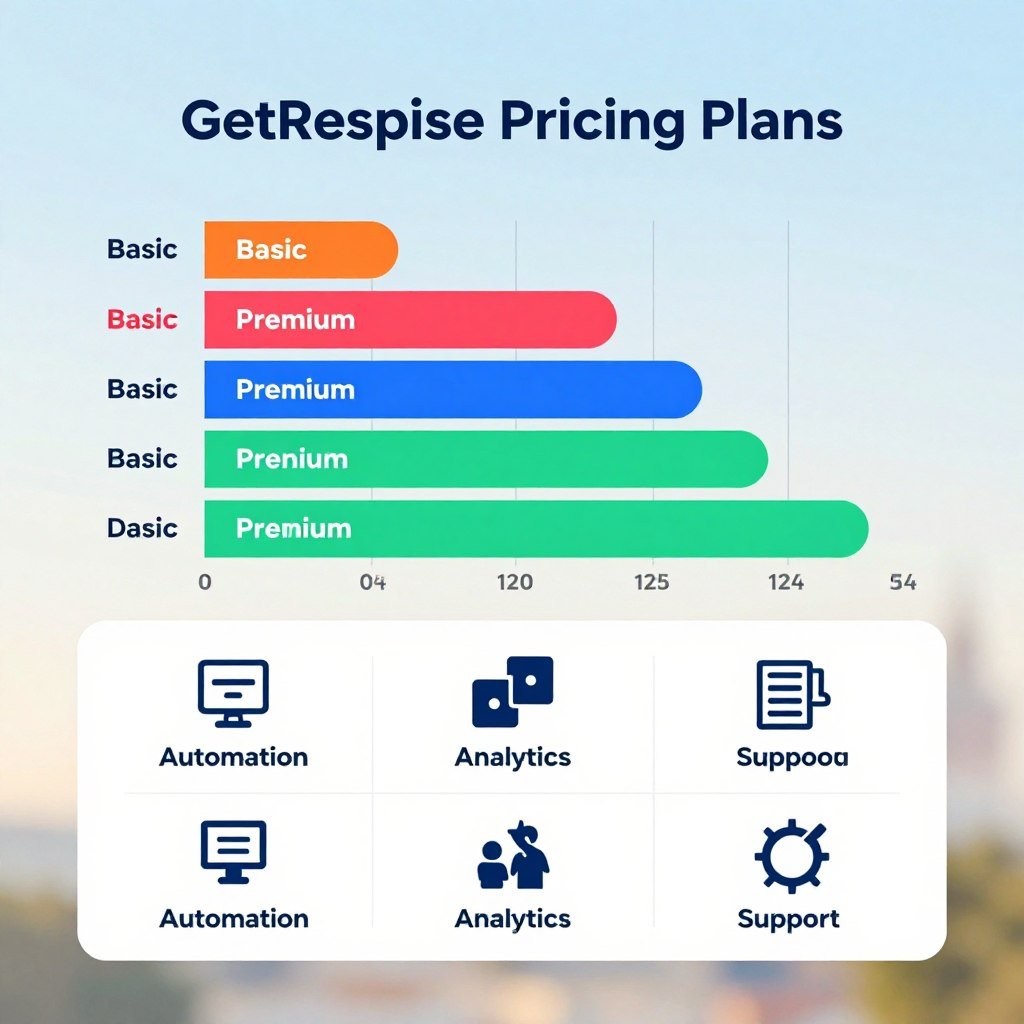
| Paid plan | Distinctive inclusions | Account users |
|---|---|---|
| Starter | Ecommerce integrations and 3 AI uses | 3 users |
| Marketer | Unlimited marketing automation, ecommerce tools, and landing pages | Up to 5 |
| Creator | Courses, paid newsletters, automation, ecommerce tools, webinars for up to 100 | Up to 5 |
A new free account gets access to premium features for its first 14 days. After that period, premium-feature access ends unless you upgrade.
Free includes up to 500 contacts and 2,500 newsletters per month, along with a landing page, signup and contact forms, and a drag-and-drop email creator.
The free account adds a GetResponse badge to every message. A paid account lets you disable the badge, which may matter when you want your emails to carry only your brand.
Choose a contact tier that fits your current audience and the plan features you expect to use.
How Do GetResponse Prices Compare with Alternatives?
AWeber Lite and Klaviyo Email both list a 500-person audience tier, while their monthly prices and included sends differ. Audience labels matter because services do not always count people the same way.
These prices describe stated tiers, not identical feature packages. Use them as a starting point, then compare audience rules and billing terms.
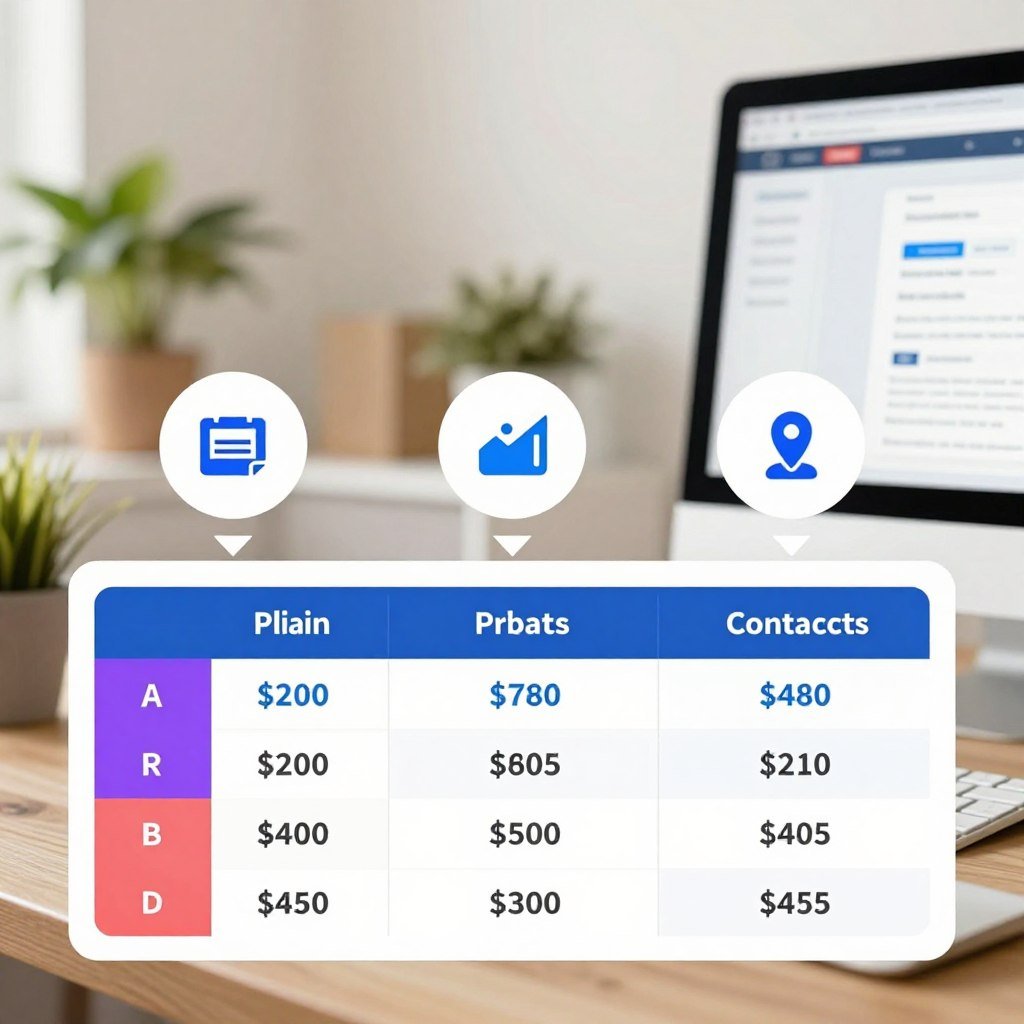
| Plan | Listed monthly price | Audience tier | Monthly sends |
|---|---|---|---|
| AWeber Lite | $15 | 500 subscribers | 5,000 |
| AWeber Plus | $30 | 500 subscribers | 6,000 |
| Klaviyo Email | $20 | 500 active profiles | 5,000 |
| Brevo Starter | From $9 | Up to 500 contacts | 5,000 |
| Brevo Standard | From $18 | Up to 500 contacts | 5,000 |
AWeber Lite and Plus use subscriber counts, while Klaviyo lists active profiles. Brevo’s tiers refer to contacts, and both listed plans include 5,000 monthly email sends at the first tier.
The displayed prices also reflect different billing structures. AWeber lists annual options as well as monthly prices, so the cost over a year can differ from paying month to month.
Check whether the audience count includes every stored contact or only active profiles. That distinction can change which tier fits your list.
Compare the audience definition and monthly send allowance along with the displayed price.
Alternative Email Platforms for Different Needs
The alternatives differ not just in price but also in how they count audiences and package their marketing features. Your billing preference can matter as much as the size of your list.
Compare audience size, send limits, billing basis, and the features you need. Those four factors can help you narrow the options.
- Audience size.
- Monthly send limits.
- Billing basis.
- Features you need.
AWeber and Klaviyo for audience and sending limits
At 1,000 subscribers, AWeber Lite costs $25 per month or $250 annually and includes 10,000 monthly sends. Plus costs $45 per month or $450 annually and includes 12,000 monthly sends.
Lite includes three email automations and three landing pages. Plus includes unlimited email automations and landing pages, which can matter as your marketing grows.
Klaviyo’s free plan includes 500 monthly email sends to up to 250 active profiles. It also includes $5 of Composer usage and $5 of mobile messages per month.
Klaviyo Email lists at $30 per month for 1,000 active profiles and $70 for 3,000. Accounts with more than 150,000 active profiles receive custom pricing.
Neo email for mailbox-based plans
Neo email uses mailbox pricing, unlike the contact-based marketing plans in the rest of this comparison. Business Starter costs $2.49 per mailbox monthly with annual billing, or $3.11 with monthly billing.
Business Standard costs $4.99 per mailbox with annual billing or $6.24 monthly. Business Max costs $9.99 annually or $12.49 monthly per mailbox.
Annual plans include 15GB of storage for Starter, 50GB for Standard, and 100GB for Max. Max adds campaign mode, appointment booking, and AI Smart Write.
Smart Write accepts a 75-word input prompt. Smart Reply can use up to 1,000 words of email context.
Mailchimp for contact limits and billing options
Mailchimp Free is for accounts with fewer than 250 contacts. Sending pauses if the account exceeds either its contact limit or its email-send limit.
Essentials and Standard offer 14-day free trials. Both include 24/7 email and chat support, while Premium includes phone and priority support.
| Plan | Contact capacity | Support or pricing detail |
|---|---|---|
| Essentials | Up to 50,000 at $385 per month | 24/7 email and chat support |
| Standard | Up to 100,000 at $800 per month | 24/7 email and chat support |
| Premium | Unlimited contacts | Phone and priority support |
Pay As You Go lets infrequent senders buy email credits instead of paying a recurring monthly or annual plan fee.
Brevo for contact storage and daily sending
Brevo uses a different mix of contact storage and sending limits. Its free plan can store up to 100,000 contacts and allows 300 daily email sends.
That setup can suit a large stored list with modest daily sending needs. Check both limits when estimating how much of your audience you can reach.
Treat mailbox pricing as a different service basis from a contact-based email marketing plan.
Learning the Interface and Managing Daily Work
You can move among campaigns, automations, and landing pages from a dashboard organized around those jobs. The modular layout separates common tasks into clear work areas.
Basic campaign creation is approachable, while complex automation can take time to learn. Advanced features inside plan-gated areas may not be available on your current account.
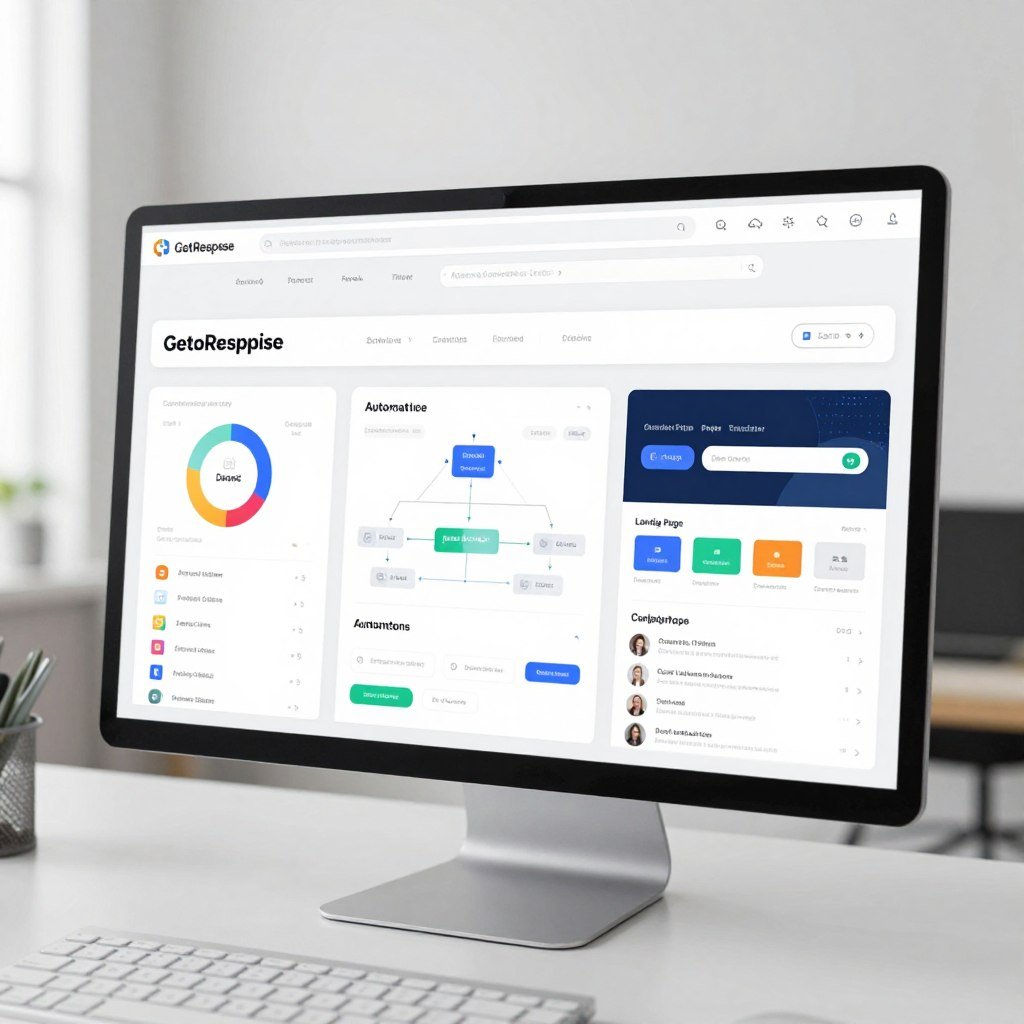
The campaign editor handles message design and sending, while the workflow interface uses conditions and actions to build sequences. The dashboard connects those areas without making them one long screen.
For everyday work, you can start with a campaign, then check its results and plan a follow-up. The visual workflow editor gives you a way to map what happens after a contact acts.
More involved automations may take practice because each branch adds choices to manage. You may also see advanced tools in plan-gated areas, which can affect what you can build on your current plan.
Start with one campaign and one simple workflow before building a more complex customer journey.
Support, CRM Scope, and MAX Features
GetResponse can organize and score contacts, while teams needing sales pipelines and deal tracking may still need a full CRM. Contact management helps with audience work, but it is not the same as sales tracking.
GetResponse supports contacts with tagging, scoring, and segmentation, not sales pipelines or deal tracking. Live chat and email are its support channels.

Support channels and contact management
Tags and segments can help you group contacts for targeted campaigns. Scoring can help sort contacts by their engagement with your marketing.
Live chat and email support give you two ways to ask for help. A team that tracks sales deals from first contact through close may still need a full CRM.
Enterprise tools for larger teams
Enterprise is GetResponse’s tailored MAX solution. It includes a dedicated Customer Experience Manager, custom sending infrastructure, and premium tools such as SMS marketing and transactional emails.
MAX plans also include premium priority support, a dedicated IP address, unlimited users, and single sign-on. These features can suit larger teams that need more account access and custom sending setup.
Four MAX features to weigh are:
- A dedicated Customer Experience Manager.
- A dedicated IP address.
- Unlimited users.
- Single sign-on.
Treat MAX as the enterprise option when dedicated infrastructure and expanded account access matter to your team.
Getting Started and Logging In
You can sign in to GetResponse at app.getresponse.com/login. The login page is the place to return after setting up your account.
A free account does not require a credit card. To sign up, enter your name, email address, and password.
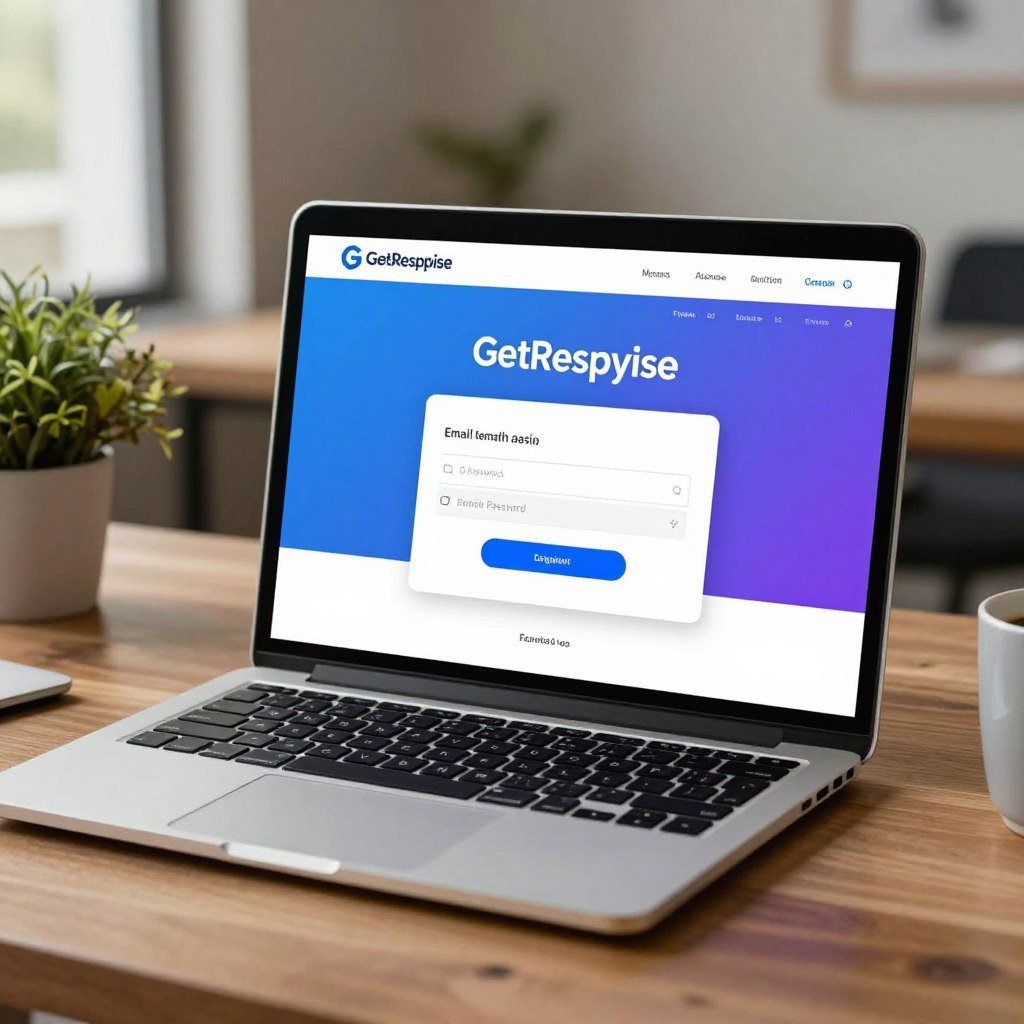
After submitting those details, confirm your email address. Then complete the company details requested during signup.
Keep your login details available so you can return to the campaign tools you want to test. You can explore the platform with a free account before deciding whether a paid plan fits.
Start with the campaign or lead-capture task you most want to test. A focused first test makes it easier to judge whether the platform fits your work.
Once you are in, begin with the campaign or lead-capture task you most want to test.
Conclusion
GetResponse is a strong fit when you want email campaigns, automation, and other marketing work together in one platform. That range can suit businesses that will use several connected tools.
Its wider feature set may be more than a basic newsletter sender needs. Starter is listed at $15.58 per month in 2026, with other plans aimed at different marketing needs.
Compare your audience size and must-have features with the available plan tiers before choosing your next step.