
You can get a first GetResponse campaign ready by creating an account, organizing contacts, and building one useful email. For a small business, that first message can help a customer understand what you offer and why it matters. A clear plan saves time and makes the work easier to manage.
This guide offers a practical starting point, from permission-based signups to a first campaign. Useful messages build trust when people choose to receive them. Double opt-in is a signup process that adds a contact only after they confirm their subscription through an email link.
You can begin with one simple campaign, then add more tools as your audience grows. A welcome message or helpful newsletter can give new subscribers a good first experience. Keep each message focused on what your audience needs, rather than trying to explain everything at once.
Start with one clear audience and one helpful reason to hear from you.
Key Takeaways
- Build a contact list with permission-based signups.
- Start with one clear email and a useful message.
- Choose a one-time campaign or an autoresponder sequence.
- Add automation only when you have a clear goal.
- Use engagement data to improve future messages.
How do you set up your account and contact list?
Your first practical task is to create an account and decide which contact list will hold your subscribers. Start simply with a name, email address, and password, then activate your account through the email link.
Complete your account details after activation. The Lists area lets you manage subscribers and supports manual additions, file imports, signup forms, and landing pages.
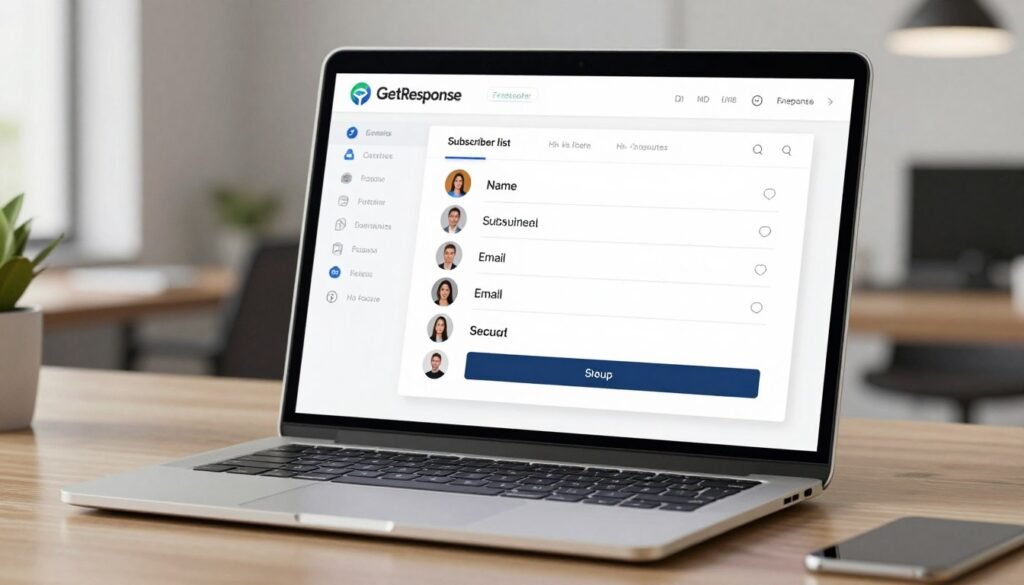
Choose the contact method that fits your audience and current needs:
- Add contacts manually when you have only a few people to enter.
- Import a file to add an existing, permission-based list.
- Collect new subscribers through a signup form.
- Collect new subscribers through a landing page.
Contact-list imports accept CSV, TXT, VCF, XLSX, and ODS files. Check each imported field mapping so names and email addresses land in the right places.
Import only contacts who have given you permission to receive your messages.
GetResponse tutorials can help you learn where these account tools sit and how their settings work. Premium features are available during the first 14 days of a Free account. After that, access is limited unless you upgrade.
Keep your list organized by choosing names that make each audience easy to recognize. Import only contacts who have given you permission to receive your messages.
How to Use GetResponse for Your First Email Campaign
A newsletter is a one-time message you choose to send to a selected group of subscribers. Choose the format that fits the message: an autoresponder sequence starts after an event, while RSS-to-Email sends when you publish a blog post.
For a first email marketing campaign, choose a template or start from scratch. The drag-and-drop editor lets you change text and images, so your content stays clear and on-brand.

GetResponse email tools include AI-generated content, A/B testing, scheduling, click tracking, custom HTML, and autoresponders. Before you send, check these four details:
- Select the recipient list.
- Set the From and Reply-to addresses.
- Write a clear subject line.
- Review the message on mobile.
Keep the subject specific, and make the first lines explain why the email matters. Add images only when they support the content or help readers take a clear next step.
Send yourself a test to check links, layout, and how the message reads in an inbox. A test can reveal a broken button or an awkward line break before subscribers see it.
You can send the campaign right away or schedule it for a later time. Scheduling helps you choose when a message reaches the group, while click tracking shows which links draw interest.
Send a test message to yourself before scheduling or sending the campaign to your list.
How do you build a landing page and signup form?
A signup page works best when its offer and form make the next step obvious. Be specific about what a visitor gets, such as useful updates, a guide, or a download.
Open Landing pages, select Create landing page, then choose a template or start from scratch. In the drag-and-drop editor, add text, images, and a signup form.

Keep the form focused on details you need to contact new leads. A short page with a clear offer can make it easier for visitors to decide whether to subscribe.
Double opt-in is a signup process that adds a contact only after they confirm their subscription through an email link. The confirmation email verifies the signup before the contact joins your list.
A signup should lead to a clear next step, such as a thank-you page with an offer or download. You can also send the download in a welcome email after someone subscribes.
The Free plan includes one landing page and 1,000 unique visitors per month. A/B testing is available on paid plans, so you can compare page versions when you want to test changes.
Check the mobile version separately before publishing, since its layout may need its own adjustments.
How do you build a marketing automation workflow?
A welcome workflow can begin with one condition, a new subscription, and one action, sending a welcome message. Keep the first version small so you can see how each part affects contacts.
An autoresponder sequence is a scheduled email series triggered by an event, such as a signup form submission. An automation workflow combines conditions, actions, and filters to respond to what contacts do.

Choose a trigger and a first action
You can start an automation workflow from a template or build it from scratch. For a welcome message, use a new subscription as the condition, then add a send-message action.
Common conditions include subscription, message opened, link clicked, and purchase. Common actions include sending a message, waiting, tagging, scoring, or moving or copying a contact.
Choose one goal before adding steps, such as welcoming a new subscriber or following up after a purchase. A single goal makes it easier to tell whether the workflow helps.
Add timing and a behavior-based branch
Add a wait before a follow-up so contacts have time to read the first message. Then add a branch based on whether someone opened the message or clicked a link.
For example, send a helpful follow-up to people who opened the email. Contacts who did not open it can receive a different message, if that suits your goal.
Use this four-step checklist to keep the first workflow testable:
- Choose one goal.
- Select a trigger.
- Add one useful action.
- Test the path with a small group before expanding it.
Review each branch to confirm it sends the right message at the right time. Keep the first workflow small enough that you can check every branch before it reaches a larger audience.
Is GetResponse free, and which plan fits your needs?
GetResponse Free is a workable starting point for a small list, with a firm monthly message cap. Yes, GetResponse is free, and its Free plan allows up to 500 contacts and 2,500 newsletter sends per month in 2026.
The 2,500-message cap covers newsletters, autoresponders, A/B tests, and automation messages, but not notification emails. After you exceed it, sending stops for recipients over the limit, and no further autoresponder or automation messages go out.

What the Free plan includes and where its limits apply
Free includes one landing page, signup and contact forms, a drag-and-drop email creator, and email marketing metrics. A Free account also gets access to premium features for its first 14 days.
After that period, premium-feature access is limited unless you upgrade. A/B testing requires a paid plan, so do not count on it as a continuing Free feature.
How the paid plans differ
Paid plans offer options for list sizes from 1,000 to 100,000 contacts. Starter suits basic email needs, while Marketer adds sales and automation tools.
| Plan | 2026 monthly price | Price with annual billing | Distinguishing allowance or feature |
|---|---|---|---|
| Free | $0 | $0 | 500 contacts, 2,500 monthly sends |
| Starter | $19 | $15.58 per month | One custom workflow, three account users |
| Marketer | $59 | $48.38 per month | Unlimited workflows, abandoned-cart recovery |
| Creator | $69 | $56.58 per month | Webinars for up to 100 attendees |
| Enterprise | Custom pricing | Custom pricing | Dedicated IP address, priority support |
Starter also includes unlimited monthly email sends and limits AI tools to three uses. Marketer allows up to five account users and adds advanced audience segmentation, sales funnels, and revenue reports.
Creator allows up to five users and includes a website builder, courses for up to 500 students, and premium newsletter subscriptions. Enterprise adds a dedicated sending domain, single sign-on, SMS marketing, and transactional emails.
Compare the plan’s contact and message limits against your actual list and sending volume before upgrading.
What else can GetResponse do beyond email campaigns?
GetResponse extends beyond email with messaging channels, audience-capture tools, and ecommerce connections. You can add SMS and web-push notifications, plus forms, popups, chats, landing pages, funnels, and webinars.
The available channels and connections let you manage more than email marketing, though each tool serves a different purpose. Ecommerce links can connect customer activity with your marketing work.

Channels, integrations, and support
Listed integrations include Shopify, WooCommerce, Magento, Zapier, Stripe, and PayPal. These connections can support store activity, payment tasks, or links between apps.
Free accounts can use 24/7 live chat in English. Email support is offered in English, Polish, Russian, German, Spanish, Portuguese, French, or Italian.
Choose an integration based on the task you need to connect, such as sending store data or handling payments. You do not need to activate every channel to run a useful campaign.
Affiliate program terms and legacy accounts
The GetResponse affiliate program pays recurring commission for 12 months. In 2026, Bronze pays 40%, Silver pays 50%, and Gold pays 60%.
| Tier | Customers in 12 months | Commission | Commission duration |
|---|---|---|---|
| Bronze | 0-50 | 40% | 12 months |
| Silver | 50+ | 50% | 12 months |
| Gold | 100 | 60% | 12 months |
Existing affiliates can keep their legacy commission structure unless they choose to switch. Joining PartnerStack applies the new structure to new referrals.
Existing affiliates should check whether they want to keep their legacy structure before choosing to switch.
What are GetResponse’s pros, cons, and performance considerations?
A review score can offer a useful snapshot, but your campaign results depend on your own audience and sending practices. One comparison point is GetResponse’s weighted average rating of 4.3 out of 5 across review platforms listed by MailCon in 2026.
The wide email and marketing automation toolkit is a strength, while the Free plan’s limits can restrict a growing list. The platform also has many features, so learning where key tools sit may take time.

GetResponse states an overall deliverability rate of 99%, but individual mailing results can vary. Message content and following email best practices affect how each campaign performs.
A stated deliverability rate does not guarantee your own inbox placement. GetResponse supports deliverability through memberships with M3AAWG, CSA, and SpamSignal.
Judge deliverability by monitoring your own campaign engagement and following sound email practices.
The company also uses SpamAssassin and Spamhaus public blacklist data to support deliverability. Track engagement over time, since one campaign cannot show how every audience will respond.
Conclusion
Successful use of GetResponse starts with a clear audience and a message that earns their attention. One useful campaign and a simple welcome workflow are enough to begin.
Add complexity only as you learn what your contacts respond to. A focused message gives you a clearer read on clicks, replies, and other engagement data.
You can improve the next message by using those results to shape its content and timing. Keep the first goal small, then make changes based on what subscribers actually do.
Create one welcome message, test it with a small group, and improve it using the engagement data you collect.