
GetResponse connects to other apps through Zapier workflows that pass information from a trigger event to one or more actions. A single Zap can pair one trigger with multiple actions, giving the GetResponse Zapier integration a useful twist.
A Zap is an automated workflow with a trigger and one or more actions. That saves time when you need to move email or contact information between apps without repeating routine tasks by hand.
You can use this guide to plan a workflow around the apps and tasks you already rely on. You can build the workflow around either new activity in GetResponse or an event in another connected app.
Key Takeaways
- A Zap connects a trigger to one or more actions.
- GetResponse can start a workflow or receive information from another app.
- You need a GetResponse account and API key to connect.
- Polling triggers check for new data on a set schedule.
- Choose contact actions that fit the record you want to add or change.
What the GetResponse Zapier Integration Can Do
GetResponse offers six polling triggers, two searches, and six actions in 2026. New Contact fires when a contact is added to any list, so you can use that event to start a Zap.
These integrations let you find records or pass information between GetResponse and other apps. The right trigger or action depends on the record you want the workflow to handle.
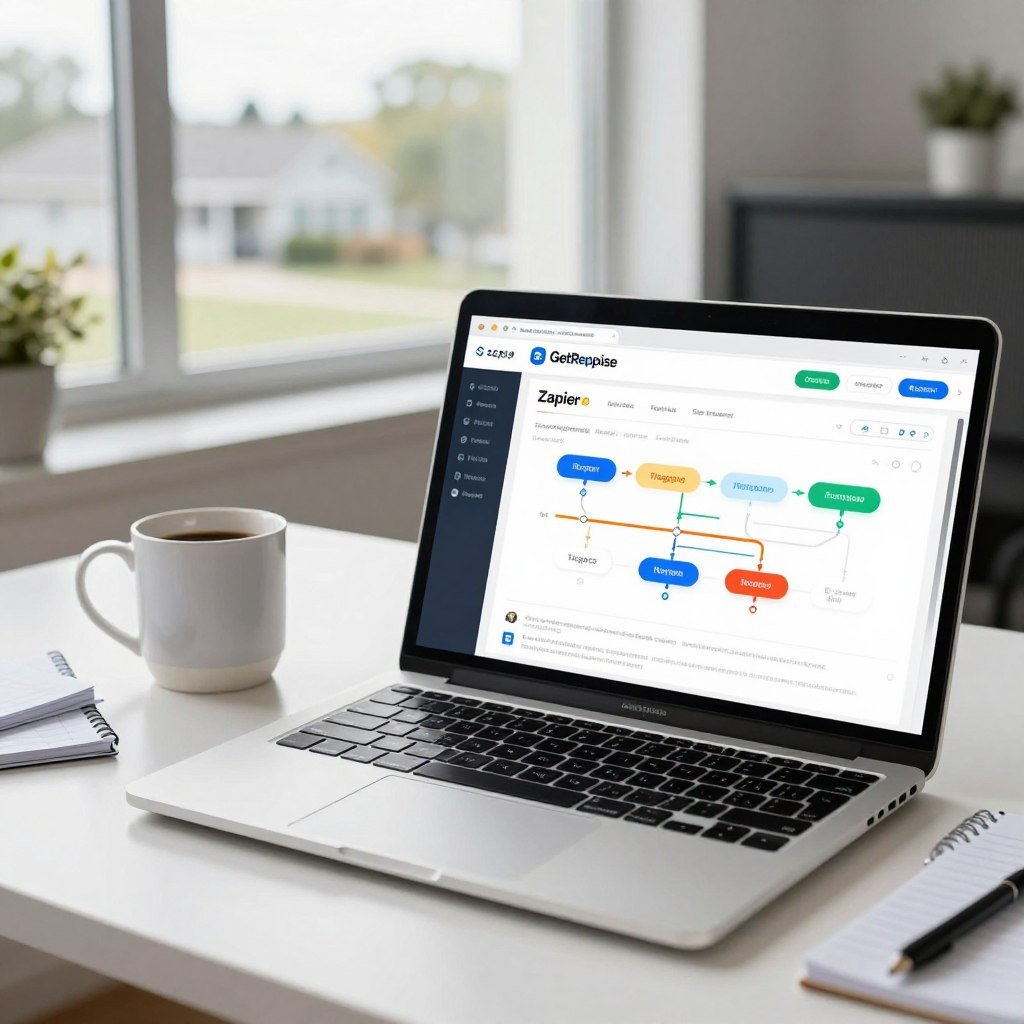
Triggers and searches in GetResponse
A trigger starts a Zap when its event occurs. GetResponse’s six triggers are polling triggers, which check for new activity at regular intervals.
Find List and Find Contact are searches, not triggers. They help a Zap look up an existing GetResponse record.
| Zap component | What it does | GetResponse options |
|---|---|---|
| Triggers | Starts a Zap from new activity | New Autoresponder, New Landing Page, New Contact, New List, New Newsletter, New Form |
| Searches | Looks up a record | Find List, Find Contact |
| Actions | Creates, changes, or removes data | Create or Update Contact, Create Newsletter, Update Contact, Create Contact, Remove Contact, API Request (Beta) |
Choose an event and action that match the record you want to move or change.
Actions you can run
Create Contact adds a new contact, while Create or Update Contact can add one or update an existing record. Update Contact changes contact details.
Create Newsletter can make an HTML newsletter or a draft. Remove Contact deletes a contact from a list, while API Request (Beta) gives you another action option.

Choose the event and action that match the record you want to move or change.
Workflows You Can Build With GetResponse
A common starting point is sending a new lead or customer from another app into a GetResponse contact list. A Zap can also send new GetResponse contacts back to a spreadsheet, so information can flow in either direction.
Each workflow starts with an event in one app and runs an action in another. These four scenarios show how you can connect apps you may already use.

- Send Facebook Lead Ads leads to GetResponse as contacts.
- Turn new Google Sheets rows into GetResponse contacts.
- Add Stripe or PayPal customers and Calendly appointments as contacts.
- Send new GetResponse contacts to new Google Sheets rows.
Other contact-creation workflows can start with Webflow form submissions, Google Forms responses, or WooCommerce orders. The source app is the app where someone first shares their details.
For example, a form can collect a name and email before a Zap adds that information to your contact list. A spreadsheet workflow can start when you add a new row.
Pick the source app based on where the contact information is first collected.
What You Need Before Connecting GetResponse
You can connect a free or paid GetResponse account, but you need its generated API key ready. GetResponse requires an API key for the Zapier connection, and MAX users need domain details too.
You can start the account connection in Zapier or from GetResponse’s Integrations and API area. Prepare the needed details before you connect GetResponse.
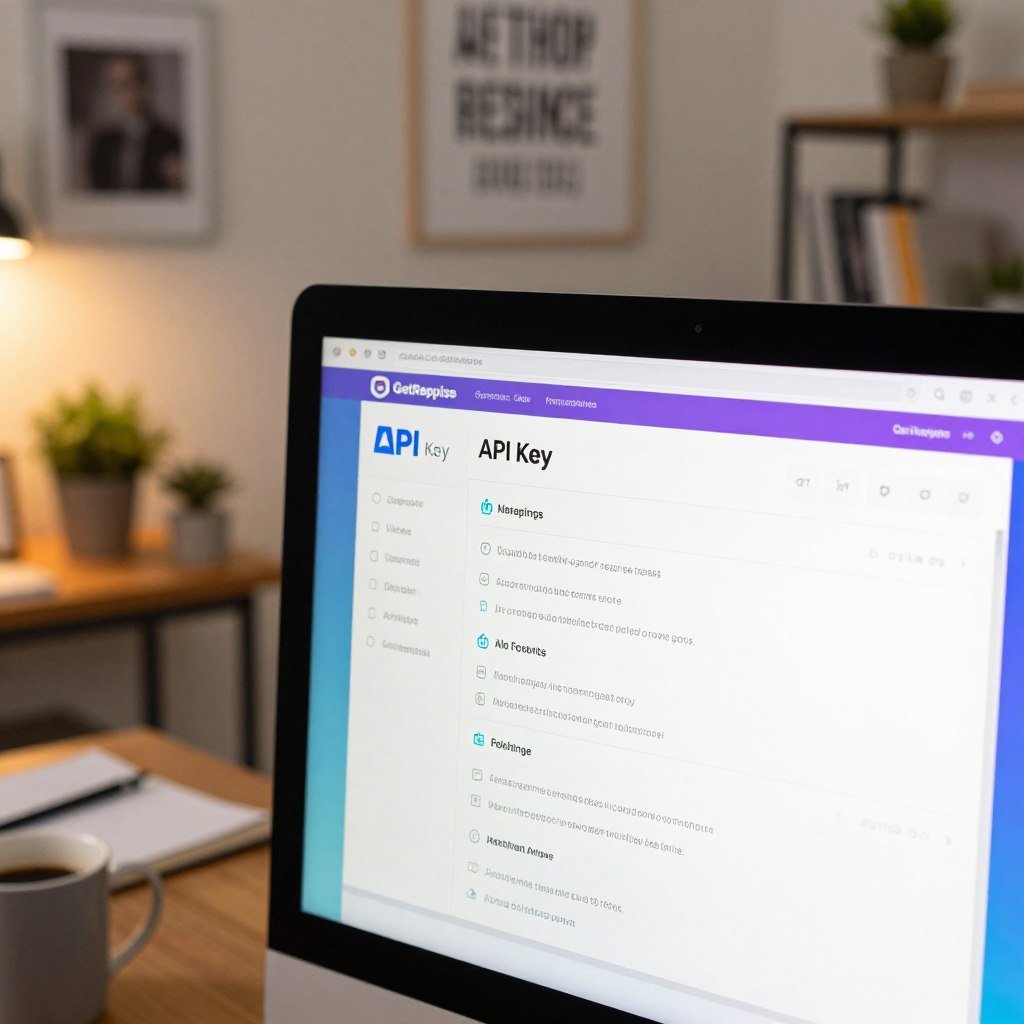
Prepare your GetResponse account and API key
Find the key in GetResponse under Integrations and API > API. Copy the generated key so you can enter it during account setup in Zapier.
Use this short preparation list before you add the app connection:
- Confirm that you can access your active GetResponse account.
- Generate and copy the GetResponse API key.
- Prepare your MAX domain details, if you use MAX.
In 2026, the connection setup asks for an API key and account type. MAX users also enter their domain name and provide an X-Domain header containing that domain.
Connect your account in Zapier
In Zapier, open app connections and add GetResponse. Enter your API key and account type when prompted.
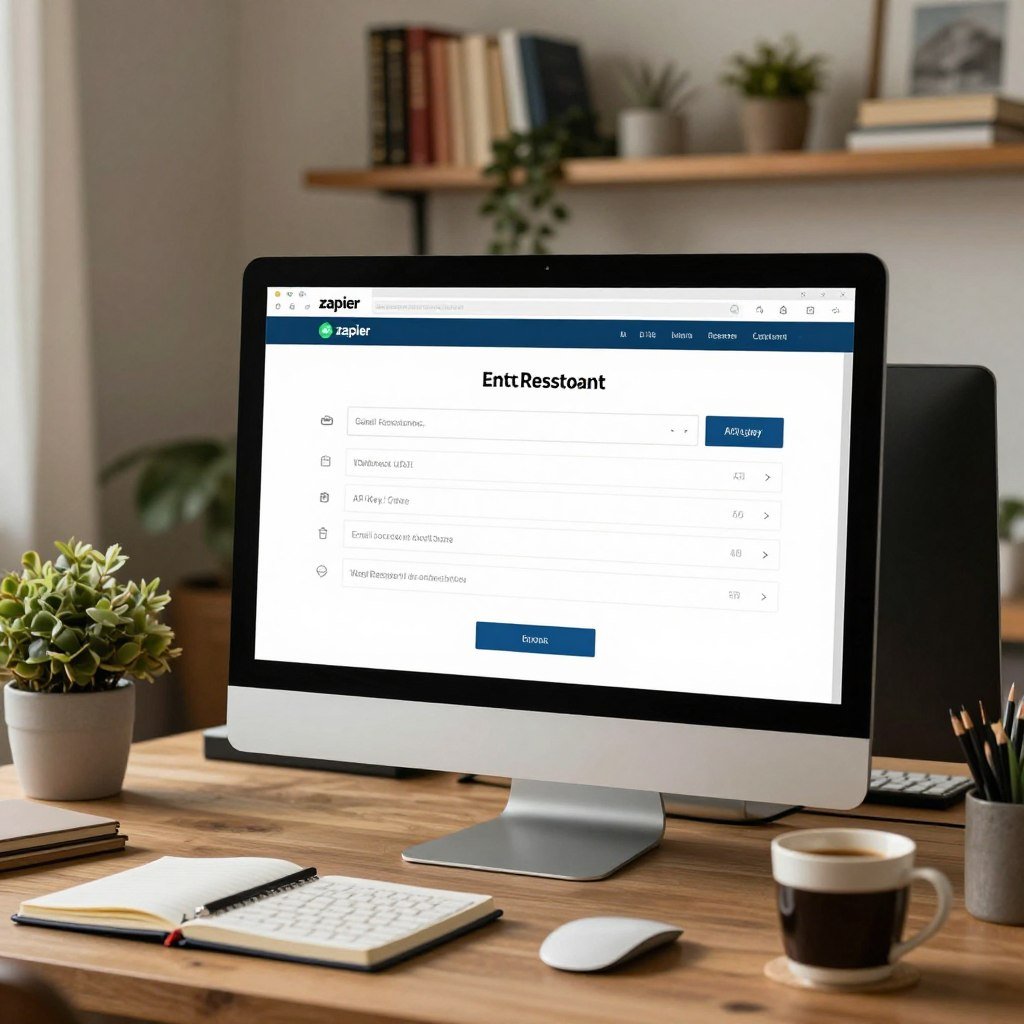
MAX setup calls its account type Enterprise in the legacy naming. You can also start the connection from GetResponse’s Integrations and API > Integrations by Zapier page.
Regenerate an API key that has gone unused for 90 days before using it.
How GetResponse Polling Triggers Run
GetResponse’s Zapier triggers are polling triggers, so the wait for a new event depends on your Zapier plan. A polling trigger checks for new data at regular intervals, and your plan sets how often those checks run.
Zapier compares each item’s unique ID with IDs the Zap already received. A new ID can start the workflow.
| Zapier plan | Polling interval | What the interval means |
|---|---|---|
| Free | 15 minutes | Regular checks every 15 minutes |
| Professional | 2 minutes | Regular checks every 2 minutes |
| Team and Enterprise | 1 minute | Regular checks every minute |
The trigger can run for new data or for updates, if that specific trigger supports updates. It does not start for a contact, form, landing page, or other record created before the Zap was turned on.
This timing affects when a new event reaches the workflow, not when the event first happens in GetResponse. A contact added between checks may wait until the next check.
Turn the Zap on before the activity you want it to catch occurs.
How to Test a Trigger and Fix Missing Records
A trigger test checks for records the selected event can return from the connected account. A polling-trigger test checks the app and displays up to three recent items it finds.
An instant-trigger test retrieves the three most recent items from the connected account. A test may show no records when the app has no recent matching data.

When the result is empty, create new matching data in the app and test again. A fresh form submission or other new event can give the trigger a record to return.
MAX users can connect GetResponse through Zapier even if Zapier does not appear in the GetResponse integrations hub under Tools > Integrations and API.
Use this short checklist when the test comes back empty:
- Confirm that relevant recent data exists in the connected account.
- Create fresh data if no recent matching record is available.
- Test the trigger again after the new event occurs.
If the first test has no records, create a fresh matching event and run the test again.
How to Create or Update GetResponse Contacts
Choose Create Contact when the workflow should add a new record, and Create or Update Contact when it should create or update one. The action you choose determines whether the Zap adds a new contact or can update an existing one.
Update Contact changes information on an existing contact. Pick the action that fits the records your workflow receives.
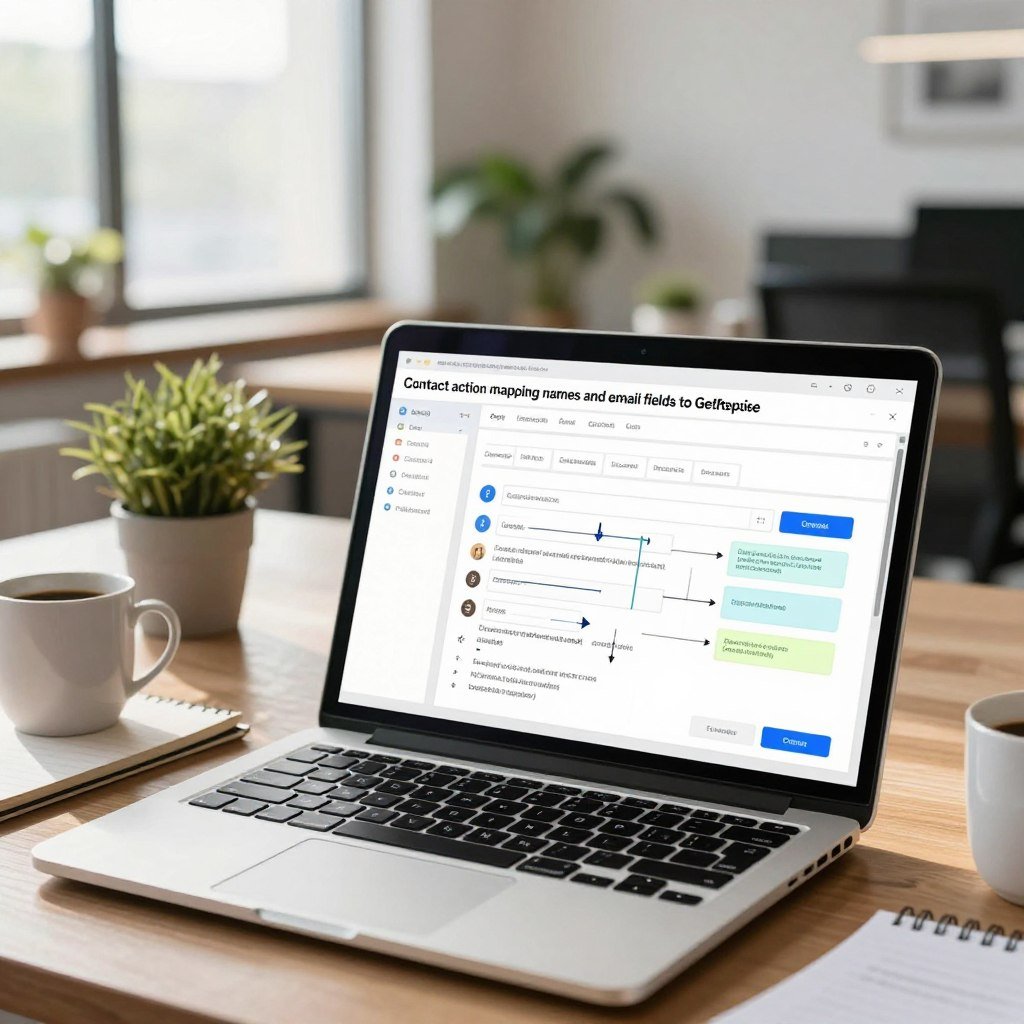
Choose the contact action
Create Contact adds a contact to a chosen list. Create or Update Contact can create a contact or update an existing record, while Update Contact changes an existing contact’s information.
Choose the destination list when you set up a contact action. Create Contact also offers advanced options for custom fields, tags, and adding the contact to an autoresponder cycle.
Map fields, tags, and autoresponder settings
Map information from the trigger app to the matching GetResponse fields. Update Contact can change contact information, including tags and custom fields.
Imported custom-field values must match the predefined GetResponse field types. These include currency, country, gender, date, datetime, phone, and age.
If Update Contact or tag fields do not appear, the older integration may need to be disconnected and connected again. Check the field choices after you reconnect the account.
Match each incoming custom-field value to the corresponding predefined GetResponse field type.
How to Manage Zaps and Avoid Workflow Problems
Review the workflow’s trigger and actions together, especially if an action writes back to the resource that started it. Writing to the same app and resource a trigger monitors can retrigger the Zap and create an infinite loop.
GetResponse’s dashboard lets you configure or disconnect Zaps under Integrations and API > Integrations by Zapier. Check the settings there when you need to change or stop a workflow.
A Zap that writes back to the resource its trigger monitors can start itself again and again.
A bulk spreadsheet import or CRM migration can create a large trigger result. Flood protection may hold that result for review instead of processing it right away.
GetResponse API limits allow 30,000 API calls per 10-minute time frame and a maximum of 80 calls per second. Keep those limits in mind when a workflow sends many requests.
API Request (Beta) makes a raw HTTP request using the integration’s authentication. That option suits a workflow that needs a direct API request rather than a listed action.
You can use the Zapier Schedule app to run Create Newsletter every week on selected day or days. This sets a weekly schedule for creating a newsletter or draft.
Use the schedule and API options only when their timing or request behavior fits the workflow you are building.
Conclusion
A well-planned Zap connects the event you care about to an action that moves or changes the right information. One clear data path makes a workflow easier to manage and review.
You can start with a single routine task, then choose the app event and GetResponse action that fit it. The source event gives the Zap its starting point.
Choose one repetitive task and build a Zap that connects its starting event to the action you need.