
The GetResponse Shopify integration connects your store data with GetResponse so you can personalize marketing and automate customer follow-up. It can import customer information, product catalogs, orders, abandoned checkouts, and even the sites customers visit. That range gives you more ways to tailor messages to what shoppers do. You can connect store activity to useful campaigns without treating every customer the same.
For an ecommerce store, the challenge is often reaching customers at the right time with relevant products. This walkthrough covers the connection, the data choices, and the features that can help you engage shoppers. Use the integration when you want your marketing to respond to what customers browse, buy, and leave in their carts.
Key Takeaways
- Connect Shopify and GetResponse to bring store activity into your marketing.
- Choose full ecommerce data to use purchase and cart details.
- Keep Shopify marketing consent distinct from GetResponse’s Consent field.
- Use Web Connect to track page visits and trigger workflows.
- Check cart recovery results in GetResponse reports.
How to Set Up the GetResponse Shopify Integration
You can connect the accounts from GetResponse’s Integrations and API area, then authorize the plugin in Shopify. This shopify integration brings ecommerce data into a list you choose. GetResponse recommends full ecommerce data when you plan to use its ecommerce features.
Install and authorize the Shopify connection
To integrate Shopify GetResponse, start in GetResponse, not in your Shopify admin. The plugin needs Shopify authorization before you can set import options. Use these steps to connect Shopify:
- Open Integrations and API in GetResponse.
- Open the Shopify integration details.
- Click Install plugin.
- Authorize the installation in Shopify.
- Return to GetResponse and choose imports and sync settings.
After authorization, GetResponse returns you to the setup area. A dedicated contact list keeps Shopify contacts apart from contacts added through other tools.
Choose import types and sync settings
Choose the import that matches your goal. Full ecommerce data supports more campaigns than a contacts-only import, while products-only data helps power product features.
| Import choice | Data imported | Best fit |
|---|---|---|
| Full ecommerce data | Customers, products, orders, and cart activity | Ecommerce campaigns and features |
| Contacts only | Shopify customers | Adding contacts without ecommerce history |
| Products only | Product catalog | Product features in messages or sales funnels |
You can sync once a day or as soon as data changes in Shopify. On-change syncing moves updates one way, from Shopify to GetResponse.
On-change sync does not send changes made in GetResponse back to Shopify.
Choose full ecommerce data when you want GetResponse’s ecommerce features to use customer, order, and product activity.
What Shopify Data Syncs to GetResponse?
A full ecommerce import can bring customer records, products, orders, and abandoned-checkout data into GetResponse. The imported customer data can include mapped custom fields, while products arrive with collection details. Shopify order-history imports cover only the last 60 days; older orders are archived.
Products, orders, and collections
GetResponse imports simple products and product variants, not every possible Shopify product type. Collection data acts like a category, helping you group products in segments, automation conditions, and product recommendations. That can help you segment customers based on the kinds of products they view or buy.
Shopify collection-related changes are checked and updated in GetResponse every 24 hours. This timing applies to collection details, not the overall sync setting you chose.
Customer fields and Shopify tags
You can map Shopify fields to GetResponse custom fields. The available fields fall into three practical groups:
- Identity and contact: email, first name, last name, and phone.
- Consent: marketing consent and SMS consent.
- Business and address: company, address lines, city, ZIP code, country, and province.
Shopify customers can also have tags that help you sort records. Tags sync one way from Shopify to GetResponse, with additions and removals reflected through Shopify webhooks.
Use collection data as a grouping tool for segments and workflow rules, rather than as a replacement for purchase history. Treat collection details as a daily refresh, since Shopify collection changes are updated every 24 hours.
How Do Consent and Contact Updates Work?
Shopify marketing consent and GetResponse’s Consent field are separate settings, so enabling one does not populate the other. You can map consent fields, but the two consent records remain distinct. Ecommerce campaign messages require valid marketing consent, even when a contact is an active subscriber.
Keep Shopify and GetResponse consent distinct
If you select Shopify marketing consent, a customer’s withdrawal removes that contact from GetResponse. When someone unsubscribes in GetResponse, the contact stays in Shopify, but Shopify marketing consent is removed.
These changes do not make the GetResponse Consent field and Shopify marketing consent the same field. Check the actual marketing consent before sending an ecommerce campaign, even if the person still appears as an active subscriber.
Choose how contact records are handled
Choose one of three contact-information rules during setup. Each option changes how Shopify details affect matching contacts in GetResponse:
- Add and update existing: add new contacts and refresh existing contact details.
- Only add new: add contacts not already on the GetResponse list.
- Only update existing: change details for matching contacts without adding new ones.
Add and update existing keeps contact information current in both places. It suits stores where Shopify holds the latest customer details and those details should refresh existing GetResponse records.
The other choices limit how much new data enters your list. Choose the contact-update option that matches whether your Shopify records should overwrite existing GetResponse details.
Use Web Connect to Track Page Visits
If you want workflows to respond to browsing behavior, enable GetResponse Web Connect in the Shopify integration settings. Web Connect collects the URLs of pages Shopify customers visit. It adds browsing activity to the customer, order, and product records you already chose to import.
To turn it on, open Manage integration, then choose Web Connect snippet in GetResponse. In Shopify, switch on GetResponse Web Connect and save the setting. The tracked URLs can then help you act on a specific visit.
For example, a customer who visits a particular product page can start an automation workflow. You could use that signal to send a related message or add the customer to a follow-up path.
Page-visit tracking is optional, so use it when browsing behavior matters to your campaign. It gives you a different signal from an order or an abandoned checkout.
Build a workflow around a specific product-page visit when that behavior is the signal you want to act on.
Recover Abandoned Carts with GetResponse
GetResponse can send an abandoned-cart reminder and rebuild the shopper’s cart from the email link, even if the shopper was not logged in. The ecommerce abandoned-cart campaign can bring back a cart with its contents ready to review. The campaign ends automatically when the customer completes the purchase.
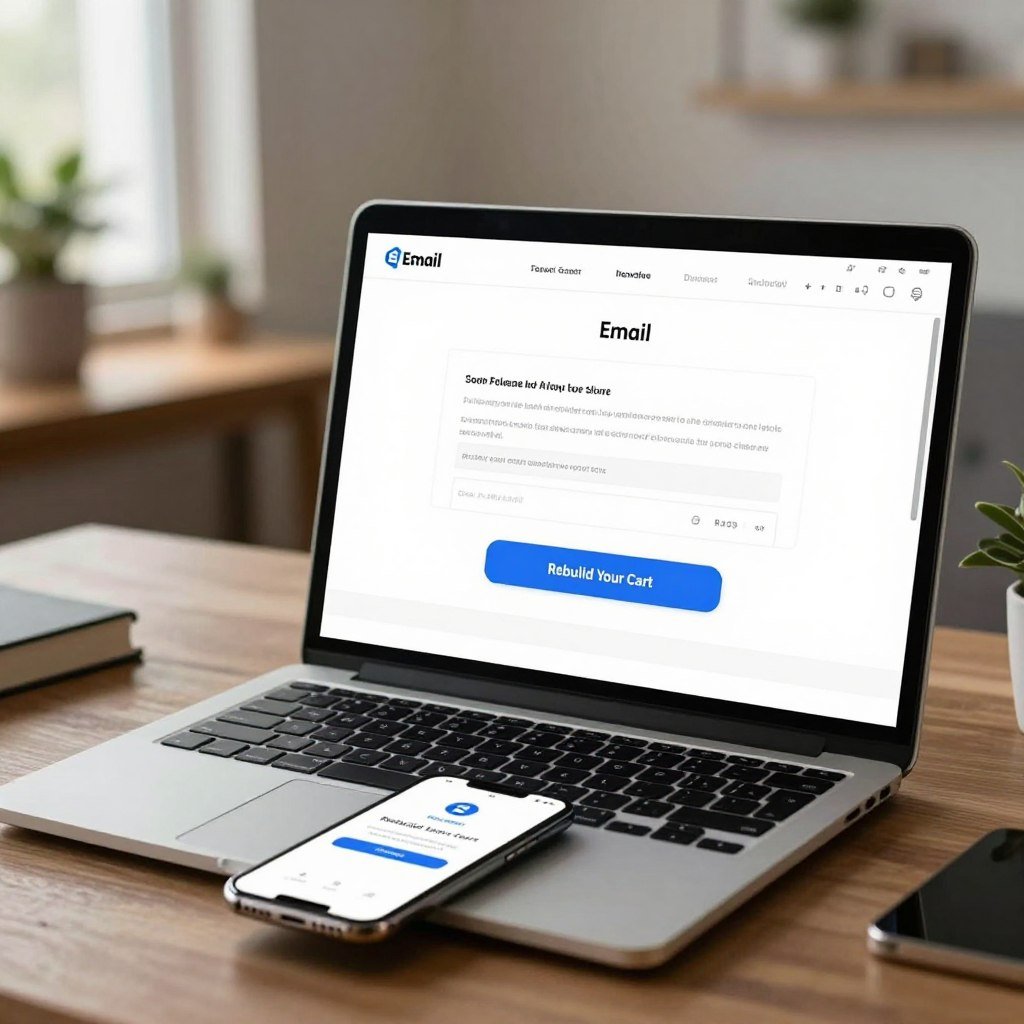
Set up cart reminders and recovery links
Set the reminder timing to fit your store’s follow-up plan. The email link can rebuild the cart whether or not the shopper had logged in when creating it.
If you enable the option to email non-subscribers, GetResponse sends a standard transactional email without marketing content. It does not turn that message into a marketing email.
Keep the campaign within its operating limits
Keep these checks in mind as you set up cart emails:
- Set the reminder timing.
- Keep the full flow within 21 days.
- Make sure the flow ends when the shopper buys.
- Choose one cart-recovery approach to prevent duplicate reminders.
GetResponse advises against running this campaign alongside cart-recovery flows in Marketing Automation. A shopper could otherwise receive duplicate reminders from both approaches.
Do not let the wait periods push the campaign past its limit. Keep the entire abandoned-cart campaign, including its waits, within the 21-day maximum.
Use Shopify Data for Segmentation, Recommendations, and Reports
Use purchase history and browsing behavior to tailor messages, recommend products, and choose which customers receive each campaign. You can segment customers based on past orders, then use product recommendations to make an email feel more relevant. Product details can shape the message without requiring the same offer for every shopper.

Build targeted campaigns and automation workflows
GetResponse tools such as Conversion funnel and Product box use product data in emails or landing pages. You can feature items related to a customer’s purchase history, or build a segment around a product category.
Automation workflows can start with a purchase, abandoned cart, landing-page visit, web event, or engagement event. These triggers let customer behavior start a workflow instead of relying only on a fixed schedule.
Workflow actions include sending a message, tagging a contact, moving or copying a contact to a list, scoring, waiting, notifying you, or using a webhook. You can combine a trigger and action to build a focused follow-up path.
Review ecommerce results
Check ecommerce results in Reports > Ecommerce. The report area includes abandoned-cart and recovered-cart statistics, including campaign revenue.

Compare campaigns by the cart activity and revenue they report. That check can help you see whether the recovery messages are producing sales.
Review recovered-cart and abandoned-cart revenue in Reports > Ecommerce to see which campaigns are producing sales.
Use product data to match each message to a customer’s interests, rather than sending one product list to everyone.
Which GetResponse Plan Fits Your Shopify Automation?
The clearest plan difference for a Shopify store is the number of active automation workflows each plan includes. Starter includes one active workflow, while Marketer includes unlimited workflows. Your workflow needs are a useful basis for comparing the plans.
As of 2026, the listed monthly prices depend on your contact count. Marketer costs more than Starter at both listed contact levels.
| Plan | Price for 1,000 contacts | Price for 10,000 contacts | Active automation workflows |
|---|---|---|---|
| Starter | $19/month | $79/month | 1 |
| Marketer | $59/month | $114/month | Unlimited |
These prices and workflow details are as of 2026. Marketer fits stores that need more than one active workflow, while Starter supports a single active workflow.
Compare the workflow limit with the journeys you plan to run before choosing a plan.
Conclusion
A well-configured Shopify connection gives you a practical base for more relevant customer marketing. A dedicated Shopify contact list and a deliberate full-data import can give campaigns useful purchase and product context.
You do not need to launch every feature at once. Start with one focused use, such as a purchase-history segment or a cart-recovery campaign, and learn from its results.
Start by connecting Shopify with a dedicated list, then build one campaign around the customer behavior that matters most to your store.