Conversion funnels for online marketers

GetResponse Automation Review: Features, Pricing, and Usability

GetResponse automation is a visual workflow builder for email and web follow-ups, with the right fit depending on the features and workflow access your marketing needs. Its web automation can respond to site visitors who have not subscribed, which is an unexpected way to reach potential customers.

You can connect email campaigns to customer actions, then guide people toward a sale or another goal. Available tools depend on your plan, so this review weighs features, pricing, and ease of use for different marketing needs. Your best-fit plan depends on the complexity of the journey you want to automate.

Key Takeaways

  • GetResponse connects email follow-ups with website behavior.
  • A visual builder combines actions, conditions, and filters.
  • Plan choice affects workflow access and available elements.
  • Templates can help you start common customer journeys.
  • Measure clicks and conversions alongside reported opens.

How Does GetResponse Automation Work?

A workflow begins when a trigger, such as a link click or a purchase, tells GetResponse which action to take next. That trigger links customer behavior to email or web follow-ups, so each campaign can respond to what someone does.

A workflow combines actions, conditions, and filters to shape the next step. Actions send messages, wait, add tags, score contacts, or send push notifications. Conditions check for events, while filters narrow which contacts continue.

Use autoresponders for timed sequences and behavior-based workflows when the next message depends on what a contact does.

Email triggers and timed follow-ups

GetResponse email marketing connects campaigns to customer actions, such as opens, link clicks, and purchases. A GetResponse autoresponder sends a timed sequence, while a workflow can send a follow-up after a contact clicks a link.

An email autoresponder can send at signup, after a delay, or at a specified time. You can send an unlimited number of autoresponder messages from one list.

A professional office scene featuring a close-up of a computer screen displaying an email autoresponder system for GetResponse. In the foreground, clear and neat email templates with subject lines and timed schedules for new subscribers are visible. The middle ground includes a hand typing on a keyboard, indicating active engagement with the automation features. The background shows a modern office setting with soft lighting, creating a welcoming atmosphere. The focus is on warm tones, enhancing feelings of productivity and efficiency. A person in smart casual attire is visible, thoughtfully analyzing the screen, contributing to a mood of professionalism and focus.

Ultimate Lead Gen

Cycle days help you space a sequence from the subscription date. If a selected send day is blocked, GetResponse sends the message on the earliest allowed day.

Cycle day Relative timing Send-time options If the selected day is blocked
Day 0 Day of subscription Signup, delay, or specified time Earliest allowed day
Day 3 Three days after subscription Signup, delay, or specified time Earliest allowed day
Day 7 Seven days after subscription Signup, delay, or specified time Earliest allowed day
Day 14 Fourteen days after subscription Signup, delay, or specified time Earliest allowed day

Website behavior and personalized actions

Website conditions can respond to abandoned carts or visited URLs, as well as purchases. That lets you tailor a follow-up to a product page visit instead of sending every customer the same email.

A professional workspace showcasing a modern digital marketing setup. In the foreground, a sleek laptop is open, displaying a bright webpage with the GetResponse platform interface, focusing on automation features. Beside the laptop, a notepad and a smartphone are visible, indicating organization and planning. In the middle ground, a confident business professional in smart casual attire is engaged with the laptop, pointing at the screen, guiding a customer follow-up process. The background features a stylish office with soft, diffused lighting creating a warm atmosphere, and shelves filled with marketing books. The angle is a slight overhead shot, emphasizing the interaction with technology and the professional environment, conveying a sense of productivity and innovation.

Ultimate Lead Gen

Web automation can react to site visitors even when they are not subscribers. Email actions reach contacts through their inbox, while web-push notifications reach people through their browser.

GetResponse also lists landing pages, SMS, forms and popups, funnels, and webinars among its platform features. Marketer and Creator plans include unlimited web-push notifications, giving you another way to reach people outside email.

A modern digital workspace showcasing web-push notifications in the context of GetResponse marketing automation. In the foreground, a sleek laptop displays an animated notification alerting a user about a new marketing campaign. In the middle, vibrant icons representing various marketing tools like email, social media, and analytics float around the laptop, emphasizing integration and automation. In the background, a stylish office with large windows reveals a bright and airy atmosphere, with a city skyline visible outside, suggesting innovation and progress. The lighting is bright and inviting, enhancing the feeling of productivity and business growth. The scene conveys a mood of excitement and opportunity in digital marketing.

Ultimate Lead Gen

How Do You Build a Workflow in GetResponse?

Before adding workflow blocks, decide which customer action should start the journey and have the messages or signup assets ready. A clear starting point helps you choose the right trigger and build a useful marketing automation path.

You can build a workflow from a template or start with a blank canvas. Templates arrive with selected elements, and some may already have settings in place. Starting blank gives you control over the mix of building blocks.

A detailed, visually captivating workflow template for an email campaign using GetResponse, displayed prominently in the foreground. The template should feature interconnected steps clearly labeled, with icons representing email triggers, user segments, and analytics. In the middle layer, a modern workspace environment includes a sleek laptop with the GetResponse interface open on the screen, alongside professional stationery. The background should show a softly blurred office setting with warm, inviting lighting, adding a touch of professionalism and creativity. A soft focus on the workflow details emphasizes clarity and functionality. The overall atmosphere is one of productivity and innovation, appealing to marketers and business professionals. The image is designed with a shallow depth of field, creating an engaging visual narrative without any text or distractions.

Ultimate Lead Gen

Start from a template or a blank workflow

Choose a template when its structure fits the customer action you want to address. A blank workflow lets you set each action, condition, and filter to match your audience and goals.

Either option still needs your campaign content and settings. Add the trigger first, then decide which actions should follow and what conditions will guide contacts along different paths.
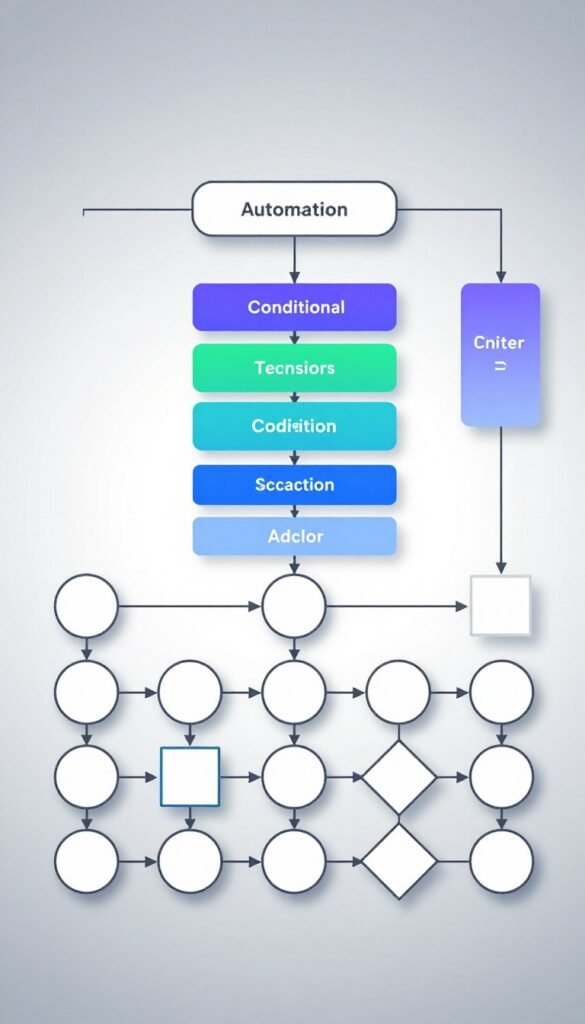
A digital depiction of a blank automation workflow diagram, showcasing various actions and conditions clearly arranged. In the foreground, distinct workflow nodes with different shapes (circles, squares, diamonds) demonstrate process steps, connected by arrows indicating flow direction. In the middle, include layers of conditional logic and triggers, illustrated with gradients to differentiate between types of actions. The background features a subtle grid design, lending a sense of structure and organization, with soft lighting that emphasizes clarity and professionalism. The overall atmosphere is focused and tech-savvy, suitable for a business environment, portraying a clean, high-tech aesthetic without any text or watermarks.

Ultimate Lead Gen

Configure, test, and publish your sequence

Use this five-step process to turn an idea into a published workflow:

  1. Prepare the message and signup or landing-page assets.
  2. Open Automation and create a workflow.
  3. Choose a template or start from scratch.
  4. Add the trigger, actions, conditions, and filters, then configure the message or page.
  5. Review the path, then save and publish the workflow.

A modern, sleek office workspace showcasing a digital screen displaying the steps of GetResponse marketing automation set for publication. In the foreground, a focused professional in business attire is reviewing the automation workflow on a laptop, with notes and a coffee cup nearby. The middle ground features a large monitor with colorful flowcharts, icons for various marketing automation tools, and graphs representing analytics. The background includes large windows with natural light streaming in, giving the scene a bright and productive atmosphere. Use a wide-angle lens to capture the entire setup, with a warm lighting tone to evoke a sense of efficiency and innovation.

Ultimate Lead Gen

You can save a workflow outline and exit before its messages or other assets are ready. Create the missing assets, return to the outline, then finish and save it before publishing.

Review every branch, including paths that stop or wait after a condition. Treat the final review as a path check, confirming that each trigger leads to the intended message or action.

A professional office environment with a diverse team of businesspeople engaged in reviewing a digital customer workflow path on a large screen. In the foreground, a focused woman in professional attire points at a flowchart, highlighting various steps of the workflow. In the middle, colleagues are seated around a table, taking notes and discussing the process, showcasing determination and collaboration. The background features abstract graphics illustrating automation and marketing concepts on the walls. Soft, natural lighting comes from large windows, creating a bright and encouraging atmosphere. A wide-angle lens captures the depth of the workspace, ensuring clarity and detail in facial expressions and technology. The overall mood is focused and productive, emphasizing teamwork before launching the marketing campaign.

Ultimate Lead Gen

What Does GetResponse Automation Cost?

Starter begins at $19/mo, while unlimited custom workflows start with Marketer at $59/mo. The main price difference is workflow access, though each tier also connects automation with different marketing tools.

Starter limits you to one custom workflow with up to six elements. It excludes tags, scoring, courses, and ecommerce tools from Starter workflows. Marketer workflows do not support webinar or course elements.
A detailed comparison chart illustrating GetResponse automation plans for marketing campaigns, with vibrant colors and clear, organized sections. The foreground features a digital tablet displaying the comparison chart, showing different plans with icons representing various features like email automation, analytics, and customer segmentation. In the middle, a modern office setting with a sleek desk and a plant enhances the professionalism, while a business professional in smart casual attire is analyzing the chart intently, holding a pen. The background includes shelves with books related to marketing, creating an atmosphere of productivity and focus. Soft, natural lighting streams through a window, adding warmth to the scene, while the camera angle is slightly elevated for a comprehensive view of the chart and its key elements.

Ultimate Lead Gen

Starter and Marketer workflow access

Annual billing lowers the listed monthly cost for Starter and Marketer. The table compares each plan’s price and the main features tied to its automation access.

Plan Monthly price Annual-billing price Automation access and notable inclusions
Starter $19/mo $15.58/mo 1 workflow, up to 6 elements; no tags, scoring, courses, or ecommerce tools
Marketer $59/mo $48.38/mo Unlimited workflows, abandoned-cart recovery, segmentation, sales funnels, revenue reports
Creator $69/mo $56.58/mo Unlimited workflows, webinars, course creator for up to 500 students
Enterprise Custom pricing Custom pricing Unlimited workflows, webinars, SMS, mobile push, transactional emails, dedicated IP

Marketer includes advanced audience segmentation, abandoned-cart recovery, sales funnels, and revenue reports. Those tools can support sales-focused marketing campaigns, but its workflow elements exclude webinars and courses.

A professional and visually engaging marketing automation workflow diagram for abandoned-cart recovery. In the foreground, a sleek digital interface displays an organized flowchart with various stages, such as "Cart Abandonment," "Reminder Email," "Special Offer," and "Follow-up." In the middle section, incorporate vibrant icons representing emails, shopping carts, and customer engagement metrics, all interconnected with arrows illustrating the automation process. The background features a minimalistic office workspace with bright lighting, where a diverse group of professionals in business attire analyze data on tablets and laptops. The mood is focused, highlighting efficiency and teamwork in digital marketing strategies. The image should be clear, well-structured, and avoid any text, capturing the essence of automation in e-commerce recovery.

Ultimate Lead Gen

Creator and Enterprise features

Creator adds webinars and a course creator for up to 500 students. Enterprise has custom pricing and includes unlimited workflows, webinars, SMS marketing, mobile push notifications, transactional emails, and a dedicated IP address.

GetResponse webinar software supports live and on-demand events, recording, chat, registration pages, and automated follow-up emails. Its webinar offering lists 100 live attendees and three hours of recording storage; its higher-tier offering lists 1,000 attendees and 20 hours.

A detailed, visually engaging workspace featuring a laptop displaying a "Webinar Registration and Follow-Up Email" interface from GetResponse. In the foreground, a professional businessperson in smart attire, focusing intently on their screen, with a slight smile indicating satisfaction. In the middle ground, a notepad and pen lie next to the laptop, reflecting an organized workspace. The background includes a bright, modern office with plants and soft natural light streaming through a nearby window, creating an inviting atmosphere. The mood is focused yet optimistic, emphasizing productivity and clarity, with a depth of field effect that draws attention to the laptop screen and the person's engaged expression. The arrangement should highlight the seamless integration of technology in business communication.

Ultimate Lead Gen

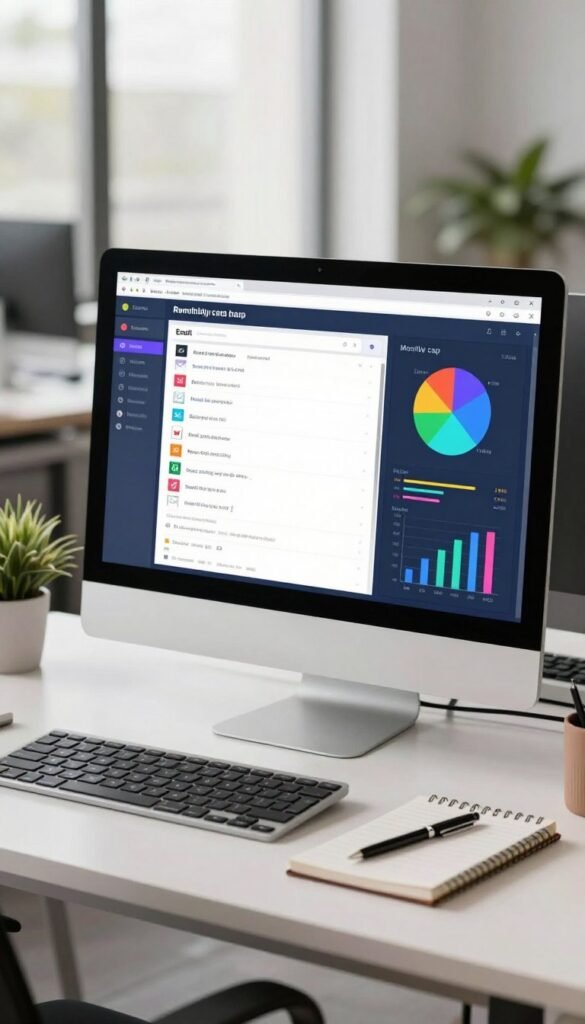
Paid plans include unlimited monthly email sends. The Free account allows 2,500 monthly messages, including newsletters, autoresponders, A/B tests, and automation messages.

The cap applies to both the 14-day account with premium features and free-for-life accounts that did not upgrade after the premium period. Confirmation and other notification emails do not count, but sending stops when the account exceeds its cap, and over-limit recipients receive no messages.

A 14-day trial requires no credit card. Match the tier to the specific workflow elements and connected marketing features your campaigns require.
A modern office workspace with a sleek computer monitor displaying a colorful dashboard of email messages tracked against a monthly cap. In the foreground, an elegant desk with a notepad and a pen lies next to the glowing screen, suggesting productivity. The middle scene features the monitor with vibrant pie charts and graphical representations of email usage statistics. The background shows a blurred office environment, with subtle hints of potted plants and soft natural lighting streaming through large windows, creating a bright and inviting atmosphere. The overall mood is professional, showcasing an efficient digital workspace in a contemporary business setting, captured from a slight angle to emphasize the technology on display.

Ultimate Lead Gen

What Makes GetResponse Automation Easy or Difficult to Use?

A ready-made template can reduce the blank-page work, but you still need to supply the campaign details and assets it uses. The useful shortcut is a starting structure, not a finished customer journey.

Templates cover common marketing automation needs, but each workflow still requires your messages, lists, and element settings. You can also build from scratch by combining actions, conditions, and filters to suit a specific campaign.

A visually engaging workspace showcasing GetResponse templates for a customer journey and campaign. In the foreground, a sleek laptop displays an open interface of diverse email templates, featuring colorful graphics and intuitive design elements. The middle ground includes a modern desk with a notepad and pen, alongside a smartphone showing analytics. Behind, a bright office environment with plants, large windows allowing natural light to filter in, and motivational posters emphasizing productivity. The scene is captured from a slight overhead angle, creating depth, with soft, warm lighting that evokes a welcoming and innovative atmosphere. The overall mood is professional and efficient, perfect for illustrating digital marketing automation.

Ultimate Lead Gen

Templates for common customer journeys

GetResponse templates cover welcome, abandoned-cart, engagement, retention, lead-qualifying, and post-purchase campaigns. Other options address sales promotions, webinars and events, and online courses.

A template can give you a path to edit instead of a blank screen. You still need to match its content and settings to your list, offer, and intended customer action.

  • Abandoned-cart reminder
  • Welcome new contacts
  • Basic scoring plan
  • Post-purchase follow-up
  • Webinar promotion

A sleek and modern email template design that serves as an abandoned-cart reminder for an online shopping campaign. The foreground features a visually appealing email layout displayed on a stylish laptop, showcasing enticing product images and a clear call-to-action button. In the middle, a person's hand gently reaches toward the laptop, dressed in professional attire, indicating engagement with the email. The background consists of a softly blurred office environment with warm lighting that creates an inviting atmosphere. The scene is illuminated with a warm, natural light that enhances the colors of the email design, evoking a sense of urgency and excitement for potential customers. The angle captures the laptop and hand from slightly above, providing a dynamic perspective while focusing on the email content.

Ultimate Lead Gen

Prepare workflow assets before publishing

Building from scratch can suit a customer journey that does not match a ready-made pattern. You choose how the three element types work together, then set each element’s properties for your campaign.

The setup can pause if an asset is unfinished. Save and exit the workflow, create the missing message or signup page, then return and complete the workflow before publishing.

A digital workspace setting with a sleek, modern aesthetic depicting a "Welcome" message as part of a GetResponse workflow asset. In the foreground, a well-organized desk features a high-resolution computer screen displaying a vibrant, user-friendly interface with the welcome message prominently featured. In the middle ground, a stylish potted plant adds a touch of greenery, while a notepad and pen suggest productivity. The background includes a blurred bookshelf filled with business books and decorative items, creating a professional atmosphere. Soft, natural lighting illuminates the scene, emulating an inviting and efficient working environment. The angle is slightly elevated, focusing on the screen and workspace, conveying a mood of innovation and accessibility.

Ultimate Lead Gen

That pause helps when you have a campaign outline but still need to write or build one piece. Prepare the message and signup assets before finalizing the workflow so each selected element has something to act on.
A modern, sleek signup page interface prominently displayed on a laptop screen, illustrating a customer journey workflow for an automation tool. The foreground features a vibrant, user-friendly design with input fields for email and password, highlighted by engaging call-to-action buttons. The middle ground presents visual representations of user paths and automation features, incorporating icons and flowcharts. The background includes a softly blurred office environment, with warm lighting emanating from a nearby window, creating a professional, inviting atmosphere. The camera angle should be slightly tilted downwards, emphasizing the screen's details while keeping the office setting in soft focus. Overall, the mood conveys efficiency, clarity, and professionalism, suitable for a tech-savvy audience.

Ultimate Lead Gen

How Can You Tell Whether Automation Is Working?

Compare the actions generated by an automated message with the goal you set for its customer journey. Clicks and conversions show whether a campaign is moving people toward the result you wanted.

Triggered emails average a 5.02% click-through rate, compared with 3.25% across all industries. Their average open rate is 45.38%, while the all-industry average is 39.64%.

A modern office setting with a sleek, minimalist design, featuring a large digital screen displaying a colorful graph of email click rates against specific marketing campaign goals. In the foreground, a focused professional in smart business attire, analyzing the data on a tablet. The middle ground includes a collaborative workspace with a whiteboard covered in marketing strategies and flowcharts. In the background, large windows allow natural light to stream in, creating a bright and motivating atmosphere. The scene conveys a sense of productivity and strategic planning, highlighting innovation in digital marketing with a contemporary aesthetic. Use a warm color palette and soft lighting to enhance the inviting feel of the environment, captured from a slightly elevated angle to showcase the workspace dynamics.

Ultimate Lead Gen

Benchmarks are reference points, not promises of the result your campaign will earn.

These figures can help you compare a triggered message with broad email patterns. Your audience, offer, and message still shape the response, so a benchmark does not set a required target.

Open rates need extra care because Apple Mail Privacy Protection and bot activity can inflate or distort reported opens. Treat opens as a directional signal, then give clicks, conversions, and revenue more weight when they match the campaign goal.

A modern office workspace featuring a large digital screen displaying conversion rates and email click metrics from GetResponse automation tools. In the foreground, a professional business analyst, dressed in smart attire, studies the data intently, taking notes on a digital tablet. The middle ground includes sleek office furniture and a small meeting table with a laptop open and more data visualizations. The background shows large windows with sunlight streaming in, creating a bright and productive atmosphere. The scene is well-lit, with soft shadows adding depth, captured from a slightly elevated angle to provide a comprehensive view of the workspace. The mood is focused and analytical, reflecting a data-driven environment.

Ultimate Lead Gen

The all-industry unsubscribe rate averages 0.15%. A rise in unsubscribes may signal that a message or its timing does not fit the people receiving it.

A digital illustration depicting a business professional in smart casual attire, sitting at a modern workspace with a laptop open in front of them. The foreground features a close-up view of the computer screen displaying an email interface with a checkbox marked for "Unsubscribe" from a marketing list. In the middle ground, a notepad and a coffee cup are visible, suggesting a thoughtful moment as the individual evaluates their email subscriptions. The background shows a bright, well-lit office environment with potted plants and a large window letting in natural light, creating a warm and inviting atmosphere. Soft shadows enhance the mood of focus and decision-making, while the angle captures the scene from a slight top-down perspective, emphasizing the importance of the choice being made.

Ultimate Lead Gen

Review clicks and conversions alongside unsubscribe activity to decide what to adjust in the next campaign.

Conclusion

GetResponse automation is a flexible option when its workflow elements and plan features line up with your marketing goals. It can connect email and web actions, while the right tier depends on the paths and tools your campaigns need.

Before choosing a plan, map a welcome sequence on paper. Name its trigger, list the messages you want to send, and state the customer action each message should support.

Sketch your first welcome journey, then choose the tier that supports the actions it needs.

FAQ

Can you use GetResponse automation on a Free account?

Yes, the Free account includes automation messages within its 2,500-message monthly cap. The limit also covers newsletters, autoresponders, and A/B tests. Confirmation and other notification emails do not count toward it. When the account exceeds the cap, recipients over the limit do not receive messages, and autoresponder and automation sending stops.

Can Starter workflows use tags or ecommerce conditions?

No, Starter workflows cannot use tags, scoring, courses, or ecommerce tools. The plan allows one custom workflow with up to six elements, so its workflow choices are more limited than higher tiers. If your campaign needs those excluded tools, choose a tier that includes the elements your customer path requires.

Can Marketer workflows include webinars or courses?

No, Marketer workflows do not support webinar or course elements. Marketer includes unlimited workflows and tools such as abandoned-cart recovery, sales funnels, and revenue reports. Creator includes webinars and a course creator for up to 500 students, so it may fit better when your campaign relies on course or webinar features.

Is there a limit to how many autoresponder messages you can send from one list?

No, GetResponse sets no limit on the number of autoresponder messages sent from one list. You can plan a timed sequence around signup and later cycle days. Each message still follows its timing settings, and any account-level sending limits continue to apply when you use the Free account.

What happens if an autoresponder cannot send on its selected cycle day?

GetResponse sends the autoresponder on the earliest allowed day instead. Cycle days can mark points such as Day 0, Day 3, Day 7, and Day 14 after subscription. The send time can be tied to signup, a delay, or a specified time, depending on the settings you choose.

Are GetResponse open rates reliable for judging automation?

Open rates are useful as a directional signal, but they can be distorted by Apple Mail Privacy Protection and bot activity. A high reported open rate does not prove that a message drove action. Compare opens with clicks, conversions, revenue, and unsubscribe activity to judge whether the campaign met its goal.

Can GetResponse automation respond to website visitors who are not subscribers?

Yes, GetResponse web automation can react to site visitors who are not email subscribers. Website behavior, such as visits to selected URLs, can shape a workflow’s next step. Email follow-ups require an email contact, while web-channel actions can respond to visitor behavior without treating that visitor as a subscriber.

Leave a Comment

Your email address will not be published. Required fields are marked *

Scroll to Top