The GetResponse AI website builder is a practical starting point for small businesses that need a site and email marketing. It is not a replacement for every dedicated site platform. Its strongest appeal is quick setup paired with built-in marketing tools.
Your best fit depends on what your business needs from its website. If you want a clear online presence and a way to follow up with leads, GetResponse may save you time. If your brand depends on highly tailored layouts or complex site features, you may want more control.
Responsive design means a layout adjusts to fit different screen sizes. That matters when customers visit on phones as well as computers. This review looks at how the builder fits inside GetResponse and what you gain or give up by using it.
Key Takeaways
- GetResponse combines site creation with email marketing and automation.
- The AI creates an editable starting point, not a finished business strategy.
- You can use templates or adjust pages in the drag-and-drop editor.
- Design and speed limits may matter for complex or high-traffic sites.
- Plan costs and features change with your contact list and chosen tier.
What Is the GetResponse AI Website Builder?
The GetResponse website builder is a code-free site creation tool inside GetResponse’s wider marketing platform. It gives you a way to make a website without treating the site as a separate product, which can be useful if you already need email and lead follow-up.
You can create a draft, then change its pages and content to suit your business. The builder gives you a starting point, not a complete strategy or a promise of business results. You still need to check every claim, page, and customer path before publishing.
The builder gives you a starting point, not a complete strategy or a promise of business results.
Because the builder lives in a GetResponse account, site creation connects with other tools on the platform. You can build a web presence and manage parts of your marketing from the same account. That setup may feel simpler than keeping separate services for your site and campaigns.
The tool is aimed at users who want a working website without writing code. A small business can use it to explain its services, share contact details, and invite visitors to take an action. The wider platform can support communication with those visitors after they leave the site.
That connection does not mean every feature suits every business. A brochure site, a lead-generation site, and an online store have different needs. You should judge the builder against the pages and customer steps your own business relies on.
The GetResponse website builder also does not replace the work of setting a clear offer or brand voice. You decide what your customers need to know and which actions matter. The platform can help you present that information, but it cannot make those choices for you.
To begin, the builder asks for details about your business and design preferences. Those answers guide the AI as it prepares an initial draft, which you can then review and shape.

How Does the AI Builder Create and Customize a Site?
A local plumber could enter service details, target customers, and a preferred look before reviewing generated website options. The tool uses your answers to prepare three ready-to-edit proposals, giving you a choice of starting points.
Each AI draft combines page structure, text, and images. Those generated details are suggestions, not verified facts about your business. Review all copy, images, and calls to action before you publish.

Thoughtful inputs can make the first draft more useful. Share the basics that shape the site, rather than expecting the AI to guess your offer or audience.
- Business type and the offer you want to promote.
- Intended audience and the main goal for the site.
- Preferred look, including colors and general style.
- Your logo or other brand assets you want to use.
For example, a plumber might want nearby homeowners to request a quote. That goal calls for clear service pages, contact details, and a strong booking prompt. A different business may need visitors to join a mailing list or view a product range.
Once the draft appears, treat its content as editable material. Replace generic copy with accurate service details, hours, and terms. Check that every image fits your brand and that each call to action leads to the right next step.
The AI can save time on the first layout, but it cannot confirm that a business name, address, or offer is correct. Small errors can make a site feel untrustworthy. A careful review also helps you remove claims your business cannot support.
You retain control over the draft after generation. You can change the pages and their content instead of accepting the proposal as-is. The next decision is whether to refine an AI draft or begin from a prepared design.
Which Website-Building Features Can You Use?
The AI draft gets you moving, while the real design work is making the site feel like your brand. GetResponse offers a few routes into a usable first layout, though its tools suit straightforward websites better than highly custom ones.
You can start with AI, a template, or an existing draft in the drag-and-drop editor. Each route changes how much structure you inherit and how much you need to shape yourself.
Generate a starting point with the AI wizard
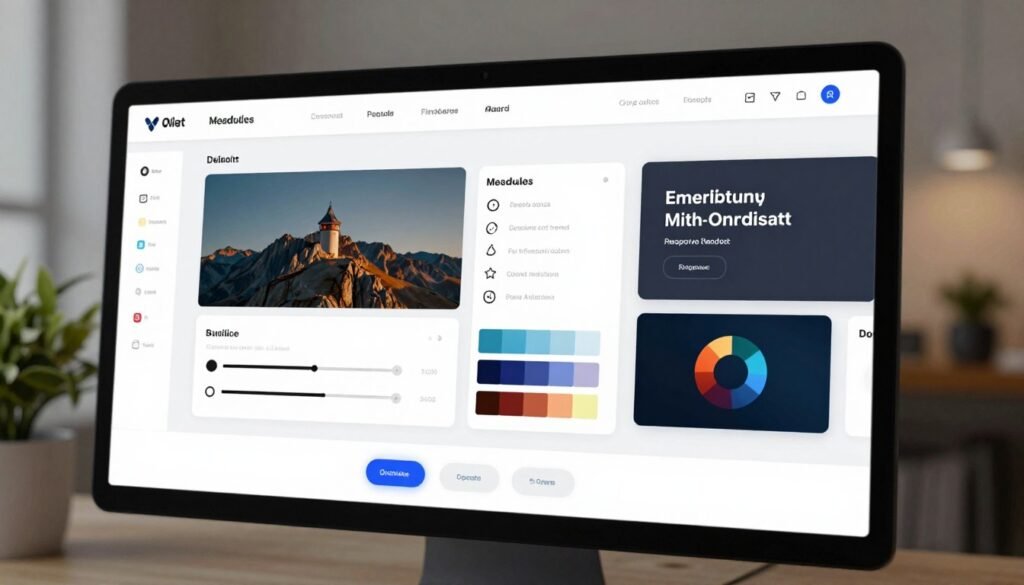
The AI wizard asks simple questions about your business and visual preferences. It then creates an editable concept with page layouts and sample content. This can help you get a website online in minutes, but a quick draft still needs a human review.
The AI-driven website builder works best when your answers are specific. A clear service, audience, and goal give the creator better direction than broad requests. You can choose a proposal and edit it instead of rebuilding every page from scratch.
Choose a responsive template
You can skip the wizard and select from a library of over 100 responsive templates. A template gives you a prepared design to adapt, which may suit you if you already know how you want the site to look.
Responsive design helps a layout adjust for different screen sizes. Check the template on a phone, since a neat desktop page can still crowd a small screen. The library gives you choice, but the right match still depends on your content and brand.
Refine pages in the drag-and-drop editor
In the drag-and-drop editor, you can move and adjust blocks, change text and images, and manage page order. The controls help you tailor an existing draft without code. You can also adjust mobile elements separately from their desktop versions.
Headers can stay visible as visitors scroll, fade away, or disappear. GetResponse also includes an Unsplash image integration, so you can add stock images without leaving the editing process. Stock images can fill a gap, but they should not stand in for brand-specific photos when those matter.
| Route | Starting point | Best use |
|---|---|---|
| AI wizard | Business and style answers | Quick first draft |
| Templates | Prebuilt responsive design | Deliberate visual starting point |
| Editor | Manual block and page adjustments | Tailor an existing draft |
Whichever route you choose, a polished result needs brand-specific editing. Update the colors, images, and words so visitors can tell what your business offers. Once the design is in place, the value of the platform also depends on how it connects with your marketing.
How Do GetResponse’s Marketing Tools Work With Your Website?
A visitor submits a signup form, joins your contact list, and receives a useful welcome email. That is the practical value of keeping a website and email marketing together: you can connect a visit to a follow-up without moving the contact between separate tools.
Signup forms can add contacts to GetResponse for email campaigns and marketing automation. You can also use popups, live chat, and web push notifications to engage visitors or reach them again.

These connections help when you have a clear reason to collect contact details. A local service might offer a seasonal checklist, while an online shop could send product updates. The follow-up should match what visitors expected when they shared their information.
- Signup forms collect contact details and explain what visitors will receive.
- Popups invite visitors to join a list or take another clear action.
- Email campaigns share updates, offers, or helpful information with contacts.
- Automation workflows send follow-ups based on a contact’s action or status.
- Web push notifications can re-engage visitors who allow browser alerts.
Live chat offers another way to answer questions while visitors are on a page. Push notifications can reach people through their browser after they leave, if they have agreed to receive them. These tools are most useful when you have a plan for what to say and when to say it.
A common mistake is collecting addresses without setting up relevant follow-up. Visitors may forget why they signed up, or receive messages that do not match the promise on the form. Make the consent experience clear, and tell people what kind of messages they can expect.
For a small business, that link between site visits and campaigns can make marketing easier to manage. It does not remove the need to write useful messages or respect contact preferences. Your next choice is whether the plan that includes the tools you need fits your budget.
What Does GetResponse Cost, and What Is Free?
GetResponse has a limited free option, while more advanced marketing features sit on paid tiers. The free plan includes up to 500 contacts and core tools for a small website and email list.
The Email Marketing plan starts at $19 per month for 1,000 contacts. Higher plans start at $59 and $119 per month, with more automation and ecommerce features.

What the free plan includes
The free plan includes email marketing for up to 500 contacts and 5GB of bandwidth. It also includes a drag-and-drop builder, one landing page, and a custom-domain connection.
You also get signup forms and web push notifications. That combination can be enough to test a simple site and basic lead capture. The landing page limit may matter if you need several campaign pages or a broader set of site content.
How paid plans differ
Paid tiers add more marketing tools and features. The starting prices below apply at the listed contact level for Email Marketing, while your contact list and plan features affect pricing.
| Plan | Starting monthly price | Notable additions |
|---|---|---|
| Email Marketing | $19 | Unlimited newsletters and basic segmentation |
| Marketing Automation | $59 | Advanced workflows and webinars for up to 100 attendees |
| Ecommerce Marketing | $119 | Abandoned-cart campaigns, promo codes, product recommendations |
The Email Marketing starting price covers 1,000 contacts. Marketing Automation and Ecommerce Marketing start at their listed monthly prices, with costs tied in part to list size and features. Plan terms and included features can change, so check current pricing and limits before you commit.
What to check as your contact list grows
Your bill can rise as your contact list grows. Review how each tier counts contacts and which features you will actually use. A low entry price does not help if your business soon needs a higher contact limit or a tool reserved for another plan.
Compare the cost against your expected list size, not just your current number of subscribers. Also consider whether you need advanced workflows, webinars, or ecommerce follow-up. Those needs can affect the right plan as much as the website itself.
Before choosing, write down the marketing tasks you plan to run in the next few months. Check that your plan covers those tasks and leaves room for realistic list growth. Then consider whether the site can meet your needs for search, sales, and visitor experience.
Can GetResponse Handle Ecommerce, SEO, and Site Performance?
GetResponse includes useful SEO and sales tools, but it does not offer every feature of a dedicated CMS or ecommerce platform. Its best fit is a simpler site that needs marketing connections more than deep control over every page.
Basic SEO settings do not guarantee search rankings, and page speed can be a concern. Your results depend on the quality of your content, the site experience, and how well your pages serve visitors.

SEO settings and visitor analytics
The builder includes SEO controls for page metadata, such as the title and description that help explain a page. It also supports analytics integration, which can help you review how visitors use the site.
Those tools let you set up and track parts of your site, but they cannot make weak pages rank well by themselves. Useful content, clear page structure, and a good visitor experience still matter. Treat performance reports as information for decisions, not a promise of more traffic.
Ecommerce features and connections
GetResponse offers ecommerce features such as abandoned-cart campaigns, promo codes, and product recommendations. It also connects with Shopify, Magento, and WooCommerce, which can link store activity with marketing.
These connections can help you follow up with customers and support sales campaigns. A marketing connection is not the same as the depth of a dedicated commerce platform. If you need advanced product, inventory, or checkout controls, check that your store system handles them.
Page speed and design limitations
Site speed and Core Web Vitals performance are areas for improvement. Core Web Vitals are measures of page loading, response, and visual stability. Slow pages can frustrate visitors, especially when they arrive on a phone or need to complete a purchase quickly.
Limited design flexibility may also affect a complex site. You may find it harder to shape unusual page layouts or fine-tune every detail. If your business depends on a fast, carefully controlled shopping experience, test the pages that matter most.
A simple business site can still be a reasonable fit when integrated marketing matters more than advanced customization. A service business with a few clear pages may not need a full content system. The key is to judge the platform against your real sales and visitor needs, then plan the build and publish steps carefully.
How Do You Build and Publish a GetResponse Website?
Start by gathering the details and assets you want the builder to use before opening the wizard. After GetResponse sign up, you can use your account to begin building, though registration does not guarantee access to every feature or plan.
Prepare your business facts and check the live site before sharing it with customers. That review helps catch wrong contact details, broken links, and forms that fail to send.

Prepare your business details and assets
Write down what your business offers, who you want to reach, and what you want visitors to do. Set a few design preferences, such as colors and the kind of look that fits your brand.
Gather your logo, contact details, and social links before you start. Having accurate details close by makes the editing process easier. It also reduces the chance that a draft goes live with missing hours, an old phone number, or a broken profile link.
Generate and edit the draft
Choose the AI wizard or start with a template. Review the pages it creates, then replace draft copy and visuals in the drag-and-drop editor. Check that each page has a clear purpose and gives visitors a sensible next step.
Do not leave generic text in place just because it fits the design. Add specific service details, real contact information, and images that suit your business. If a page does not help customers understand or act, revise it before publishing.
Publish and check the live site
Preview the website on desktop and mobile. Check navigation, links, forms, and calls to action, then publish and confirm that your domain works. A custom domain should lead to the right site, not an old page or an error screen.
Use this short pre-publish checklist before sending the address to customers:
- Mobile layout: text and buttons fit the screen.
- Page links: navigation and links open the intended pages.
- Form submission: test entries arrive as expected.
- Contact details: phone, email, and address are correct.
- Domain resolution: your domain opens the live site.
After publishing, test the key customer path yourself. Try the form as a visitor would, and follow the main call to action. Once the site works as intended, the remaining question is whether this platform suits your business priorities.
Who Should Choose GetResponse Over Another Website Builder?
GetResponse makes the most sense if your business wants a website with email marketing and follow-up in one place. If you need deeper site control, a dedicated builder or content management system may suit you better.
Choose based on your marketing needs, design freedom, and willingness to manage the site. GetResponse favors an integrated marketing setup, while Wix and WordPress.org offer different kinds of site control.
Choose based on your marketing needs, design freedom, and willingness to manage the site.

| Platform | Strongest fit | Customization and setup |
|---|---|---|
| GetResponse | Site plus built-in marketing | Beginner-friendly, less flexible |
| Wix | Visual site building and apps | Broad design options |
| WordPress.org | Flexible content management | More setup and maintenance |
GetResponse can work well when email marketing and lead follow-up already matter to your business. You can keep site activity and customer messages close together. That may be a practical trade if your website does not need unusual layouts or complex content management.
Wix offers an AI-assisted site-building option and a broader design-and-app environment. WordPress.org is a flexible CMS, but it typically asks you to handle more setup and maintenance. Consider those options when design freedom, advanced content management, or control over site performance matters most.
Use this quick decision check to match the platform to your priorities:
- Choose GetResponse for integrated marketing and lead follow-up.
- Consider Wix if you want more visual flexibility.
- Consider WordPress.org for a configurable CMS and if you can maintain it.
If your business mainly needs a clean site and steady email follow-up, GetResponse is worth a closer look. Try the free option as a low-risk way to test its editing workflow, then check current plan limits against your needs before deciding.
Conclusion
For a small business that values marketing integration over deep customization, GetResponse is worth considering. Its site tools work best when you also want to manage email and lead follow-up from the same platform.
If your site needs advanced design control or a more capable CMS, another platform may be a better fit. GetResponse’s limited free option gives you a way to test the editing workflow, but check current plan limits before you commit.
Create a sample site and test the specific pages and follow-up flow your business needs.