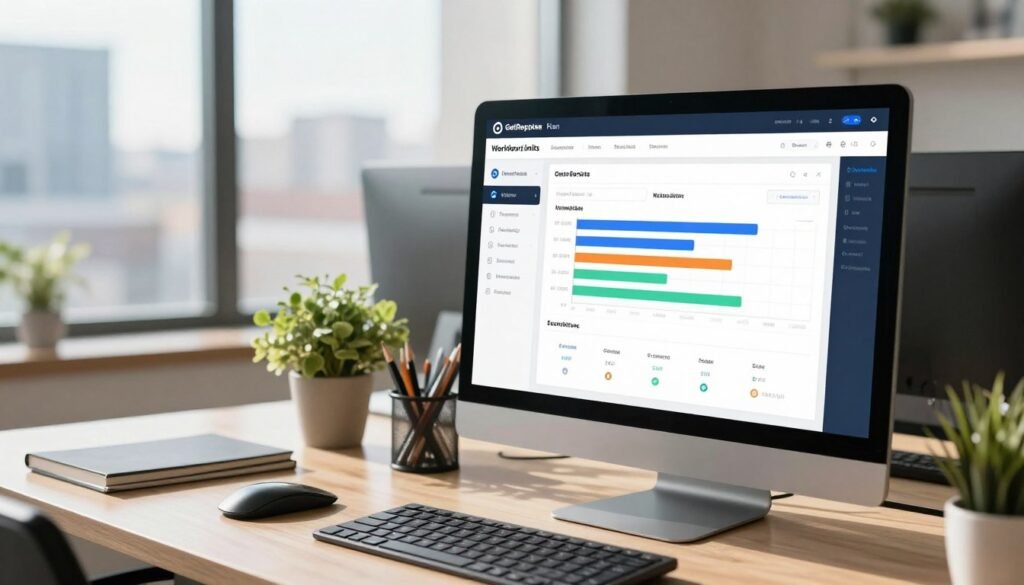
The GetResponse automation builder uses a visual workflow to put routine marketing follow-up on autopilot, saving your business time. A useful customer signal, such as a signup or purchase, should lead to a relevant next step. That keeps your messages tied to what customers actually do.
Automation can help your business follow up with customers while you focus on work that needs your attention. But sending messages before checking contact data and consent settings can create confusion or unwanted email. Check your contact records and consent rules before you automate a message.
Start with a clear signal, a useful response, and a reliable contact list. A marketing automation workflow is a set of rules for a platform. It directs the platform when a contact or visitor meets a trigger or condition. It can then guide routine marketing tasks and customer follow-up.
Key Takeaways
- Use a clear customer signal to start relevant follow-up.
- Check data and consent before sending automated email.
- Map the audience, next step, and outcome first.
- Test each workflow with a contact who meets its rules.
- Start with one repeatable task and measure its result.
What Does Marketing Automation Do?
Marketing automation software performs routine marketing tasks when customer activity meets a rule. That simple link lets you set up campaigns around actions people take, rather than sending every message by hand.
A marketing automation workflow is a set of rules for a platform. It directs the platform when a contact or visitor meets a trigger or condition. In plain terms, if X happens, then the platform does Y. Automation handles routine steps, but it does not replace personal help for complex customer needs.
Use automation for predictable follow-up, and give complex customer needs personal attention.

For example, a form submission can trigger a welcome email. A cart abandonment can start a reminder. Webinar attendance can prompt a follow-up with a replay or next step.
These campaigns can save time when the same task comes up again and again. A clear trigger helps you send a message while the customer’s action is still relevant. It also keeps your email and other follow-up consistent.
Still, a customer may have a question that does not fit a set path. A person should handle issues that need judgment, care, or a custom answer. Let automation cover the predictable work, while your team stays available for the rest.
The useful starting point is not a large campaign with many branches. It is one repeated task with a clear event and a helpful response. That gives you a practical way to decide where automation can save time across your business.
Where Can Automation Save Time Across Your Business?
Automation saves time when it handles predictable follow-up that would otherwise need repeated manual work. For your team, that can mean timely customer messages without asking someone to send each one.
It can also keep information relevant as people show interest or move through a service. Use clear rules for routine tasks, and keep a person involved when a customer needs judgment.

Qualifying leads for a sales team
A business-to-business company can use lead scoring to mark actions that suggest stronger interest. A person who reads key content or responds to a campaign may earn a higher score. The sales team can then focus on prospects showing more intent.
Marketing automation can also nurture leads before they are ready to talk with sales. You might send useful information based on the prospect’s interests, then alert a salesperson when the person reaches a chosen score. This helps your team spend time on more promising conversations.
Keeping service and education journeys relevant
A school can share course information that matches a prospect’s interests. Someone exploring nursing programs, for example, can receive details about that subject rather than a broad list of every course. The next message can answer a likely question or offer a clear next step.
An agency can nurture new inquiries with helpful details about its services and process. That reduces the repeated work of sending the same early information to each new client. The agency can still tailor its response when a prospect shares a specific need.
Some situations call for a person from the start. A high-stakes or unusual customer question needs human attention, not a preset reply. Useful automation begins with clear rules, which rely on a few basic workflow parts.
What Are the Parts of an Automation Workflow?
A new subscriber can receive a welcome message after a subscription event. The workflow’s parts help you check what happened, narrow who continues, and choose the next task.
A filter narrows the audience; it is not the event that starts a workflow. Keeping that difference clear helps you avoid building a journey around the wrong rule.

| Block | What it does | Example |
|---|---|---|
| Condition | Checks whether an event happened | Contact subscribes |
| Filter | Narrows who continues | Contacts with a particular attribute |
| Action | Performs the next task | Send an email |
A condition checks whether a contact or visitor meets a rule. For example, it can check whether a contact subscribed. That check helps direct the person along the right path.
A filter narrows the group that continues through a workflow. You might let only contacts with a certain location or account type continue. The filter does not start the workflow; it sorts people who are already in it.
An action is a task the workflow performs. Sending an email is one action, but an action sequence can also include a wait, a tag, or a score. Each choice should support the customer’s next useful step.
When you mix up a filter and a starting event, the wrong people may enter or move through the journey. Keep each rule tied to its job. Those parts give you a structure, while planning decisions make the path useful.
What Should You Map Before Building a Workflow?
A cart reminder should stop when the customer completes the purchase. That simple check keeps a useful nudge from becoming an irrelevant email after the order is placed.
Before building, decide who should enter, what signal qualifies them, and what should happen next. Give every workflow a clear exit or suppression rule so customers stop receiving messages after converting.

- The customer group you want to reach.
- The signal that qualifies someone for the workflow.
- The message or task that person should receive.
- The intended outcome or stopping point.
Make the audience specific enough to guide your marketing. “New customers who bought a desk” gives you a clearer group than “people who might be interested.” Useful customer data helps you apply that rule in a consistent way.
Next, choose a signal that reflects a real change or action. A signup, purchase, or inquiry can mark the right time to respond. Avoid choosing an event only because it is easy to select in your platform.
Then decide what the customer should get and why. A message might explain how to use a product, answer a common question, or invite someone to take a clear next step. Keep the goal tied to the audience’s needs.
Set an exit rule, too. A customer who buys should leave a cart recovery sequence, and someone who unsubscribes should not continue receiving marketing emails. Use the finished journey map as your starting point in the visual builder.
How the GetResponse Automation Builder Works
In GetResponse, you select a starting trigger and arrange the desired workflow elements in a visual editor. The drag-and-drop builder lets you create email and web automation campaigns without coding skills.
Choose the starting event because it fits the customer journey, not because it is convenient. The event should mark the moment when a relevant follow-up can begin.

Available starting events include a newsletter subscription, link click, or landing-page visit. You can also start a workflow after a consent-status update, tag assignment, or lead-score change. Each trigger gives you a different way to match the start of a journey.
Once you choose a trigger, arrange the workflow elements in the visual editor. You can build a path for an email campaign or a web automation campaign. The layout helps you see how one step leads to another.
For example, a newsletter signup can start a welcome sequence. A link click may mark interest in a topic, while a landing-page visit may signal a need for follow-up. Select the event that best represents the customer’s action.
The builder does not require coding skills, so you can create a workflow by placing and connecting elements. Still, an easy-to-build path is not always the right one. Use your journey map to choose the trigger and sequence first.
After you settle on the journey, decide whether to adapt a ready-made workflow or start with a blank canvas. The right choice depends on how closely your needs match a familiar path.
Should You Use a Template or Build From Scratch?
An abandoned-cart template can give you a familiar starting point, while a less standard business process may need a custom workflow. Pick the simpler fit for your audience and rules.
Do not activate a template until you check its audience and exit rules. The wrong entry group or a missing stop rule can send messages to people who should not receive them.

Start with a template when the journey is familiar
GetResponse templates cover customer retargeting, contact retargeting, and rewarding loyal customers. You can also find templates for abandoned cart reminders, upselling, and post-purchase follow-up. A post-webinar follow-up template can help you reach attendees after an event.
These templates offer a starting structure, not a finished campaign. Add your own lists and messages, then check that the audience matches your goal. Review the timing and exit rules before you switch the workflow on.
A familiar path can save setup time when your business process closely matches the template. An ecommerce store, for example, may need a standard cart reminder with a clear purchase exit. You still need to make the content sound like your business.
Use a blank workflow when the rules are specific
A blank workflow is more suitable when you have a unique audience rule or an unusual sequence. A business might need to treat contacts differently based on a custom account field, several actions, or a special approval step. Building from scratch can make those rules easier to see.
Starting with a blank canvas also helps when a template includes steps you do not need. Keep the path as simple as your customer journey allows. Extra branches can make it harder to test and maintain.
Whether you adapt a template or build from scratch, review each entry and exit rule before launch. Once the workflow structure fits, you can tailor the content to different customers and visitors.
How Can You Personalize Email and Website Journeys?
A generic message sends the same offer to everyone, while a tailored one can match what a visitor viewed. Relevant content can make an email or website journey feel more useful.
Personalization depends on accurate rules and data. A wrong tag or outdated field can put the wrong message in front of a customer.

Show different email content to different contacts
GetResponse’s Visual Dynamic Content Builder can show different sections, copy, banners, or calls to action based on tags or custom fields. It is available on all paid plans and allows up to eight conditions for an element.
You could show industry-specific information to contacts in different fields. An online store could show product recommendations based on a customer tag or other profile detail. GetResponse supports unlimited customer tags and lead scoring, which can help you group contacts.
Make each version useful and check that the right group sees it. A banner for one industry should not appear for a contact in another. A clear rule makes the difference between helpful content and a confusing mismatch.
Change website journeys based on visitor behavior
Website workflows can use visitor behavior to shape the next experience. If someone shows interest in a product page, you might tailor a pop-up to that topic. The message can respond to what the person viewed instead of showing a broad offer.
GetResponse can distinguish subscribed repeat visitors from other visitors. A subscribed customer who abandons a cart can move toward an email follow-up. An unsubscribed visitor should get a different path, such as an on-site message.
A website visit alone does not give you permission to send email. Keep website targeting separate from email consent, and respect each contact’s preferences. Accurate data and rules matter even more when a journey changes for each person, so test the paths and measure their results.
How Do You Test a Workflow and Measure Its Results?
A workflow can send the right offer to the wrong audience if you skip its entry-rule check. Testing the path helps catch that error before it affects more contacts.
Judge a workflow by its goal, not by opens alone. If you want a purchase, signup, or another conversion, track that result as well as email activity.

- Confirm the trigger and audience.
- Preview a message using a contact who meets the conditions.
- Verify waits and exit rules.
- Check that links and conversion tracking work.
GetResponse offers a test-and-preview option for checking a personalized email from a selected contact’s perspective. Choose a contact who meets the rules, then confirm the email shows the right content. This can reveal errors that a general preview might miss.
Check the full path, not just the first message. Confirm that waits happen at the right time and that an exit rule stops the sequence after conversion. Click every key link and make sure conversion tracking records the outcome you care about.
GetResponse reports include opens, clicks, and click maps. These details can show whether people opened a message, followed a link, or clicked a certain area. Compare those actions with the workflow’s goal.
An open does not prove that a customer bought or signed up. If the goal is a recovered order, look at completed orders. If the goal is a response, track replies or the next action you asked for.
Review results after launch and make changes when the path misses its goal. Then consider which customer data and channels can feed the workflow and help coordinate follow-up.
What Customer Data and Channels Can Your Workflows Use?
A customer’s signup, site activity, and purchase status can guide different follow-up actions. Connected data helps your platform respond across more than one channel.
An integration helps only when its fields and sync behavior support the workflow you need. Check that the right information reaches GetResponse in time to guide the next step.

| Channel | Example workflow action | Useful signal | Possible goal |
|---|---|---|---|
| Send onboarding message | Signup | Orient a new contact | |
| SMS | Send a timely order update | Purchase status | Keep a customer informed |
| Web push | Show a return-visit message | Site behavior | Bring a visitor back |
| Digital ads | Retarget an eligible audience | Campaign interaction | Support follow-up |
GetResponse supports email, SMS, web push notifications, and digital ads. A workflow can use a signal to choose a suitable action, such as sending an onboarding email after signup or an order update after purchase.
Connected customer relationship management (CRM) data and other app data can inform segmentation and targeting. GetResponse syncs with more than 170 apps, including HubSpot, Zendesk, and Salesforce. These links can help your team use customer details across its tools.
Before relying on an integration, check which fields it shares and how often it syncs. A missing purchase status or delayed update could leave a workflow acting on old information. Make sure the data supports the action you plan to take.
Choose channels based on the customer’s situation and your goal, not simply because they are available. Once you know which signals and channels can support a journey, choose the first workflow worth launching.
Which Workflow Should You Automate First?
A frequent welcome sequence is often easier to automate than a complex journey with unclear success rules. Start with the repeat task that has a clear signal and outcome.
The best first workflow is easy to evaluate, not necessarily the most complex one. A defined trigger and measurable result help you learn whether your marketing works.

- Welcome sequence: trigger on a new subscriber; measure completed signup.
- Cart recovery: trigger on an abandoned cart; measure recovered order.
- Post-purchase follow-up: trigger on a purchase; measure repeat purchase.
- Webinar follow-up: trigger on attendance; measure next-step response.
Choose a repeated task that takes time but follows a steady pattern. A welcome sequence can help new subscribers learn what to expect. Its outcome might be a completed signup or another action tied to your business goal.
An online store can test cart recovery by tracking whether an abandoned order is completed. A post-purchase email can support a repeat purchase. For webinar attendees, the next step could be a reply or a request for more information.
Each of these options starts with a clear customer signal. You can check the result without trying to judge a dozen goals at once. That makes the first campaign easier to improve.
Begin with a repeated task, a clear trigger, and one result you can measure.
Do not choose a workflow just because it has many steps. A simple path that supports a real customer need can teach you more than a complicated campaign with no clear measure. Once your first use case is clear, compare plan allowances with the workflow you intend to run.
Which GetResponse Plan Fits Your Automation Needs?
The right GetResponse plan depends on how many workflows you need and which features support them. Match the allowance to your actual use before choosing an account.
A plan label alone does not show whether its workflow limit suits your needs. Compare the included allowance and features with the journeys you intend to run.
| Plan | Starting price | Automation allowance | Notable included features |
|---|---|---|---|
| Starter | $15.58/month | One custom workflow | AI-powered content generators |
| Marketer | $48.38/month | Unlimited workflows | Web push, abandoned-cart recovery, advanced segmentation, sales funnel, promo codes, revenue reports |
| Creator | $56.58/month | Course creator and marketing tools | Online courses and premium newsletters |
| Max | Customized pricing | Advanced automation | Dedicated sending domain, dedicated customer experience manager, SSO, unlimited users, mobile push |
Starter begins at $15.58 per month and includes one custom automation workflow. It also includes AI-powered content generators. That may fit a business starting with one defined journey.
Marketer starts at $48.38 per month and includes unlimited automation workflows. Its features include web push notifications, abandoned-cart recovery, advanced segmentation, a sales funnel, promo codes, and revenue reports.
Creator starts at $56.58 per month and includes a course creator and marketing tools. It also includes tools for online courses and premium newsletters. Max has customized pricing and includes a dedicated sending domain, a dedicated customer experience manager, SSO, unlimited users, and mobile push notifications.
AI-powered product recommendations are a separate add-on for GetResponse Max. Compare the features you need with your planned workflow volume, rather than choosing by plan name alone. A simple first workflow gives you a clear way to judge what your business needs next.
Conclusion
Useful automation starts with a defined customer signal and a relevant next action. A small workflow with a reliable trigger and one measurable goal is a practical way to begin.
Map one repeated task, then build the simplest journey that fits it. Test the workflow with a contact who meets its rules, and check that the message and exit point work as intended. Choose one task and set up and test its first workflow.