
GetResponse email not sending usually means an account restriction, message status, recipient setup, authentication problem, or provider rejection stopped the send. Personal Gmail accounts can lose sending access for up to 24 hours after sending more than 500 emails in one day or one email to over 500 recipients. That limit applies to personal Gmail, not every email service.
A message that never left GetResponse needs a different fix from one a provider rejected. A message accepted by a provider may also reach spam instead of the inbox. This guide helps you tell those problems apart and choose a useful next step. Start by checking the message’s status and the account’s sending access.
Key Takeaways
- Check billing and account notices first.
- Confirm the message has a send status.
- Trace autoresponders from signup source to cycle day.
- Check recipient eligibility and From-address authentication.
- Use bounce details to identify provider errors.
Why Is GetResponse Email Not Sending?
A billing limit or active compliance review can stop GetResponse sending before a campaign reaches its recipients. Check these account-level blocks before changing message settings.
A Pay the balance button under Profile > Billing means your account has an outstanding balance and sending is limited. Pay the balance there, then check whether sending resumes. A Compliance Team identity review can also pause sending. Look for a review notice on the Dashboard, then wait for the review to end.
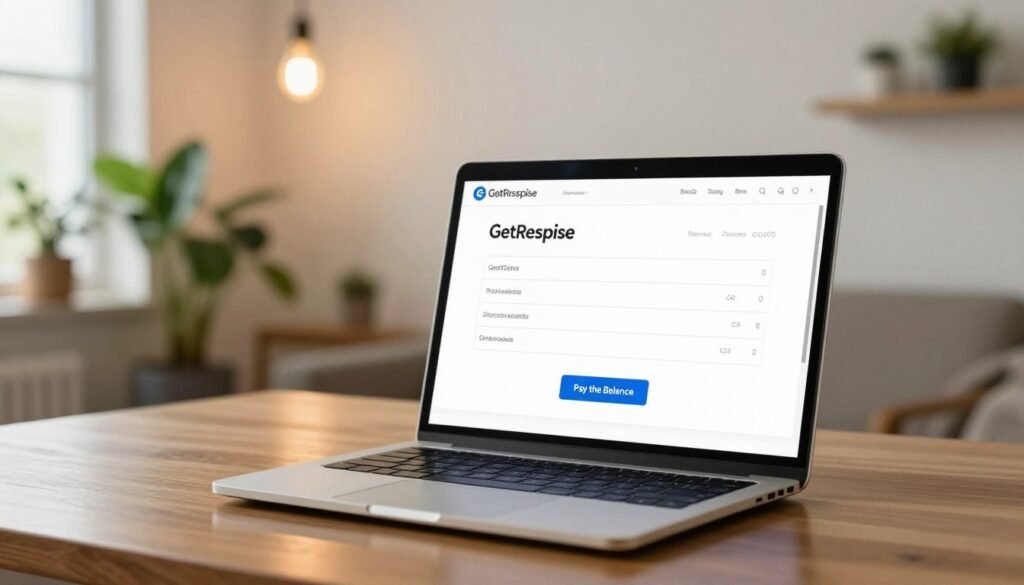
Do not treat a missing campaign as a failed send until you check Drafts and the message status.
In Email Marketing, a Scheduled status means the send is planned for later. Sending means GetResponse is processing the message. If you cannot find it in the campaign list, check Drafts.
Use this quick checklist to narrow down the account or campaign issue:
- Check Profile > Billing for an unpaid balance.
- Look on the Dashboard for a compliance-review notice.
- Read the message status in Email Marketing.
- Search Drafts for an unsent message.
These checks help separate a message that remains a draft from one waiting for its scheduled send. Record the status you see, since it gives your team a clear starting point. If the account is active and the message has a send status, use that status as the starting clue for the next diagnosis.
Make Sure Autoresponders Enroll the Contact
An autoresponder can be active while a contact misses it because the signup source never enrolled that person in the cycle. Check the actual signup route, not just the message itself.
The autoresponder Status toggle must be ON, and enrollment must be enabled for the subscription method that adds the contact. GetResponse does not turn on autoresponder enrollment by default for every route. The route may use forms and popups, Website Builder forms, legacy forms, landing pages, webinars, the API, imports, or manual additions.
Check the Signup Source’s Cycle Setting
Open the settings for the source where the person subscribed. Make sure that source adds contacts to the correct autoresponder cycle. A working form can add a person to a list without enrolling them in that cycle.

Check each source separately if several forms or signup paths feed the same list. A landing page and a webinar signup, for example, may use different enrollment settings. The contact’s subscription record can help you identify which route they used.
Match the Contact’s Cycle Day to the Message
Day 0 means the day the contact subscribes. Compare the source’s selected cycle day with the first autoresponder message’s scheduled day. Then open Contacts > Lists and read the person’s current day under Autoresponder day.
A contact added on day 1 can miss a first message set for day 0. A message set for day 2 can also miss someone whose cycle begins on day 0, if the schedule does not match the intended timing.
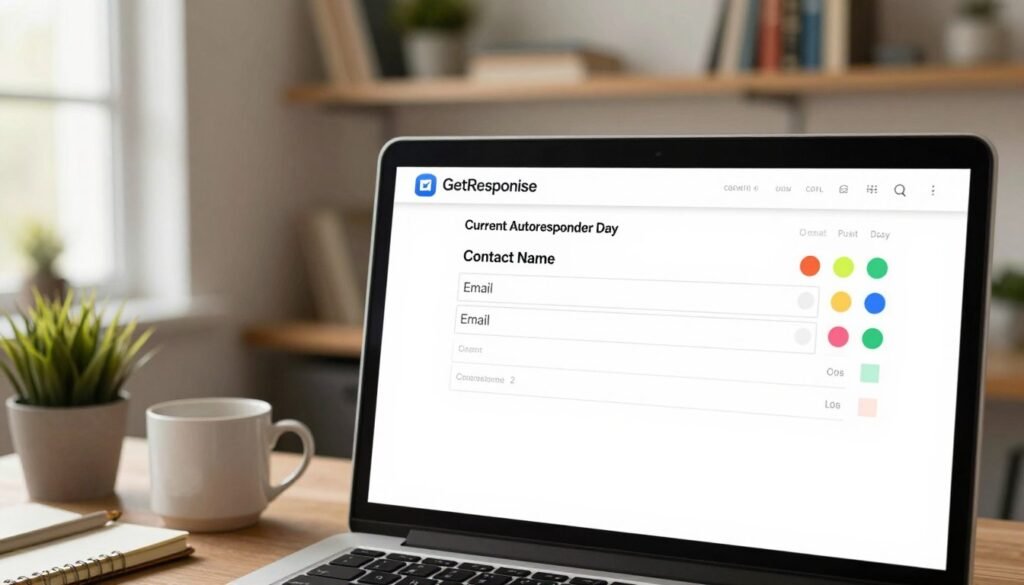
Check whether publishing an edit removed contacts already queued for that message. Those contacts may not receive the corrected version through the old queue. If needed, send the corrected message to those contacts with a suitable method, such as a targeted campaign.
A cycle-day mismatch can look like a failed send even when the message remains active. Trace one real signup through its source setting, contact cycle day, and scheduled message day.
Confirm the Contact Is Eligible and on the Right List
A successful campaign send does not reach a person who was never selected or whose address is no longer active. Check the recipient’s list and status before editing the message.
GetResponse sends to eligible contacts selected for that campaign, not every address in your account. Use these checks to find a missing recipient:
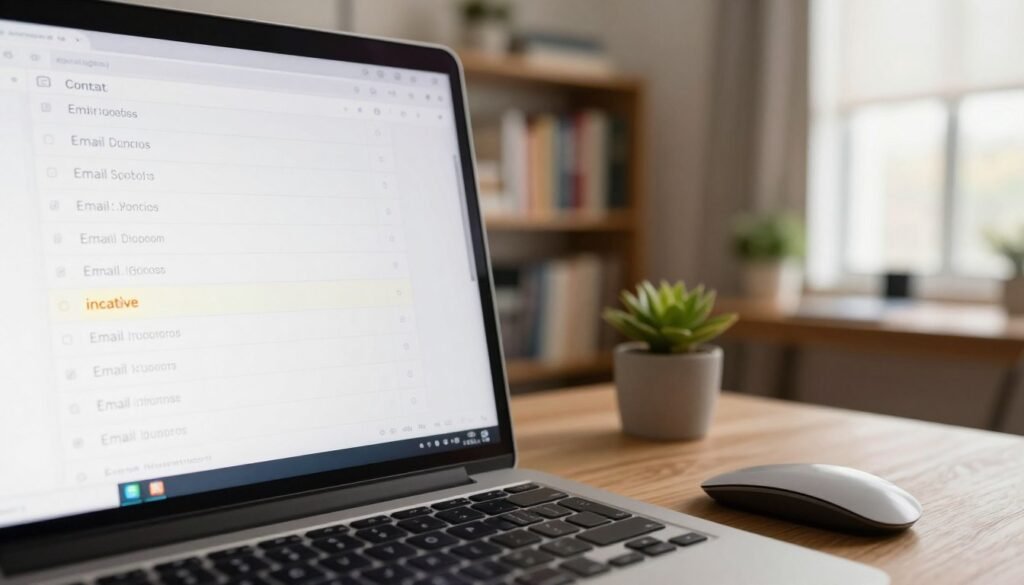
- Confirm that you selected the correct recipient list.
- Use Advanced search with the Message sent condition to check whether the contact was included.
- Review Contacts > Inactive contacts for bounced, unsubscribed, or removed addresses.
- Confirm a corrected email address before adding it back.
A contact may be absent because the campaign did not select them. The address may also have become inactive after a hard bounce, unsubscribe, or list removal. Addresses removed for those reasons appear under inactive contacts, not among active recipients.
Do not assume that a contact’s old record proves the current address is valid. Check the exact email address the person can use now. Verify the exact recipient address and list membership before changing the campaign content.
Authenticate the From Address and Domain
A From address with a DMARC warning points to a missing or incorrect DKIM DNS record. DKIM means DomainKeys Identified Mail, an email authentication method that helps confirm who sent a message.
A custom-domain From address authenticated with DKIM can lower the risk of spam placement or rejection. GetResponse may label a From address as DKIM-authenticated, not authenticated, under a DMARC warning, not recommended, at risk, or unable to be used.
Read the From-Address Authentication Status
A DMARC warning means the domain has DMARC, but its DKIM record is missing or incorrect. Add the DKIM TXT record to the domain’s DNS, then check the status again. This warning differs from a From address that simply lacks DKIM authentication.
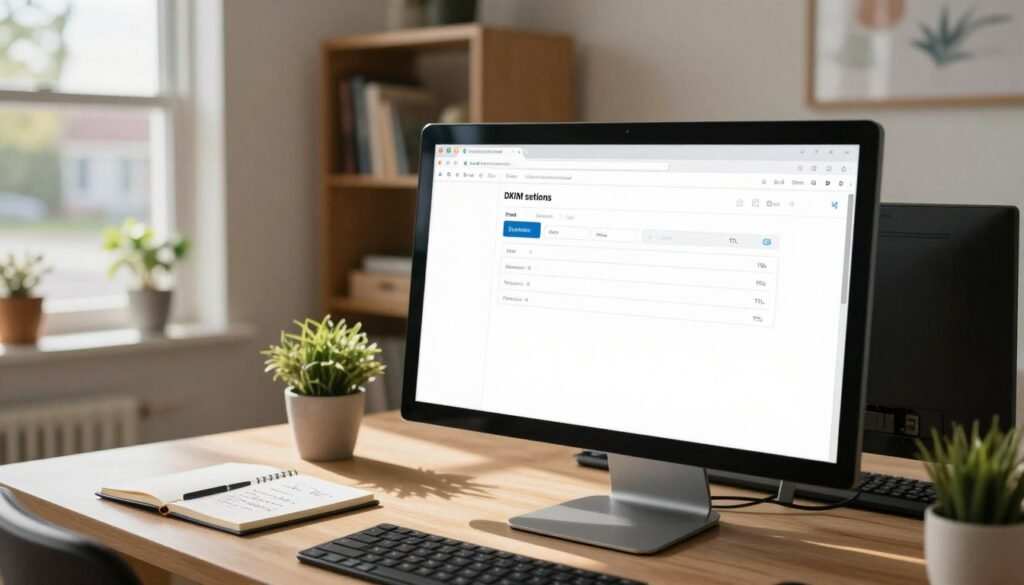
A non-DKIM-authenticated From address can still send. The message may show “via GetResponse-mail” or “on behalf of,” and email deliverability may suffer. Public addresses from Gmail or Hotmail cannot use DKIM authentication for their domains.
Messages that use public email addresses as the From address are more likely to land in spam. Gmail addresses are also at risk of becoming unusable as From addresses in the future. A custom-domain address gives you more control over sender authentication.
Meet Gmail’s Sender Requirements
Since February 1, 2024, all senders to personal Gmail accounts must use SPF or DKIM, keep valid forward and reverse DNS, use TLS, and format messages under RFC 5322. They must also keep their Postmaster Tools spam rate below 0.3%.

Senders sending over 5,000 messages daily to Gmail must set up SPF, DKIM, and DMARC. A DMARC policy of none is allowed. For direct email to Gmail, the From-header domain must align with either the SPF domain or DKIM domain.
Marketing and subscribed messages from senders over that daily volume need one-click unsubscribe. They also need a clearly visible unsubscribe link in the message body. Gmail accepts DKIM keys of at least 1024 bits and recommends 2048-bit keys when the domain provider supports them.
GetResponse includes a built-in spam check in its campaign workflow. Custom DKIM is available on paid plans. Recheck the authentication status after the DNS record is in place.
Read Bounce and Rejection Reports
A bounce report gives you the provider’s reason for refusing or failing to deliver a message. The exact response helps you choose a fix instead of guessing.
Email delivery means acceptance by the receiving provider; email deliverability means reaching the inbox rather than another folder. A provider can accept a message and still file it in spam.
Find the Bounce Reason in GetResponse
On Marketer and higher plans, find the custom Bounce Report under Reports > Custom Reports > Report Content. On Starter and other plans, find bounced addresses under Contacts > Inactive > Bounced.
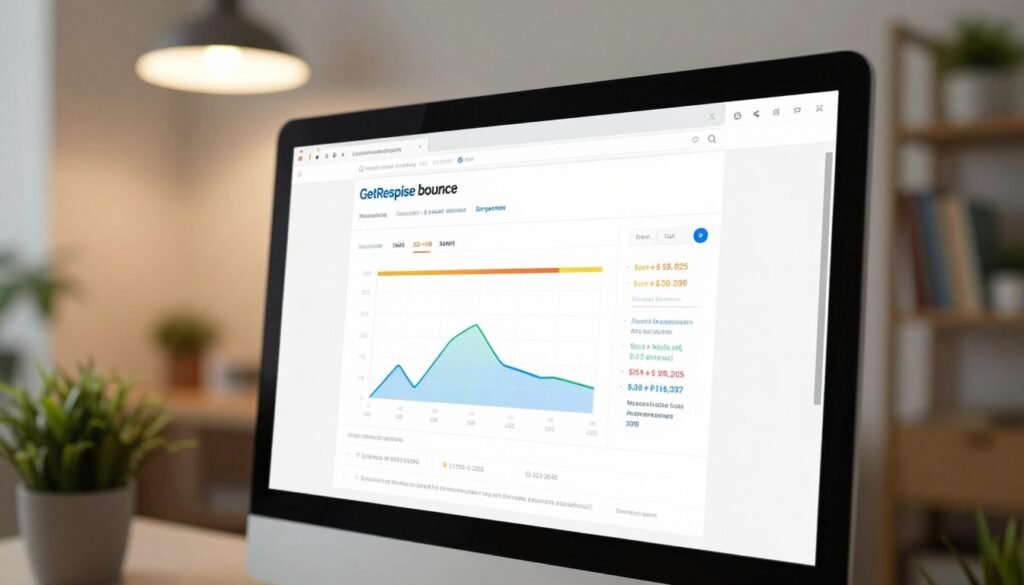
Hard bounces are permanent delivery failures, while soft bounces are temporary. A sender or channel rejection means the provider or sending channel refused the message.
| Bounce or response | What it indicates | First check |
|---|---|---|
| Hard bounce | Permanent delivery failure | Address spelling or existence |
| Soft bounce | Temporary delivery failure | Mailbox space or server response |
| Sender or channel rejection | Provider or channel refused the send | Authentication or sending reputation |
Distinguish a Rejection from Spam Placement
A rejection means the receiving provider did not accept the message. Spam placement means the provider accepted it but did not put it in the inbox.
Failed DMARC authentication points to an authentication problem. A nonexistent or recycled address calls for an address check. A full mailbox or inbox timeout suggests a temporary destination issue.
Blocked content calls for a review of the message text and links. Reputation-related blocks, rate limits, blocked ISP channels, and global blocks call for a check of sender reputation or sending patterns. An unresponsive destination server may need another attempt later.
If your bounce rate has increased, submit a Deliverability ticket through My tickets. Include the message name and the exact reason in the report. Keep the exact bounce reason with the message name when you request deliverability support.
Check Gmail Sending Limits and Spam Filtering
Gmail can restrict the sender account even when the GetResponse campaign itself is configured correctly. Compare the sender account type with the limit or error you see.
Google Workspace uses a rolling 24-hour sending window, so a limit can follow activity from the previous day. Its daily limits differ from personal Gmail limits.
Compare Personal Gmail and Google Workspace Limits
Personal Gmail can temporarily block sending after more than 500 emails in one day or one message to over 500 recipients. Workspace limits depend on account type:
| Account type | Daily sending limit | What to expect |
|---|---|---|
| Personal Gmail | More than 500 emails or over 500 recipients in one message | Sending may pause for up to 24 hours |
| Standard Google Workspace | 2,000 messages per user | Limit uses a rolling 24-hour period |
| Workspace trial account | 500 messages per user | Limit may rise after the domain pays $100 |
Workspace allows up to 2,000 recipients per message, including 500 external recipients. SMTP by POP or IMAP allows 100 recipients per message, while Gmail API messages allow 500.
The daily total-recipient limit is 10,000 per user. The unique-recipient limit is 3,000, including 2,000 external unique recipients. Each recipient counts each time you send a message.
Trial account limits may rise after the domain has paid at least $100 cumulatively. The increase can take up to 75 days after that threshold. After reaching a sending limit, users may be unable to send for up to 24 hours, but can still receive email and use other Google services.
Attachments can reach 25 MB in Business and Education editions, and 25 MB in Enterprise Standard. Gmail on the web allows 50 MB in Enterprise Plus. Workspace attachment limits depend on edition.
Check Gmail Rejections and Message Logs
Gmail treats 4xx SMTP codes as temporary failures and 5xx codes as permanent failures. Google Workspace Email Log Search can find messages sent to people in your organization during the past 30 days.
A Gmail sending limit can pause new sends without stopping incoming email or other Google services.
Links, attachments, message text, or sending to a large group can trigger spam filters or temporary rejection. Check the exact SMTP response before changing campaign content. Compare the exact Gmail error or sending limit with the account type before changing the GetResponse campaign.
Conclusion
Choose the fix that matches the first confirmed failure in the sending path. If the message never entered a send state, focus on its account or campaign status. If a provider rejected it, use the recorded response to guide your next step.
Before contacting support, gather the message name, selected recipient list or lists, affected recipient address or examples, and the relevant status or bounce reason. Clear details help the GetResponse Customer Success Team understand what happened without a long back-and-forth.
Send the message name, recipient list, affected address, and recorded error to the GetResponse Customer Success Team.