GetResponse webinar features combine live event tools with registration, email marketing, and follow-up. That makes the platform a fit when you want to manage campaign steps in one place.
Across more than 2,000 webinars hosted from January 2023 through August 31, 2026, the average live audience was 102. Your attendance may differ, since each event depends on its topic and audience.
For businesses, that mix can help connect a live event with the marketing work around it. Consider the tools, formats, and plans against your event needs before you choose. Start by deciding what you want attendees to do during and after your event.
Key Takeaways
- Manage webinar delivery, registration, email marketing, and follow-up in one platform.
- Choose live, on-demand, or paid delivery to suit your event.
- Use room tools to present material and invite audience responses.
- Check attendee capacity and recording time when comparing plans.
- Set a clear goal for the event and its follow-up.
What GetResponse webinar features can you use?
You can deliver a presentation with live audio and video, then share the screen or files that help explain it. Visual tools can make a process easier to follow than spoken instructions alone.
Webinar room tools include streaming, desktop sharing, file sharing, and a digital whiteboard. You can also share presentations or YouTube content during the session.

| Tool | What it does | Example use |
|---|---|---|
| Audio-video streaming | Live audio and video | Present the session |
| Desktop sharing | Share the presenter’s desktop | Demonstrate a process |
| File and presentation sharing | Share files or presentation material | Support the live explanation |
Stream audio and video for a live presentation
Audio and video streaming lets you speak to attendees as you present. It suits a talk, product walkthrough, or training session led by one or more presenters.
For a wider audience, you can also stream to Facebook, YouTube, and LinkedIn. That gives you another way to distribute a live presentation beyond the webinar room.
Share screens, files, and visual material
Desktop sharing helps you show software, a website, or a step-by-step task as you explain it. File sharing and presentation tools support lessons that need diagrams, slides, or other material.
A digital whiteboard can help you sketch an idea or explain how parts fit together. Match the sharing tool to the material your audience needs to see.
Choose the sharing method that makes your explanation clear, not the one that adds the most activity.
Choose a live, on-demand, or paid format
Choose live delivery for a scheduled event, on-demand access for a replay, or a paid funnel when you intend to charge for the content. Each format gives your audience a different way to take part.
GetResponse supports live webinars, prerecorded on-demand webinars, and paid webinar funnels. The right format depends on whether your event needs real-time participation, replay access, or paid entry.

| Format | How it works | Audience access | Useful detail |
|---|---|---|---|
| Live | Runs as a live event | Attendees join the session | Real-time delivery |
| On-demand | Uses prerecorded webinar content | Viewers access the replay | Collect an email address for access |
| Paid | Webinar offered through a paid funnel | Attendees register for access | Payment gateway supports payment |
Live webinars for real-time sessions
A live webinar runs at a set time, so attendees join the same session together. Use this format when you want to present in real time and leave room for questions or responses.
It can suit a product launch, a class, or an event tied to a specific date. Your invitation should make the start time and session purpose easy to spot.
On-demand webinars for replay access
An on-demand webinar uses prerecorded content that viewers can watch without attending a live session. The recording can extend access beyond the event date.
You can share an on-demand recording in exchange for an email address. That can help you reach people who missed the live event while giving them a clear reason to register.
Paid webinars for ticketed content
A paid webinar funnel connects a paid offer with webinar registration. Payment gateways support the payment step, while the registration path gives attendees access details.
Make the ticket price and access terms clear before someone registers. Make the format clear wherever you invite people to register.
Registration pages and promotion
A clear registration page gives your promotion one destination and makes the next action easy to understand. One clear path helps people move from an invitation to a confirmed place.
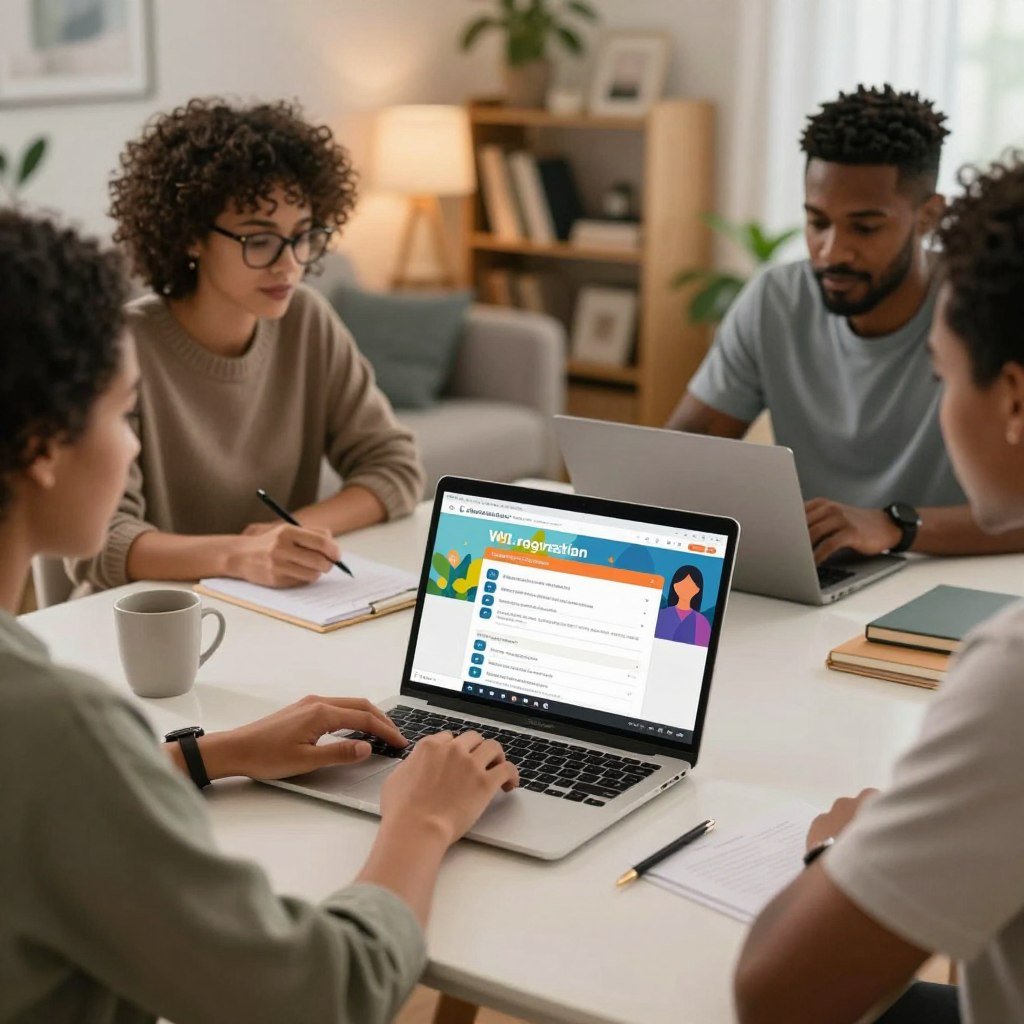
GetResponse supports webinar registration, customized URLs, and landing pages for promotion. You can also use invitation templates that already include webinar details.
Set up a clear registration path
Set the URL and registration steps before sharing the event. Use this order to check the basic flow:
- Customize the webinar URL.
- Enable registration for the event.
- Set the subscription settings.
- Direct traffic to the registration landing page.
- Send an invitation with a prefilled template.
The landing page should tell visitors what the webinar covers and what happens after registration. A customized URL can make the event easier to recognize in your campaign.
Bring the right audience to the page
GetResponse’s promotion flow can use an SEO-optimized landing page to help people find event details. Invitation templates come prefilled with webinar information, so you can spend less time adding basic event facts.
A one-click Facebook Pixel integration can support later retargeting of people who visited the page. That can help you reach visitors again through ads, while the page remains the main place to register.
Before promoting, test the link and confirm that the registration page records the details you need. Review the registration path from the invitation through the thank-you step before promoting the event.
Audience engagement tools in the webinar room
A webinar room feels more participatory when you give attendees a clear way to respond, ask questions, or share feedback. Simple prompts can help people join in without taking over the presentation.
GetResponse Webinars includes live chat and online polls. In a 2026 webinar dataset, 86% of attendees participated in the live session, but participation can take different forms.

Invite participation through chat and Q&A
Chat gives attendees a way to share comments or ask questions while you present. Q&A can help you gather questions for a set response time, keeping the main session easier to follow.
In the 2026 dataset, 63% of webinars used chat and 49% used Q&A. These figures describe common choices, not a promise that every audience will respond.
Use polls and surveys to collect responses
A poll can ask for a quick choice during the presentation. A survey can collect more detailed feedback about the session or its subject.
In the same dataset, 40% of webinars used polls and 92% used live reactions. A HubSpot survey found that 46% of marketers named audience engagement as their main webinar challenge.
Attendance size can shape how you plan interaction: 50% of webinars had fewer than 50 live attendees, and 71% had fewer than 100. The median live attendance rate was 49%, while 57% of registrants watched live, on-demand, or both.
- Invite questions in chat.
- Run a poll during the presentation.
- Use a survey to collect feedback.
- Use live reactions to gauge response.
Choose one or two interaction moments that support the session’s goal instead of interrupting every segment.
Email follow-up and webinar funnels
The webinar campaign can continue after registration by using email to guide attendees toward the event and the next relevant action. Useful messages keep the event connected to your wider email marketing work.
GetResponse supports invitation emails, nurturing emails, and automated follow-up campaigns. Advanced subscription settings can help you shape how people enter a campaign.

| Campaign stage | Email type | Purpose |
|---|---|---|
| Invitation | Invitation email | Share event details and registration |
| Before the event | Reminder and nurturing emails | Keep registrants informed |
| After the event | Automated follow-up campaign | Continue the conversation or promote an offer |
Coordinate invitations and reminders
An invitation email can give your contacts the date, topic, and registration details in one place. Reminder and nurturing emails can help registrants stay informed as the session approaches.
Plan the timing and purpose of each email so that attendees know what to expect. Keep the main event details consistent across the invitation and reminder messages.
Continue the conversation after the event
An automated follow-up campaign can share a replay, offer a next step, or continue the conversation. Choose a message that fits the reason people signed up.
A webinar funnel can connect registration, email campaigns, subscription settings, and payment gateways for paid content. That creates a path from signup to the event and its related offer.
Use the follow-up to respond to the attendee’s interest rather than sending a broad message to everyone. Make the post-webinar message match what attendees registered to learn or do.
Webinar analytics and performance data
After a session, attendance time, device use, location, and survey responses give you several ways to review how it went. Each signal can help you assess a different part of the experience.
GetResponse webinar reporting includes average attendance time, devices used, attendee locations, and survey results. These details can help you review the session and plan changes.

Average attendance time can show whether people stayed through much of the session. A sharp drop in time may give you a reason to review the session’s pace or structure.
Device information can help you decide whether your presentation works well on phones, tablets, and computers. Location data can describe where your audience joined from and help you consider future event timing.
Survey results can capture direct feedback about the session. They may point to topics people found useful or areas that need a clearer explanation.
These details are signals, not proof of sales or campaign results. A high attendance time does not show by itself that an event created leads or conversions.
Keep the goal for each webinar in mind as you read the results. Compare the signals with the goal you set for that specific webinar.
Joining and hosting on mobile
You and your attendees can use the GetResponse Webinars app, while attendees can also join from a mobile browser. Mobile access gives people a choice based on their device and setup.
The app is available for iOS and Android. Attendees can join from Safari or Chrome without installing an app, and the responsive webinar room supports mobile participation.

The app gives participants another way to join or host a webinar from a mobile device. That can help presenters who need to manage an event away from a desktop computer.
A mobile browser offers a simpler route for attendees who do not want to install the app. Safari and Chrome both support joining from a phone or other mobile device.
Tell attendees which joining options are available when you send event details. Include a mobile join option in event instructions so attendees know how to access the session.
Webinar plans, capacity, and add-on costs
Creator includes webinars for up to 100 attendees, while the add-ons provide higher stated capacity with separate recording allowances. Capacity and recording time are the main details to compare.
Webinars 100 costs $40 per month and includes 3 hours of recording time; Webinars 500 costs $99 per month and includes 10 hours. Add-on payments recur every 30 days.

Included webinars and attendee capacity
The Creator package includes webinars for up to 100 attendees. If your expected audience needs more room, the Webinars 500 add-on raises stated capacity to 500 attendees.
The two add-ons differ in both audience size and recording time. Webinars 100 allows up to 100 attendees and includes 3 hours of recording time, while Webinars 500 allows up to 500 and includes 10 hours.
Compare the two webinar add-ons
Both add-ons include unlimited webinars, with only one webinar able to run at a time. The recurring charge applies every 30 days.
- Expected attendee count: estimate the peak number likely to join.
- Recording time needed: consider the length of sessions you want to record.
- Events at once: decide whether you need more than one webinar running at a time.
Your choice can affect both room size and how much recorded material you can keep. Compare your expected peak attendance and recording needs with the add-on limits before choosing a route.
Free-account limits and regional availability
Free accounts can host webinars for up to 10 people during the first 30 days of account use. The total includes the account holder and presenters, not just attendees.
A Free account can record one webinar of up to 30 minutes and use that recording to create one on-demand webinar. These limits apply during the first 30 days.

When you estimate room capacity, count everyone who joins in a presenter or account-holder role. The 10-person limit covers those people along with the audience.
The recording allowance is separate from hosting capacity. You can record one session, up to 30 minutes long, then use it to make one on-demand webinar.
North American accounts may not be able to purchase or enable webinar add-ons. Webinars remain available through the Creator package when you upgrade.
Check the account’s region before building a plan around an add-on. Count presenters and the account holder within the 10-person limit when estimating room capacity.
Plan an event around your audience
Webinars remain a relevant marketing format in 2026, with marketers using them for content distribution, engagement, and lead generation. They remain common, but a popular format does not guarantee results for one event.
In 2026, 61% of marketers used webinars as part of their content strategy. Among B2B marketers, 55% used webinars as a distribution channel in the last year.
In that group, 51% considered webinars their second-most-effective distribution channel, just behind in-person events at 52%. Also, 89% of marketers said webinars outperform other channels at creating qualified leads.
In a separate reported view, 73% of B2B marketers and sales leaders believed webinars were the best way to generate high-quality leads. Those figures describe marketer views, not a promised outcome for your event.
Set a participation goal for the live session
Live webinars can give you a chance to engage with attendees in real time. In a 2026 report, 75% of marketers preferred live webinars, with immediate engagement named as the main reason.
Set a goal you can measure, such as a certain number of live questions or attendees who stay through the main presentation. Keep the goal tied to what you want the audience to do.
- Define the audience.
- Set one event goal.
- Choose a participation moment.
- Decide how the replay will be used.
Give the replay a useful role
A replay can help people who could not attend live and give registrants another chance to view the content. In 2026, 94% of webinar hosts made their webinars available after the live event.
Timing matters for access: 17% of webinar attendees registered on the day of the event, and 47% of webinar views occurred within ten days afterward. Plan how long the replay will remain useful and what viewers should do next.
Choose a measurable goal that fits your audience, and treat reported industry results as context rather than a promise.
Set one measurable goal for the next event, such as registrations, live participation, or replay views.
Conclusion
GetResponse brings the webinar room and campaign tools together, so you can plan the event and its follow-up in one workflow. Your best setup depends on the format, audience size, and follow-up goal.
Before you start, decide what attendees should gain and what action makes sense afterward. Choose a format and attendee capacity, then map the registration and follow-up steps for your next webinar.