GetResponse can send automated reminders that help shoppers return to an unfinished order through an ecommerce campaign or an automation workflow. GetResponse abandoned cart emails can bring customers back when they leave an online store before buying. A cart link can rebuild the cart when clicked, even if the customer was not logged in while adding products. That makes the return feel simple, not like starting over. This guide helps you choose a setup and build a useful reminder for your store. Keep the return to the unfinished order feeling like a useful shortcut, not another obstacle.
Key Takeaways
- Use an ecommerce campaign for a guided setup or a workflow for more control.
- Keep cart triggers and messages easy to recognize.
- Use a product reminder that gives shoppers a clear way back.
- Check consent and the connected list before sending promotional messages.
- Review abandoned-cart and recovered-cart results in GetResponse reports.
How GetResponse Abandoned Cart Emails Work
A reminder starts after GetResponse treats a shopper’s unfinished cart as abandoned, and the campaign ends when that shopper buys. An abandoned cart is an online cart with items added but no completed purchase. A customer may leave after seeing surprise shipping costs, hitting checkout trouble, or deciding to compare prices first.
GetResponse can send an abandoned cart email that points the customer back to the items already chosen. The Abandoned Cart ecommerce campaign stops after the customer completes the purchase. That keeps reminders for that cart from arriving after the order is done.
Stop the recovery campaign when the customer buys, so reminders do not continue for a completed order.
Some shoppers need time to decide, while others run into a small obstacle and plan to return. The link gives them a direct route to the cart instead of asking them to find each product again. That matters when an order has several items or the customer left the store hours earlier.
Abandoned carts can reflect different choices, not just a failed sale. Surprise fees may change the total, a long checkout may feel like work, or a shopper may keep the cart open while checking other stores. Keep the goal focused on helping a customer finish an order they already started.
Choose Between GetResponse’s Two Cart-Recovery Setups
Choose the guided ecommerce campaign for a ready-to-build store reminder sequence, or a Marketing Automation workflow when you need a custom condition or filter. The guided route suits a straightforward reminder, while a workflow gives you more control. GetResponse lists abandoned cart recovery on Marketer, Creator, and Enterprise plans.

| Setup | Starting point | Structure |
|---|---|---|
| Ecommerce campaign | Campaigns > Ecommerce campaigns | Abandoned Cart trigger, wait, and send-email actions |
| Marketing Automation | Automation workflows | Abandoned cart condition connected to Send message |
| Workflow with an added filter | Automation workflow | Optional filter between condition and Send message |
Abandoned Cart ecommerce campaign
The ecommerce campaign is the simpler starting point when your store uses a supported integration. Its set path keeps the trigger and email actions together, so you can build a reminder without designing a full automation. Start here if the built-in sequence meets your needs.
Marketing Automation workflow
Marketing Automation lets you connect an Abandoned cart condition to a Send message action. You can also add custom conditions or filters to shape when a message goes out. An optional filter can sit between the condition and the message action.
Plan access and workflow limits are separate. Starter includes one custom automation workflow, while Marketer, Creator, and Enterprise include unlimited workflows. The ecommerce recovery feature is listed on Marketer, Creator, and Enterprise plans, so check which setup matches your account and store needs.
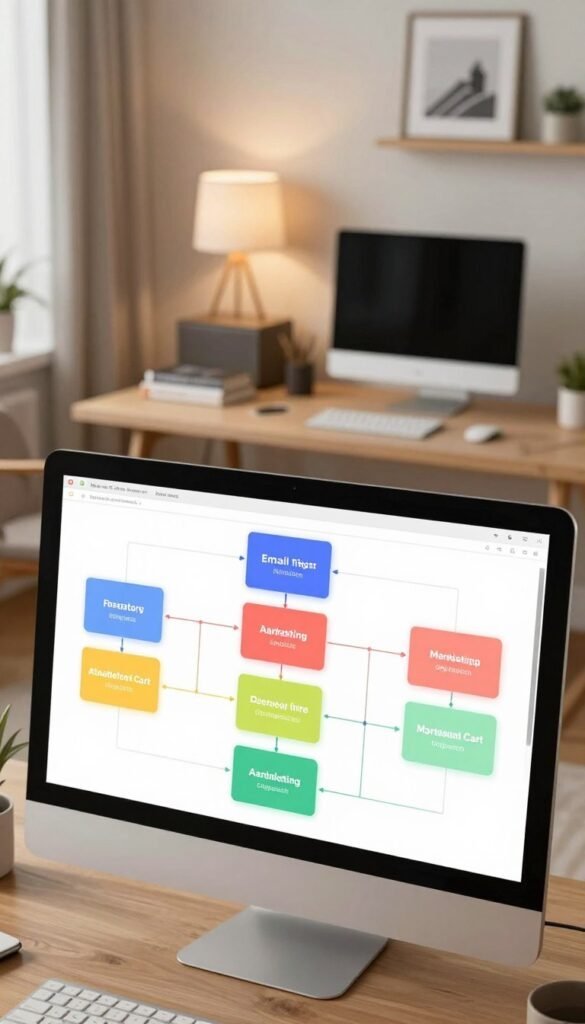
Pick one route as your starting point and keep its trigger and messages easy to identify.
Set Up an Abandoned Cart Ecommerce Campaign
Start by connecting your store to GetResponse, using one of its supported ecommerce integrations. The setup path supports Shopify, PrestaShop, WooCommerce, Magento, Shoper, and IdoSell. Keep the full campaign within 21 days, including its trigger and wait times.

Use these steps to build and publish the ecommerce campaign:
- Connect your store through Shopify, PrestaShop, WooCommerce, Magento, Shoper, or IdoSell. Update the ecommerce integration if it needs an update.
- Open Campaigns > Ecommerce campaigns, then choose Create campaign.
- Start from scratch or select the Abandoned cart template.
- Set the abandonment trigger, then add a wait action and a send-email action.
- Create or select the email, review the sequence, and publish the campaign.
The trigger starts the sequence after GetResponse detects the cart event. A wait action sets a pause before the email action sends the message. Keep each part in view as you build, since the trigger and waits count toward the total duration.
You can make a new email for the reminder or use an existing one that fits the campaign. Choose a clear subject and make sure the email points back to the unfinished order. A useful template should help the customer resume checkout, not add extra steps.
Before publishing, confirm that the trigger, delays, and email actions fit within the campaign’s 21-day total duration.
Build a Marketing Automation Cart Flow
A Marketing Automation message needs the Abandoned cart block and a workflow that pairs it with an Abandoned cart condition. The block uses ecommerce data to add cart items to a message. That link between data and message helps the reminder reflect the customer’s cart when it sends.
Add the dynamic product block
The Abandoned cart block is available on Marketer, Creator, and GetResponse MAX accounts. It can display product images, names, and unit prices, with the number of products adjusting to the cart when the message sends.
Add the block to an automation message template, then adjust its layout, text, and design to suit your store. Product images link to product pages by default, which gives a shopper another way to inspect an item. You can add the block only once to each automation message.
The block works in a message used by a Send message action with an Abandoned cart condition. You can make the message feel like your usual emails while keeping its product details tied to cart data.
Set the workflow condition and message action
Set the Abandoned cart condition to use API as the integration method, choose your store, and set the abandonment time. Then add a Send message action and select the automation message that contains the block.
Set both the condition and Send message action to run multiple times if later abandoned carts should trigger more emails. This setting allows a new cart event to start another message sequence instead of limiting the customer to one reminder.
URL-based tracking is another option. Keep the cart page and post-purchase thank-you page on the same domain. Match one exact thank-you URL, or use wildcards to cover different versions in directories or subdomains.
URL tracking has a 15-minute default wait. With API tracking, a later cart-page visit resets the counter; JavaScript tracking does not reset it that way. A new visit can therefore change when the API condition treats a cart as abandoned.
Before publishing, confirm the workflow uses the intended store and the message that contains the cart block.
Timing and Copy for a Cart-Recovery Sequence
A practical starting sequence is a first reminder 2-4 hours after abandonment, followed by emails 24 and 72 hours later. These are suggested intervals for a cart email sequence, not a reason to rush every customer. Make the first email a product reminder without a discount.
Use a three-email sequence
The first reminder gives customers a timely way to return. A second email can consider an incentive, while the third can add a final urgency message. Adjust the message angle to fit your offer and products.
| Suggested timing | Message angle | |
|---|---|---|
| First reminder | 2-4 hours after abandonment | Product reminder without a discount |
| Second email | 24 hours later | Consider an incentive |
| Third email | 72 hours later | Final urgency message |
A cart email can stay useful without adding a discount to every message. An incentive only makes sense when it fits the offer and your store’s terms. The final note should use urgency only when the reason is real.
Write a customer-first reminder
Use a clear subject line and preview text, then keep the email copy concise and helpful. A single obvious CTA, such as “Return to cart,” tells the customer what to do next. Plain wording makes the button’s purpose easy to grasp.
Ask why a shopper left rather than assuming the cause. A short question can help you learn whether shipping costs, checkout steps, or something else got in the way.
The CAN-SPAM Act prohibits deceptive or misleading subject lines in commercial emails, and the Federal Trade Commission enforces the Act. Keep urgency claims genuine and the subject line honest. Readers should see a fair picture of the offer before opening the message.
Keep the subject line honest and make the CTA say plainly what the shopper will see after clicking.
Consent, Delivery, and Campaign Results
A contact needs valid marketing consent to receive promotional ecommerce messages, even when they are an active subscriber. Marketing consent means permission to send promotional messages. Active-subscriber status alone does not replace valid consent.

If you enable email to non-subscribed customers, GetResponse sends a standard transactional email without marketing content. Subscribers without valid consent receive the transactional version too. Custom fields do not replace the native consent field.
Use the native consent field for promotional eligibility; a custom field cannot take its place.
Check these points when a customer does not receive a campaign message:
- Verify that the integration collects and syncs the native consent field.
- Confirm that contacts remain on the list connected to the ecommerce store.
- Open Reports > Ecommerce to review abandoned carts, recovered carts, and campaign revenue.
Ecommerce messages connect to one list. Copying or moving contacts outside that list stops campaign delivery, even when those contacts remain active elsewhere.
GetResponse advises disabling Marketing Automation cart-recovery flows when you use its Abandoned Cart ecommerce campaign. That helps prevent two setups from sending reminders about the same cart.
Check the connected list’s consent synchronization first, then use Reports > Ecommerce to review recovered carts and revenue.
Conclusion
A focused recovery email gives shoppers a simple way back to an order they have already started. A correctly set trigger and a clear message can make it easier for customers to return and complete a purchase.
Your first reminder does not need to solve every reason a shopper leaves. Give the customer a direct route to the cart and keep the message centered on the items they chose.
Choose the GetResponse setup that fits your store and make one reminder message for that route. Check that the trigger matches the cart event, then prepare the email customers will receive.
Choose your GetResponse setup and prepare the first reminder for your store.