
GetResponse ecommerce automation connects store activity to timely, targeted messages that can welcome new contacts, recover carts, and encourage repeat purchases. In 2026, the average shopping cart abandonment rate was 70.22%, showing how often shoppers leave before buying.
Your online store creates useful signals every day, from a new signup to a completed order. You can turn those actions into messages that fit each customer’s moment, instead of sending the same email to everyone. Start with welcome messages, then build cart recovery and repeat-sale follow-ups that support the next step. Keep the first workflow focused on one customer need and one clear action. Start with the customer moment where a timely message would make the next step easiest.
Key Takeaways
- Connect your store before building workflows that rely on its activity.
- Use a clear trigger, condition, and action for each workflow.
- Start with one useful journey, such as welcome or cart recovery.
- Check consent and list rules before sending ecommerce campaign messages.
- Use purchase and behavior data to make messages more relevant.
- Review results and change one workflow element at a time.
The Three Parts of a GetResponse Workflow
A new subscriber can receive a welcome message automatically when their signup triggers a workflow and the contact meets its conditions. Marketing automation uses a workflow trigger, the event that starts an automation; a workflow condition, the rule the workflow checks before continuing; and a workflow action, what the workflow does after the rule is met.
For a welcome email, the trigger could be someone joining your email list. A subscription rule can check whether the contact signed up to receive that message. If the rule matches, the action sends the welcome email. A workflow should connect a real customer event to a useful next step.

A wait step controls when the next action happens. For example, you might send the first welcome email after signup, then wait before sending another message. The right delay depends on the purpose of that next email and how quickly the customer needs it.
Conditions help you make a workflow more specific. A purchase condition could send a customer down a different path from someone who has not ordered. A condition should reflect a customer need, not add complexity for its own sake.
Build each workflow around one clear event, one useful rule, and an action that helps the customer take a next step.
Automation workflows can guide a customer journey without making every interaction feel automatic. Keep the path easy to explain: a person does something, the workflow checks whether a rule fits, and a message or other action follows. Email marketing works best here when the message matches the moment, such as a welcome note after signup rather than a generic promotion.
Before building, write down what event should start the workflow and what result the customer should get. Then decide whether a condition is needed to keep the message relevant. Sketch the trigger, the rule to check, and the action on paper before building the workflow.
Connect Your Store and Validate Its Data
Before a workflow can act on a store event, GetResponse needs a working connection and the relevant customer and product data. Choose the connection that fits your platform and how much control you need over ecommerce email marketing.
Web Connect supports behavior tracking and features such as popups and web push. An API connection supports custom integrations and gives you more control over the data you send. Ecommerce tracking plugins are another route for Magento, PrestaShop, and WordPress.
The Abandoned Cart ecommerce campaign supports six platforms: Shopify, PrestaShop, WooCommerce, Magento, Shoper, and IdoSell. A general store connection does not mean every platform has the same features or data flow.
Choose a connection method
Use a built-in connection when your platform is supported and its data meets your needs. Web Connect can track site behavior, while an API can support a custom setup. A plugin may suit a store using Magento, PrestaShop, or WordPress, but it has a contact limit that affects which customer data it collects.
Ecommerce tracking plugins for Magento, PrestaShop, and WordPress collect information only for customers added as GetResponse contacts. This means a store event may not appear as expected if the customer is not in the connected contact list. Shopify data has two import choices: it can import once every 24 hours, or sync live when Shopify data changes.
Check the events and product records
Use this setup checklist to make sure the connection can support your planned automation:
- Connect the store to the right GetResponse account and list.
- Enable ecommerce tracking if you use a tracking plugin.
- Confirm that store customers are added as GetResponse contacts.
- Check that product, purchase, and cart events appear in the contact data.
Product records should include enough detail to support the message you plan to send. For example, a cart recovery email needs product details and a usable cart destination. A purchase follow-up may need the product, order date, or amount paid.
Run a test journey through the store and confirm its event and contact data reaches the connected GetResponse list.
Choose a Plan That Supports Your Workflow
Your workflow needs determine whether Starter is enough or whether you need a plan with ecommerce tools and more automation capacity. Starter is limited to one custom workflow with up to six elements, while Marketer and Creator allow unlimited custom workflows.
Starter workflows do not include tags, scoring, or ecommerce tools. If your automation depends on Shopify purchase data, cart triggers, product recommendations, or revenue tracking, you need Marketer or higher. Those Shopify ecommerce features require Marketer or a higher plan.

Compare workflow access
| Plan | Custom workflow access | Ecommerce workflow access | Useful distinction |
|---|---|---|---|
| Starter | One workflow, up to 6 elements | No ecommerce tools in workflows | No tags or scoring in workflows |
| Marketer | Unlimited custom workflows | Ecommerce features available | Includes Abandoned Cart templates |
| Creator | Unlimited custom workflows | Ecommerce features available | Includes ecommerce features |
Match the plan to your store setup
Marketer includes Abandoned Cart workflow templates, which can save setup time if cart recovery is your first goal. In the 2026 guide, Marketer is listed at $59 per month. Shopify abandoned-cart triggers, product recommendations, and revenue tracking also require Marketer or higher.
Creator also allows unlimited custom workflows and has ecommerce feature access. GetResponse lists ecommerce features on Marketer, Creator, and MAX accounts. MAX is another option, though the workflow limits listed for Starter, Marketer, and Creator do not describe MAX.
If you only need a short custom path without ecommerce tools, Starter’s one-workflow limit may cover that need. A store using purchase events or cart details will need an ecommerce-enabled plan. Check the specific features against your intended workflow, since “unlimited” custom workflows does not mean every ecommerce feature comes with every plan.
Compare the price with the features you will use, rather than choosing by the number of automation workflows alone. A welcome path may need fewer tools than cart recovery tied to Shopify data. Choose based on the specific trigger, data, and workflow steps your first campaign requires.
Map the Customer Journeys Worth Automating
The best first workflow is the one tied to a clear customer action and a message that helps with the next step. Choose one journey that solves a real need before you automate more of your ecommerce business.
GetResponse’s 2026 ecommerce automation guide describes workflows for abandoned-cart recovery, post-purchase follow-ups, re-engagement, and personalized popups. A customer journey can begin with a signup, a cart event, or a purchase. Start with an event you can identify and a benefit you can explain.
| Journey | Starting event | Useful customer detail | Example action |
|---|---|---|---|
| Welcome | New list signup | Signup source or stated interest | Send a welcome email |
| Abandoned cart | Cart left without an order | Cart items and product links | Send a cart reminder |
| Post-purchase | Completed order | Products and purchase date | Send a useful follow-up |
| Re-engagement | Low recent activity | Last visit or purchase | Invite a return visit |
Welcome new contacts
A welcome flow helps a new subscriber understand what your store offers and what to expect from your emails. You can confirm their signup, introduce a product range, or share a first-time buyer offer if one fits your business. Keep the message tied to the reason they joined your email list.
A welcome email can also set expectations, such as the type of news or offers the person will receive. If you sell home coffee gear, for example, a welcome message could point a new contact to grinders, filters, or brewing guides. The message should give a useful next step, not a pile of unrelated promotions.
Re-engage inactive customers and site visitors
A re-engagement flow can remind an inactive customer what is new or invite a past visitor back to a product page. Personalized popups can engage site visitors while they browse, based on a page view or other site activity. These touches work best when they connect to what the visitor has just done.
Do not automate every possible interaction at once. A small business might begin with a welcome email because each signup creates a clear moment and a simple message goal. Later, it can add a post-purchase follow-up when it knows which order details the workflow can use.
Choose one journey to launch first, then add another when you can explain its trigger and customer benefit.
How to Set Up GetResponse Ecommerce Automation for Abandoned Carts
A shopper who leaves checkout with items still in the cart can enter a recovery campaign, which ends automatically if they complete the purchase. Use the cart event to start the follow-up, then make checkout easy to resume.
The Abandoned Cart ecommerce campaign can use cart data such as the product name, price, and URL. A Purchase condition can also trigger a workflow based on ecommerce data. The built-in campaign ends automatically after the customer completes a purchase.
Build the recovery path with this short checklist:
- Choose the connected store and the abandoned-cart trigger.
- Add a check or wait before the first email goes out.
- Show the cart contents and link back to checkout.
- Add a purchase exit so the campaign ends after an order.
Set the cart trigger and purchase exit
Choose an abandoned-cart trigger that matches the event your connected store sends. The workflow should rely on the same store data you tested, so the event can identify the right customer and cart. If you use a custom workflow, add a Purchase condition or exit path that responds to an order.
The purchase exit matters because a shopper who has paid should not keep receiving reminders to buy the same items. It also gives the workflow a clear stopping point. A cart campaign should respond to a cart left behind, not keep running after the customer’s next action changes the situation.
Build a low-friction recovery message
Show the products that remain in the cart, with their names and prices when those details are available. A direct cart link saves the shopper from searching for each item again. Keep the checkout call to action plain, such as “Return to your cart” or “Complete your order.”
A recovery email should make the next step simple, especially for someone who stopped during a busy moment. Avoid adding extra tasks, such as asking the shopper to search your catalog or rebuild the order. If your store data includes product URLs, confirm that the message points to the right items.
Make the recovery link return the shopper to the cart contents rather than forcing them to rebuild the order.
Set Consent and List Rules Before Sending
Subscriber status alone does not determine whether an ecommerce campaign message can be sent; valid marketing consent is required for the marketing version. Consent and subscription are different: a contact can be an active subscriber without permission for ecommerce marketing messages.
Contacts without valid marketing consent do not receive ecommerce campaign messages. If you enable the option to email non-subscribed customers, those customers receive the transactional version instead. Subscribers who lack marketing consent also receive the transactional version, not the marketing message.
This distinction matters when you plan email marketing for a purchase or cart event. A contact may appear in your email list, but the campaign still needs to apply the right message type to that person. Keep the marketing version for contacts who have valid consent for it.
GetResponse ties ecommerce campaign data and messaging to one list. Moving or copying contacts outside that list stops campaign delivery. The list is part of the campaign setup, not just a place to store customer records.
For example, a customer might be copied to a separate list for a special offer. If that move takes the contact out of the list tied to the store campaign, the ecommerce campaign will no longer deliver to that contact. A copy outside the connected list does not replace the original campaign contact.
Check which list the store and campaign use before you organize contacts into other groups. You can still plan targeted email marketing, but the campaign needs its contacts in the connected list to send. Keep campaign contacts in the list connected to the store and campaign so delivery can continue.
Shape the Cart Recovery Sequence and Message
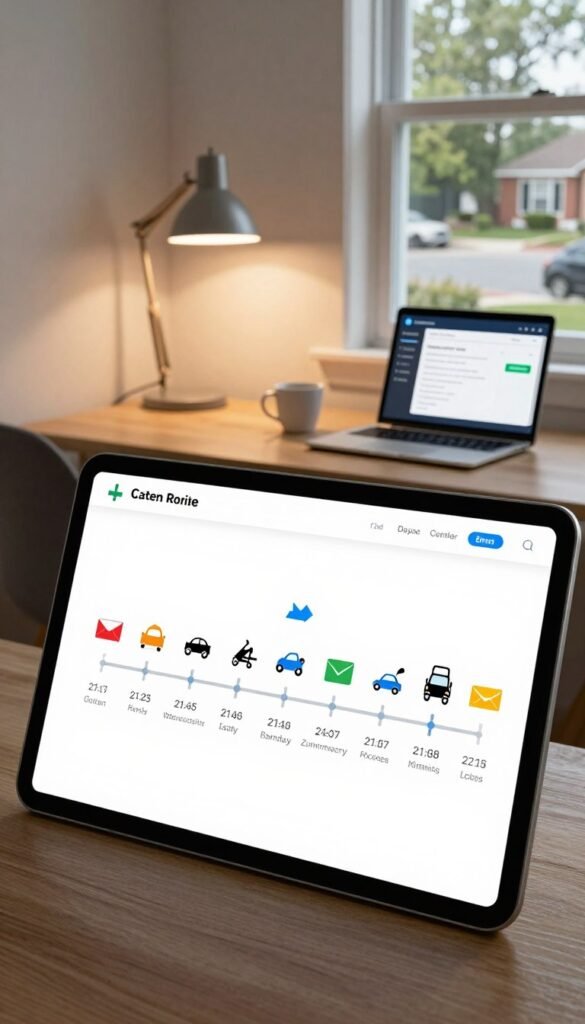
A cart sequence should give the shopper useful reminders while keeping every wait and send inside the campaign’s 21-day maximum duration. Plan the full timeline, including trigger and wait steps, before adding messages.
An Abandoned Cart ecommerce campaign can use Wait and Send email actions. Its total duration, including waits and triggers, cannot exceed 21 days. Keep the entire path within that 21-day cap.
Set a practical sequence
Build a sequence by deciding what each message should do, then setting its delay:
- Set an initial delay that gives the shopper time to finish checkout.
- Choose a send time based on the product and the shopper’s behavior.
- Make the first email a simple reminder with a direct cart link.
- Give each later email a new purpose, such as answering a common concern.
- Review the full timeline against the campaign duration cap.
This cadence is a starting point to test, not a fixed schedule for every store. A time-sensitive item may need a faster reminder than a high-priced product that shoppers compare carefully. Customer response can also show whether another message is useful or whether the first one does enough.
Choose the campaign option
Ecommerce Campaigns support multi-step cart recovery. Quick Transactional Emails are limited to one abandoned-cart message per store. Pick Ecommerce Campaigns when you need several timed touches; choose the quick option when one reminder fits your needs.
The abandoned cart link can rebuild the cart whether or not the shopper was logged in when creating it. That makes the link useful for visitors who add items before signing in. Make sure the link opens the saved cart instead of sending the shopper to a general store page.
Give each follow-up a distinct job. One email might remind the shopper what they left behind, while another can answer a question about shipping or product use. A message that repeats the same reminder without adding help can feel like noise.
Review the full timeline, including trigger and wait periods, to keep the campaign within its duration limit.
Personalize Emails With Product Recommendations
A recommendation is more relevant when it reflects what a customer bought or the product category and variant that fit their interests. Use the store’s product data to choose suggestions that make sense for the message.
GetResponse recommendations can draw on purchase history or top-selling items. You can narrow them by product category and variant. Choose personalized suggestions when a customer’s past order points to a related item.
| Recommendation basis | Data used | Message placement | Suitable use |
|---|---|---|---|
| Purchase history | Past products and orders | Autoresponder or automation email | A related item after a purchase |
| Top-selling items | Popular catalog products | Newsletter or campaign email | Broad product discovery |
| Category or variant | Product category and variant | Targeted email message | Options that match stated interest |
Use purchase and catalog data
A product record can include its category, variant, name, price, image, and URL. Those details help the recommendation block show a real item and give the customer a clear place to learn more. For example, someone who bought a pour-over coffee set might see filters that fit that brewer.
Personalized suggestions make sense when the customer’s order or stated interest points to a related product. Top-selling items can work better in a broad newsletter when many readers may want to browse. Neither approach guarantees a sale, so match the recommendation to the message’s purpose.
Add recommendations to the right message
Product blocks can go into newsletters, autoresponders, and automation messages. Use a block in a post-purchase note when a related accessory could help with the recent order. In a general newsletter, a best-seller block can give readers a quick look at popular products.
Keep the number of suggestions suited to the message. A short follow-up can feature one related product, while a product roundup may need several items. The email should still make sense if someone ignores the recommendation and reads only the main message.
Check each product block’s image, price, and destination URL before sending.
Build Useful Post-Purchase Follow-Ups
A completed purchase gives you a clear event for sending a timely thank-you or a useful next-step message. Start from the order, then use the customer’s purchase details to make the follow-up fit.
GetResponse’s Purchase condition can start a workflow based on ecommerce data. Purchase records can include the products bought, the purchase date, and the amount paid. Use those details to shape the message around the order.
Respond to an order event
A purchase-triggered message can thank the customer or share a useful next step. If someone buys a beginner’s sewing machine, for example, a follow-up might point to setup tips or compatible accessories. The message should connect to the item they ordered, not just announce another sale.
Purchase date can help you decide when the message makes sense. The product list can guide its subject, while the amount paid may help distinguish a small add-on from a larger order. Use these facts to keep the email specific without making it feel like a receipt copied into a promotion.
Follow up after delivery
A later message can ask for feedback after the customer has had time to use the product. The right delay depends on the item: a kitchen tool may need a few uses, while a larger home product may take longer to set up. Keep the request tied to the customer’s experience.
Operational order and shipping messages should stay distinct from promotional content. A delivery update answers where an order is; a marketing follow-up can suggest care tips or ask for a review. Clear purpose helps customers know what each message is for.
For consumable products, a replenishment reminder can help a customer buy again before supplies run out. Use the customer’s past order dates and buying pattern to set its timing. A person who buys a monthly supply should not receive the same reminder schedule as someone who orders every few months.
Base a replenishment reminder on the customer’s actual buying pattern instead of a single schedule for everyone.
Bring Visitors Back With Popups and Web Push
A product view or cart update can create a timely opportunity to invite a visitor to take the next step on your site. Choose the channel based on where the message should appear and what the visitor did.
A popup appears on your website, while a web push notification arrives through a browser after the visitor opts in to that channel. GetResponse Web Connect supports behavior tracking and web push features. Web push is separate from email, so use it for a reason the customer can act on.
Trigger a popup from a site event
GetResponse popups can appear when a page loads, after a delay, or when exit intent suggests a visitor may leave. They can also respond to selected web events, such as product views, cart updates, and orders. A popup after a product view might offer a size guide or answer a common question.
Match the prompt to the action. A shopper who updates a cart may benefit from a reminder about delivery options, while someone browsing a product page may need details about fit or materials. Keep the popup’s call to action focused on that next step.
Use web push for timely reminders
Web push notifications can give an opted-in visitor a brief reminder outside the email inbox. For example, a product view might lead to a prompt to return to the item page. A cart update could support a reminder that helps the shopper continue checkout.
Do not send a push immediately after an email unless the two messages have different jobs. Repeating the same offer across channels can annoy a customer rather than help. A push should respond to a fresh behavior or make a next step easier.
Web Connect can support both behavior tracking and push notifications, but the message still needs a clear purpose. Use a product view to offer product details, or a cart update to bring the visitor back to checkout. Match each popup or push message to the behavior that triggered it and keep its call to action specific.
Segment Customers With Behavior and Purchase Data
A useful segment groups people who share a meaningful store behavior, such as buying a product category or ordering repeatedly. Build segments around a purpose, so each group gets a message that fits its activity.
GetResponse ecommerce search conditions can group contacts by what they bought, when they bought it, how often they bought, and how much they paid. Use a behavior that points to a clear message goal.

Build useful audience rules
For example, you can group customers who bought from a certain product category, placed several orders, or made a recent purchase. An order amount rule might separate customers who bought a starter item from those who bought a larger bundle. Recency can help you distinguish a current buyer from someone whose last purchase was months ago.
Choose the rule based on what you can do with the group. A category segment might receive a how-to email about related products. A repeat-buyer segment could get an early notice about a new item in the same range.
Turn segments into targeted actions
A workflow can use customer data to send different actions to people with different purchase patterns. Customers who bought a specific product might receive care tips, while people who have not ordered recently could get a return-visit message. Make the offer fit the behavior rather than sending every group the same promotion.
Segments lose value when their customer data gets old. A person’s past interest may no longer match what they want, especially after a new purchase or a change in product range. Use recent behavior when it matters to the message, and revisit rules that no longer describe your audience well.
User behavior can help personalize customer interactions, but a segment should not exist just because the platform can create it. Keep the group tied to a real use, such as a follow-up after a category purchase or a reminder for repeat orders. Give every segment a specific message goal and review whether its defining customer behavior still fits that goal.
Measure Revenue and Improve Each Workflow
Start your review by checking whether the workflow is generating clicks, recovered carts, and attributed campaign revenue. Measure the goal you chose, then use the result to decide what to change.
GetResponse reports abandoned carts, recovered carts, and campaign revenue under Reports >> Ecommerce. Abandoned-cart emails had a 41.18% open rate, a 9.50% click-through rate, and $5.81 revenue per recipient. Those figures are benchmarks, not promises for your store.
Review these measures as a compact check on email marketing performance:
- Opens, to see whether the subject line and timing earn attention.
- Clicks, to check whether the message gives a clear next step.
- Recovered carts, to count shoppers who returned and ordered.
- Revenue per recipient, to compare sales credited to each send.
- Workflow exits after purchase, to confirm buyers stop receiving cart reminders.
Read the ecommerce and email results
Look at the ecommerce report alongside email results. A high open rate does not prove that a message helped a shopper complete checkout. Clicks show interest, while recovered carts and attributed revenue connect the campaign to store activity.
The Forrester Total Economic Impact study reported separate results for GetResponse Max customers: a 305% return on investment and a net present value of $302,000. The study also found campaign assembly effort fell by 73%, with a payback period of just under three months. These enterprise-scale findings are not a forecast for every business.
Change one workflow element at a time, then compare results over a consistent period.
Make one focused improvement at a time
If few people open an email, test a different subject line before changing the whole sequence. If readers open but do not click, try a clearer call to action or a more direct cart link. Changing one part at a time helps you see which change may have affected the result.
Compare similar periods and message groups, since a seasonal offer or a product change can shift customer behavior. Keep a simple note of the date, the change, and the metric you meant to improve. That record makes later reviews easier to understand.
Keep the change that improves the metric tied to your goal, and record what you changed for the next review.
Conclusion
A useful ecommerce workflow starts with a customer action and gives that customer a relevant next step. GetResponse can use store behavior, purchase information, and workflow rules to send timely messages through email and other channels.
You do not need to automate every moment in your online store at once. A single welcome or cart workflow can give you a clear way to test whether the message fits the customer’s needs. Keep its goal simple enough to measure, then use what you learn to guide your next build.
Choose one journey, confirm its trigger and audience, then build and test its message in GetResponse. Check that the workflow responds to the right store event and that the message leads to an action the customer can take. Choose your first journey and map its trigger, audience, message, and success measure before you build.