GetResponse’s landing page builder gives you a no-code way to create campaign pages and connect them with follow-up marketing. The GetResponse landing page builder offers 1 million free Unsplash images for landing page design.
You can create a campaign page, connect it to follow-up tools, and build with the editor or AI-assisted creation. That can save time when you need a focused page for customers and marketing campaigns.
Use a page to support a product launch, promotion, webinar, or list-building effort. The aim is to give each campaign a clear destination, then keep its message consistent with the emails that follow.
If you want a page that works alongside your email campaigns, GetResponse brings those steps into one platform.
Key Takeaways
- Create campaign pages without coding.
- Use AI-assisted creation or start from a design template.
- Connect signups with GetResponse email marketing and automation.
- Publish on a GetResponse subdomain or your own domain.
- Choose a Free plan or a paid plan based on your page needs.
What can the GetResponse landing page builder do?
You can use GetResponse landing pages to give a product launch, promotion, webinar, or signup campaign a focused destination. Each page can present the offer and guide visitors toward one clear action.
A landing page centers one campaign goal, unlike a general business website with many pages and reasons to browse. That focus helps you align the headline, supporting details, and call to action.
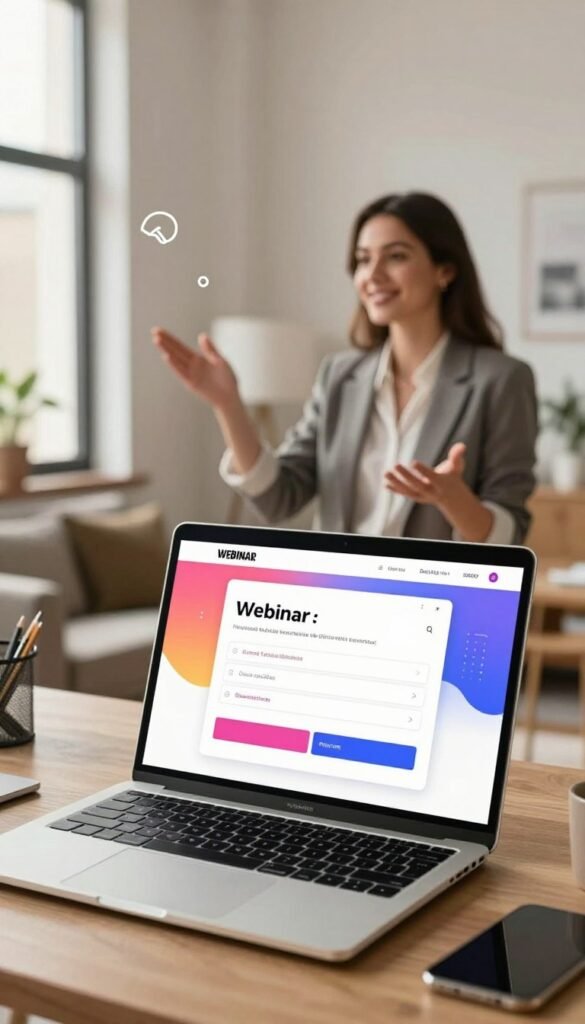
A product launch page can explain what is new and direct customers toward a purchase or signup. A promotion page can put a discount or limited offer at the center. For a webinar, the main action may be registration.
Choose one primary action for each page so its message and call to action stay aligned.
List building is another useful job for a campaign page. You can invite visitors to join your email list in exchange for updates or an offer, then connect that signup with follow-up marketing tools.
Keep the page narrower than your main website. A visitor arriving for a webinar should not have to sort through unrelated services or store pages before finding the registration action.
GetResponse brings page creation and other marketing tools into one platform, which can help keep a campaign’s destination connected to its wider activity. Choose one primary action for each page so the message and call to action stay aligned.
Templates and design resources for a faster start
You can start with one of more than 200 responsive templates instead of building the visual structure from a blank page. Choose a design that fits the campaign’s purpose, then shape its content around your offer.

Choose a predesigned template for your campaign
Predesigned templates give your landing page a ready-made starting structure. You can find options for product launches, promotions, seasonal campaigns, and Black Friday offers.
A thank-you page can also use a template. It gives people a clear response after a purchase or signup, such as confirming what happens next.
Templates suit a creator who wants to spend less time setting up basic page sections. Look for a structure that supports the content your campaign needs, rather than choosing by appearance alone.
Use Unsplash images to shape the visual direction
GetResponse provides 1 million free images from Unsplash for landing page design. You can use the library to find visuals that fit a product, event, or promotion.
Choose images that reinforce the offer and make its subject easier to understand. A striking image may catch the eye, but an unrelated one can distract visitors from the message.
Responsive templates adapt to different screen sizes, but the finished page still needs a mobile review. A title or image that looks balanced on a desktop may take up too much room on a phone.
If you are also planning a broader website, review these website design options for local businesses, stores, blogs, and portfolios. Keep the offer, audience, and campaign goal in view as you select a template and images.
How do you create a landing page with GetResponse?
You can start with the AI Wizard or a predesigned template, then customize the result in the no-code editor. The drag-and-drop editor requires no coding, so you can work with page content directly.

Generate three layouts with the AI Wizard
Describe the page scenario and choose an industry to guide the AI Wizard. The landing page generator creates three designs from your answers, giving you options to review before editing.
Compare the generated layouts with your campaign goal. Select the design that gives your offer and main action the clearest place.

Customize a template in the drag-and-drop editor
You can choose a ready-made template or a blank template, then edit text, images, forms, and buttons. Move page elements into place without writing code.
The main creation routes differ in how much structure they provide:
| Creation method | Starting point | Design work | Coding needed |
|---|---|---|---|
| AI Wizard | Answers and industry | Review three designs | No |
| Predesigned template | Ready-made layout | Edit page elements | No |
| Blank template | Empty page | Build page structure | No |
Use this short workflow to move from an idea to a live page:
- Choose AI creation or a template.
- Customize the page content and layout.
- Set the page details.
- Preview the page and publish it.
Allow enough time to check that the text, form, and button all support the same goal. Review the page’s call to action before publishing so it matches the goal you chose.
Collect signups with forms and popups
GetResponse lets you collect signups with an embedded form or a popup, with triggers such as time on page and scroll depth. Choose the format that suits the offer and the point where visitors are likely to notice it.
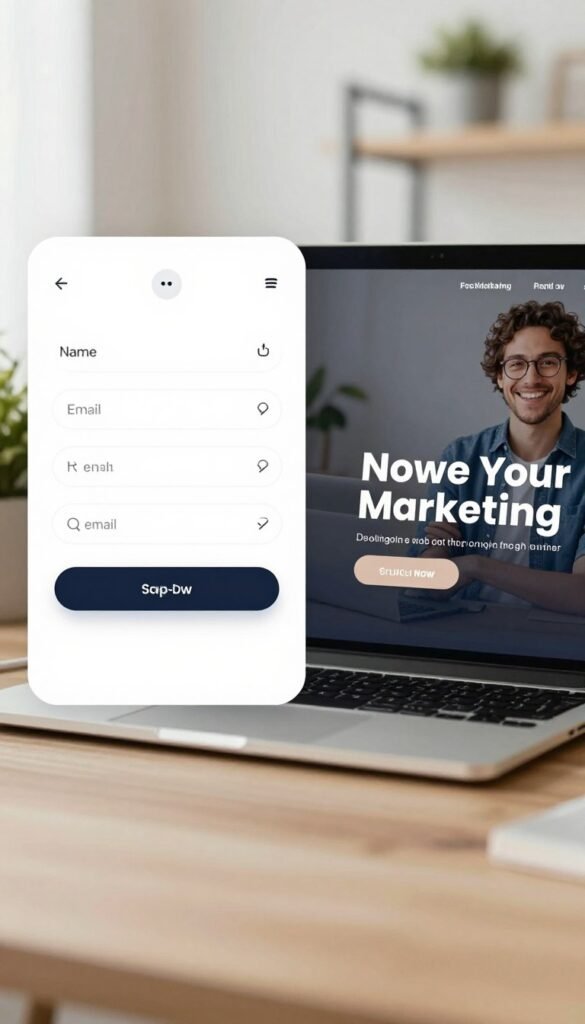
An embedded form stays within the page, so it can sit beside an offer or below its key details. A popup can bring a timely message into view while someone is browsing.
Popup triggers can respond to what a visitor does on the page. Available choices include:
- Time on page
- Scroll depth
- Exit intent
A time-based popup can wait until a visitor has spent time with the offer. A scroll-based trigger can appear after someone reaches a chosen point. Exit intent can show a message when a visitor appears ready to leave.
Timing matters because a popup that appears too soon can interrupt someone before they understand the offer. Give visitors enough time to read the page before asking them to act.
For example, a discount popup may make sense after a visitor has read the product details. A signup form beside the discount can keep the value and the requested action close together.
Keep the page’s promise in mind when choosing what the form asks people to do. Match the form’s request to the value the page promises.
Improve signup forms with testing and useful fields
A form can be tested and tailored to collect the information your campaign actually needs. A/B-tested forms let you compare versions and see which design works better for the page.
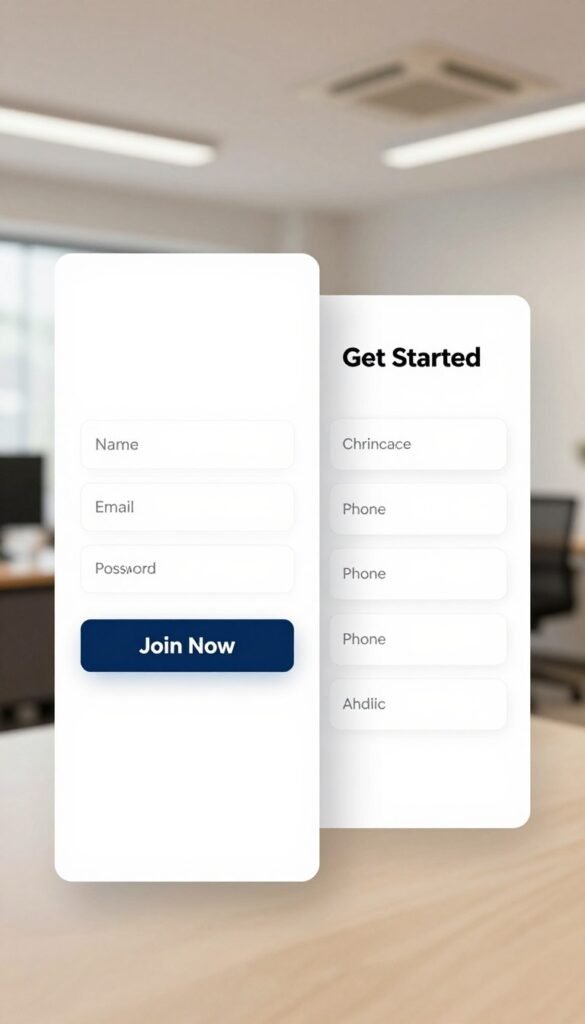
Change one form element at a time when comparing versions. You might test the wording, the number of fields, or the button text.
For instance, one version could ask for an email address only, while another asks for a name as well. A clear button label can tell visitors what they will receive after signing up.
Custom fields let you collect contact details that fit your campaign. A business hosting an event may need a detail that helps organize attendee communication.
Consent fields give contacts a way to agree to marketing or data processing policies. Keep the purpose of each field clear, so people know what they are agreeing to.
Every extra request has a cost: asking for unnecessary details can create friction and make the form feel like work. Add fields only when they support the campaign’s next step.
A short form can suit a simple offer, while a more involved request may need extra details. Keep the form focused on the few details that support the next step.
Connect new signups to email marketing and automation
A landing page signup can feed directly into GetResponse email marketing and automation for follow-up. Subscription settings shape what happens next, from the contact list to the thank-you page.
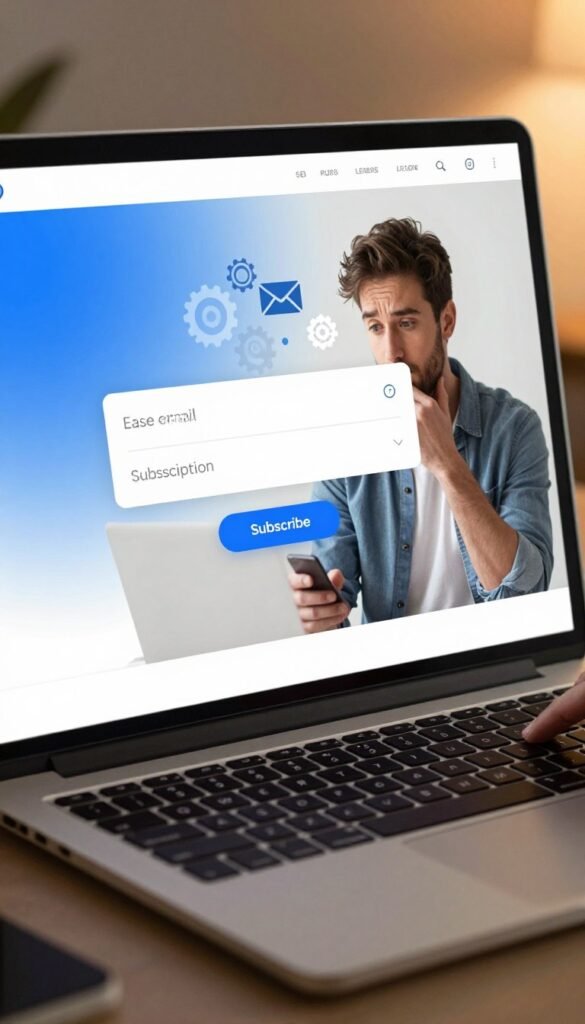
You can assign new contacts to a list and choose whether to use double opt-in. Double opt-in asks people to confirm their signup before they join the list.
You can also add contacts to an autoresponder cycle. This lets you plan a welcome message or another scheduled email after signup.
A welcome email can confirm that a person joined and explain how to use the offer. Keep its promise in line with the page, so the email does not introduce a different deal or next step.
The subscription settings also let you select a thank-you page. That page can confirm that the signup worked and guide the new subscriber toward what comes next.
One clear handoff helps a campaign feel connected from page to inbox. If the page offers event updates, the first email should confirm those updates rather than switch to an unrelated pitch.
Review the details of the signup flow before launch, including the list and autoresponder cycle. Make sure the thank-you page confirms the same next step promised beside the signup form.
Add live chat to answer visitor questions
Live web chat gives page visitors a way to ask a question while they are considering an offer. A quick answer can help someone decide whether to subscribe or purchase.

A chat window can support customers who need one detail before they act. Use it to explain a product feature, clarify the terms of an offer, or point someone toward the right next step.
Three situations can suit a page chat:
- Answering a product question
- Clarifying an offer
- Helping a visitor decide how to proceed
Business hours help set expectations about when your team can reply. Visitors can see whether help is available rather than waiting without knowing when an answer may come.
A visitor capture form can collect details when no agent is online. This gives your team a way to follow up on the conversation when support resumes.
Keep the chat useful by focusing on questions that relate to the page’s offer. A chat prompt that appears at the wrong moment can distract from the campaign instead of helping it.
Set chat availability to match the support your team can provide.
Preview and optimize the mobile layout
Preview the mobile layout and check that visitors can understand the offer and reach its main action comfortably. The primary call to action should be easy to find without excessive scrolling.
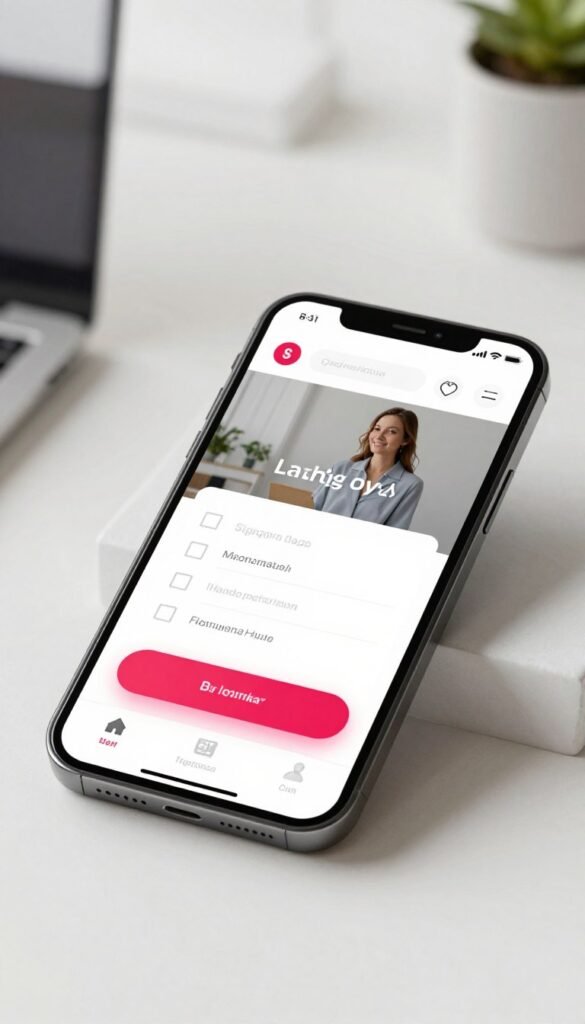
Review the page on a phone-sized screen before publishing. A headline that fits on a desktop may wrap into several lines on a smaller display.
Adjust text, images, form placement, and buttons for the space available. A large image can push the form down, while a narrow button may be harder to tap.
Check that the main offer appears early enough for visitors to understand why they should stay. Keep supporting details close to the content they explain.
Read the page as a visitor would, starting at the top and moving toward the action. Look for any point where the offer becomes hard to follow or the next step disappears from view.
Phone screens differ in size, so a layout that looks right on one device may feel cramped on another. Check the page at a size your audience is likely to use.
Test the finished page at the size your audience is likely to use.
Set page SEO details and add custom code
GetResponse gives you page-level SEO fields and custom-code options to configure before launch. These settings help identify the page and support extra tracking or design needs.
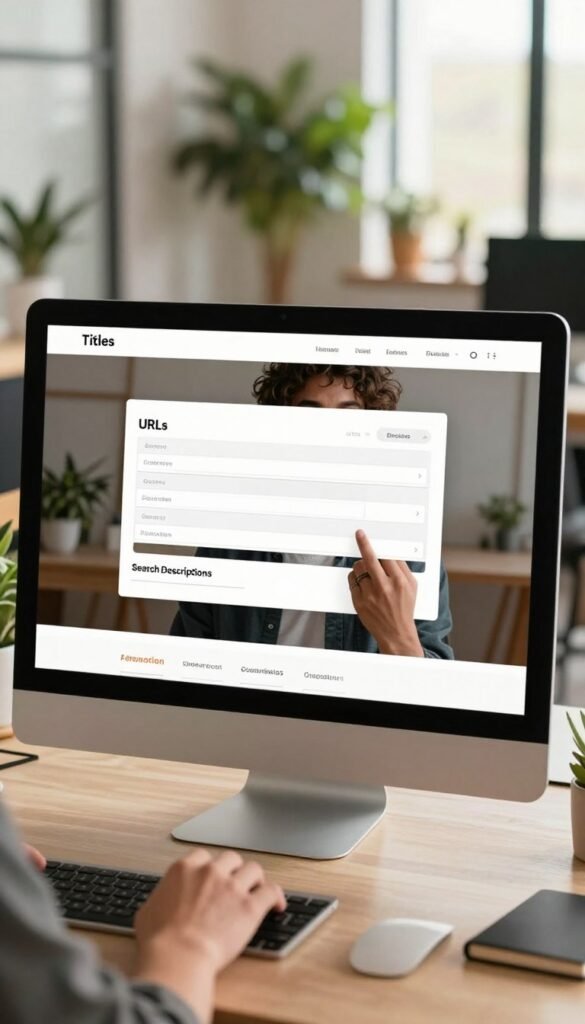
Edit titles, descriptions, URLs, and image alt text
You can edit a page title, meta description, URL, and image alt text. The title and description give the page a clear identity, while alt text describes an image for people who cannot see it.
Choose words that match the offer and the page content. A clear URL can make the destination easier to recognize when you share it.
GetResponse landing pages include SSL security. SSL helps protect the connection between a visitor’s browser and the page.
Add CSS, JavaScript, or HTML for tracking and design
Custom CSS, JavaScript, and HTML can support tracking codes, analytics pixels, or custom design details. These options suit campaigns that need code beyond the standard editor tools.

For example, a tracking code may help connect page activity with an analytics tool. A small style change can also adjust a design detail that the editor does not cover.
Keep custom code limited to what the campaign needs, so the page remains easier to manage. Code that no longer serves the page can make later edits harder to review.
Use the built-in fields for basic page details, then add code only when the campaign needs it. Review the title, description, and URL together so they accurately describe the offer.
Publish on a GetResponse subdomain or custom domain
You can publish a GetResponse landing page on a GetResponse subdomain or connect your own domain at no charge. Connecting your own domain to a landing page is free of charge.

A GetResponse subdomain uses an address associated with GetResponse. It gives you a place to publish without using a domain you own.
A custom domain uses an address connected to your brand. Visitors may recognize it more easily when it matches the domain used across your other campaign materials.
The connection charge differs from the address itself. The table shows the publishing options and the charge for connecting each address type.
| Publishing option | Address type | Connection charge |
|---|---|---|
| GetResponse subdomain | GetResponse address | No separate domain connection charge |
| Your own custom domain | Your domain address | Free |
Choose the address with your campaign in mind. A custom domain may fit a branded promotion, while a GetResponse subdomain can serve a page that does not need your own address.
Check that the address is easy to read and fits the name visitors expect to see. Choose the address that fits the branding and campaign setup you want to present.
What does each GetResponse plan offer for landing pages?
The Free plan includes one published landing page and up to 500 contacts, while paid plans start at $15 per month. Paid plans allow multiple landing pages with unlimited visitors.

Start with the Free plan
The Free plan lets you create and publish one landing page. It also stores up to 500 contacts, making it a useful start for a smaller campaign.
If you need only one page, the Free plan includes page creation and publication. You can use it to build a campaign destination and connect signups with GetResponse tools.
One published page is the key limit to keep in mind when planning more than one campaign. A second page may require a paid plan.
Consider a paid plan for multiple pages
Paid plans start at $15 per month and let you publish multiple landing pages with unlimited visitors. They can suit a business running several campaigns at once.
The comparison below keeps the landing-page details in view:
| Plan | Published landing pages | Contacts | Visitors | Starting price |
|---|---|---|---|---|
| Free plan | One | Up to 500 | Not stated | Free |
| Paid plans | Multiple | Not stated | Unlimited | $15 per month |
The Free plan can work for a single page and a contact list within its stated limit. Paid plans can support multiple page destinations and unlimited visitors.
Match your plan choice to the number of pages and audience capacity your campaign needs.
Measure page performance with reports and integrations
GetResponse reports track visits, clicks, and signup rates, while the dashboard also tracks contacts and subscription rate. Subscription rate is the percentage of visits that end in a subscription.

Read visits, clicks, contacts, and subscription rate
Landing page reports show visits, clicks, and signup rates. The dashboard tracks visits, contacts, and subscription rate, giving you a view of how visitors move toward becoming subscribers.
The two views offer different measures:
| View | Measures |
|---|---|
| Landing page reports | Visits, clicks, signup rates |
| Landing page dashboard | Visits, contacts, subscription rate |
A high number of visits with few clicks may point to a mismatch between the page content and its action. Contacts show how many people joined through the page.
Connect analytics and tracking tools
Landing pages integrate with Google Analytics, Google Tag Manager, and Facebook Pixel. These tools can add another view of campaign activity across your marketing setup.

Use the measures as clues, not as a reason to change every part of the page at once. Visits, clicks, contacts, and signups can help you spot where a page may need attention.
For example, a page with visits but few signups may need a clearer offer or a more visible action. Use one clear performance measure to guide each page change.
Build pages for ecommerce and seasonal campaigns
GetResponse landing pages can support ecommerce promotions, product launches, and seasonal campaigns such as Black Friday. A focused offer gives each campaign a clear destination.
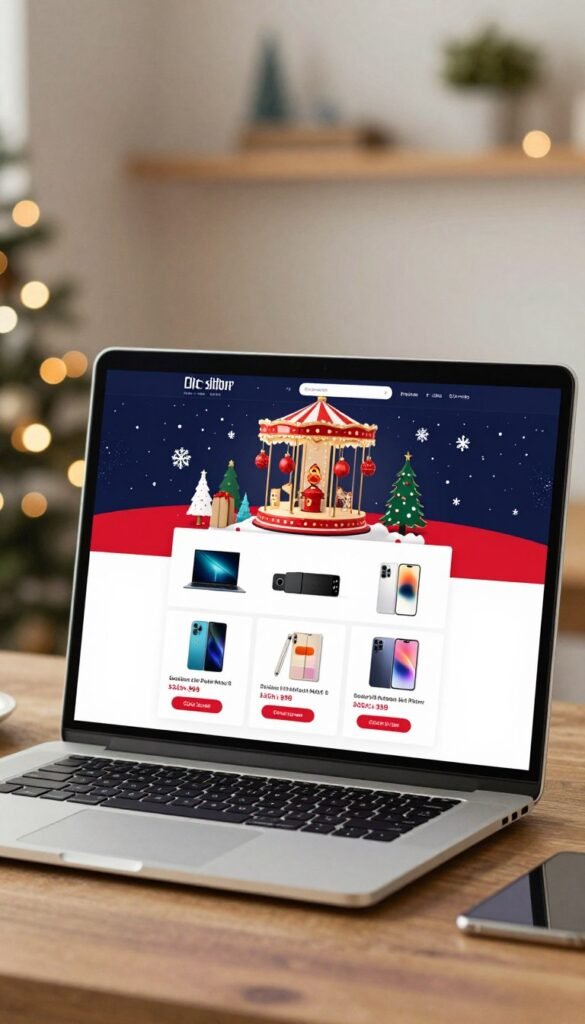
A product launch page can introduce a new item and direct customers toward its store listing. A promotional page can place a sale offer and its terms together.
For ecommerce campaigns, you can add product boxes from your store. The page can also connect with email and automation campaigns to support the customer’s path.
Common campaign uses include:
- New product launch
- Sale promotion
- Black Friday offer
- Welcome discount for a first order
A seasonal sale may need a different message from an ongoing store page. Keep the main offer easy to find, and make sure the product box supports the action you want customers to take.
Time-bound offers need clear terms, especially when the page appears in several marketing messages. Keep the page offer and the campaign message consistent across the visitor’s path.
Customize the page around one campaign action
A focused landing page makes its offer and next step easy to understand. Arrange the page so the main action stands out, with supporting content in a useful order.
Arrange content to make the offer clear
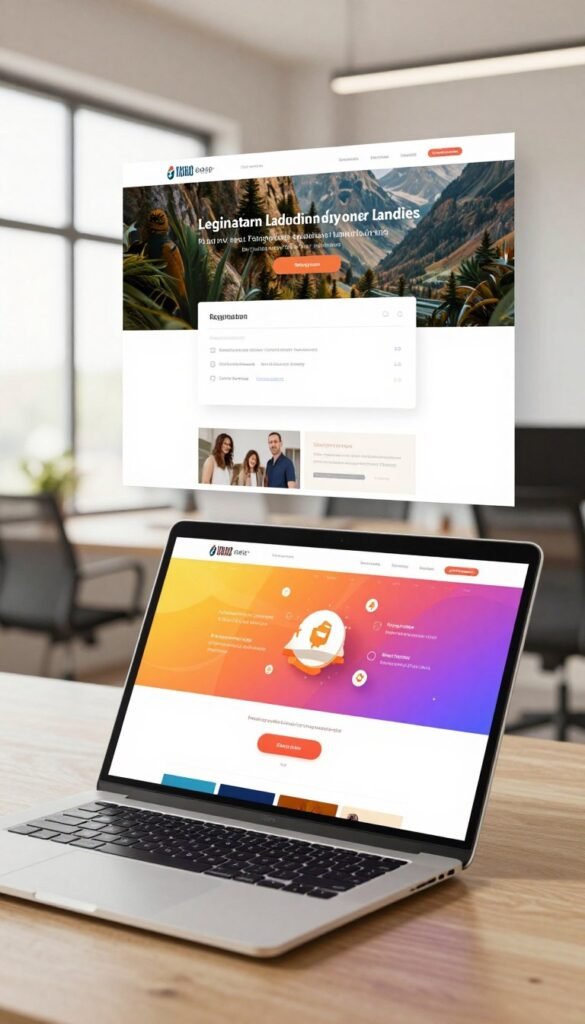
Start with the offer, then add the supporting copy and visual content visitors need to understand it. A clear reading order helps people see what is available and why they should act.
Sections and layouts let you group related content. Keep details close to the offer they explain, rather than scattering key terms across the page.
If you are choosing a broader website design as well, consider how website options for stores and local businesses fit your brand. A campaign page still needs a narrower focus than a full business site.
Add page elements that support the next step
The editor offers blocks for forms, images, text, and product boxes. You can also add buttons, video, social sharing icons, and PayPal buttons.
Each element can serve a different page goal. A form can collect interest, a product box can present an item, and a PayPal button can support payment.
Use this quick check while arranging the page:
- Make the offer easy to identify.
- Keep supporting content relevant.
- Make the primary action prominent.
Each element should earn its space. Remove any page element that competes with the action the campaign is meant to earn.
Get started with your GetResponse account
After signing in to GetResponse, open Landing pages and choose Create landing page to begin. You can start with AI or select a ready-made or blank template.
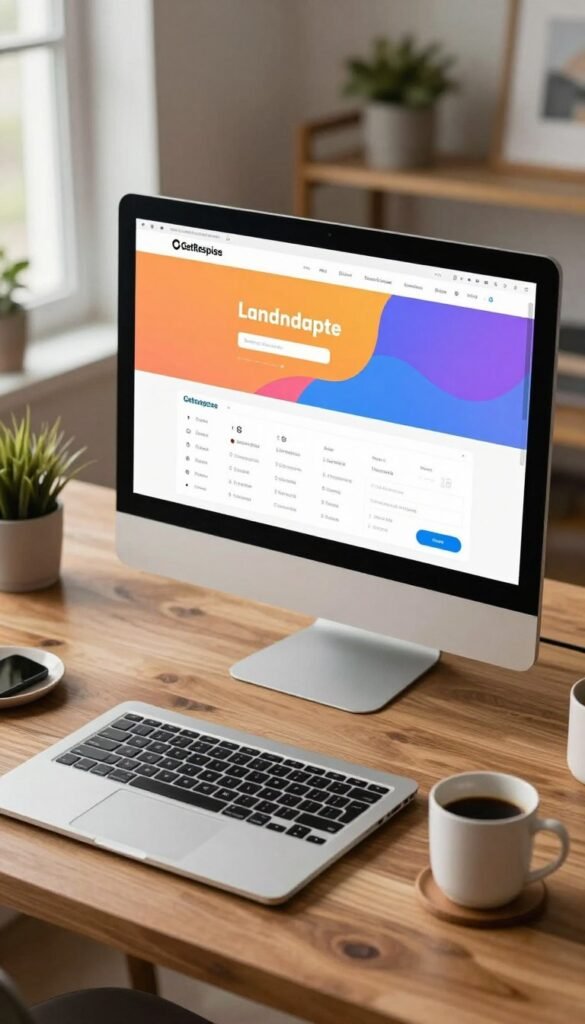
To create a landing page, follow this checklist:
- Sign in to your GetResponse account.
- Choose AI, a ready-made template, or a blank template.
- Customize the content and forms.
- Set page details and the URL.
- Preview the mobile layout and publish.
The editor gives you a place to shape the page before it goes live. Choose the starting point that fits the time you have and the amount of design work you want to do.
Save useful work for later: the editor lets you save a finished page as a template for reuse. That can help when future campaigns share a similar structure.
Before publishing, read the page from the visitor’s point of view. Check that the offer, form, and final action still fit together after your edits.
Save a finished layout as a template when you expect to reuse its structure.
Conclusion
GetResponse combines no-code page creation with signup collection and follow-up marketing. You can begin with AI or a template, then connect new signups with GetResponse email marketing and automation.
A focused page can give a campaign a clear destination without requiring you to build a full website. The Free plan includes one published page, while paid plans support multiple pages and unlimited visitors.
Sign in to GetResponse and choose a campaign goal before creating your first page.